Claude MCP Connector
The SignalSync MCP Connector integrates SignalSync with Anthropic Claude through the Model Context Protocol (MCP) — an open standard that allows AI assistants to securely access external tools and data on your behalf.
Once connected, you can query your SignalSync workflow requests and workflow definitions directly from a Claude conversation, using natural language.
The Model Context Protocol (MCP) is an open standard developed by Anthropic that allows AI models to connect to external services in a secure, structured way. Claude uses MCP to call tools on your behalf — similar to how you would use an integration or connector in any modern platform.
Prerequisites
Before connecting, make sure you have:
- An active SignalSync tenant with your subdomain (e.g.
yourcompany.signalsync.cloud) - A valid SignalSync user account with at least read access to workflow requests
- An Anthropic Claude account on a Pro, Max, Team, or Enterprise plan (MCP connectors require a paid plan)
Connecting SignalSync to Claude
Step 1 — Open Connector Settings in Claude
- Sign in to claude.ai
- Click your profile icon (top right) and go to Settings
- Select Connectors from the left menu
- Click the + button to add a new connector
Step 2 — Add the Custom Connector
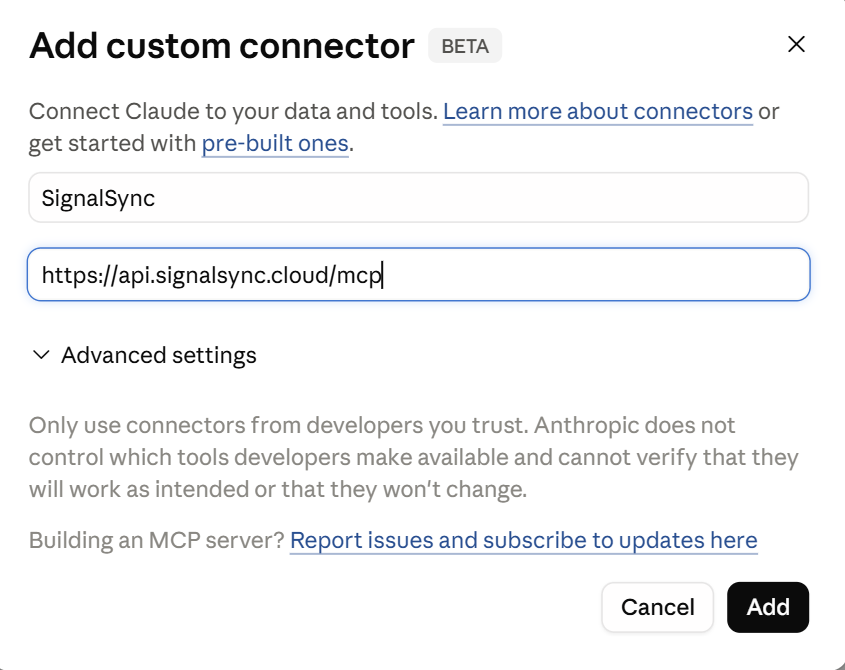
In the Add custom connector dialog, enter the SignalSync MCP server URL:
https://api.signalsync.cloud/mcp
Click Add.
Click to view Add Custom Connector interface
Step 3 — Enter Your SignalSync Tenant
Claude will redirect you to the SignalSync tenant selection page. Enter your tenant subdomain (the prefix of your SignalSync URL, e.g. yourcompany for yourcompany.signalsync.cloud) and click Continue.
Click to view Tenant Selection interface
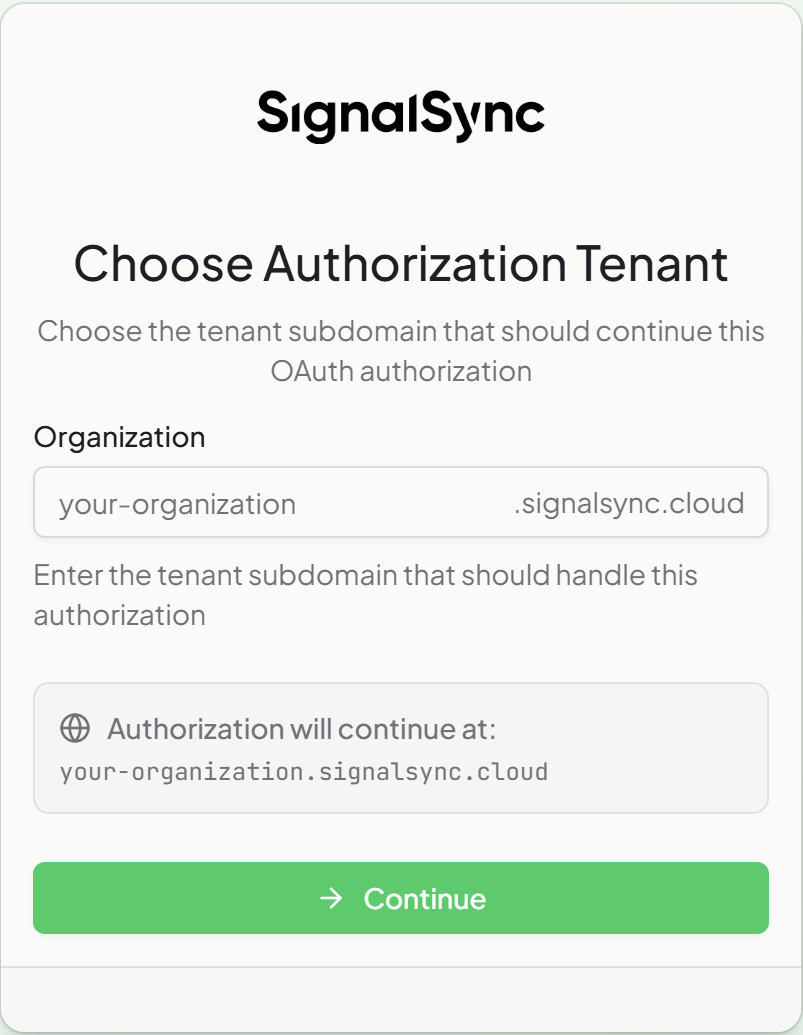
SignalSync uses a multi-tenant architecture. The subdomain you enter here determines which tenant Claude will connect to. All data access through the MCP connector is scoped to this tenant.
Step 4 — Sign In with Your SignalSync Credentials
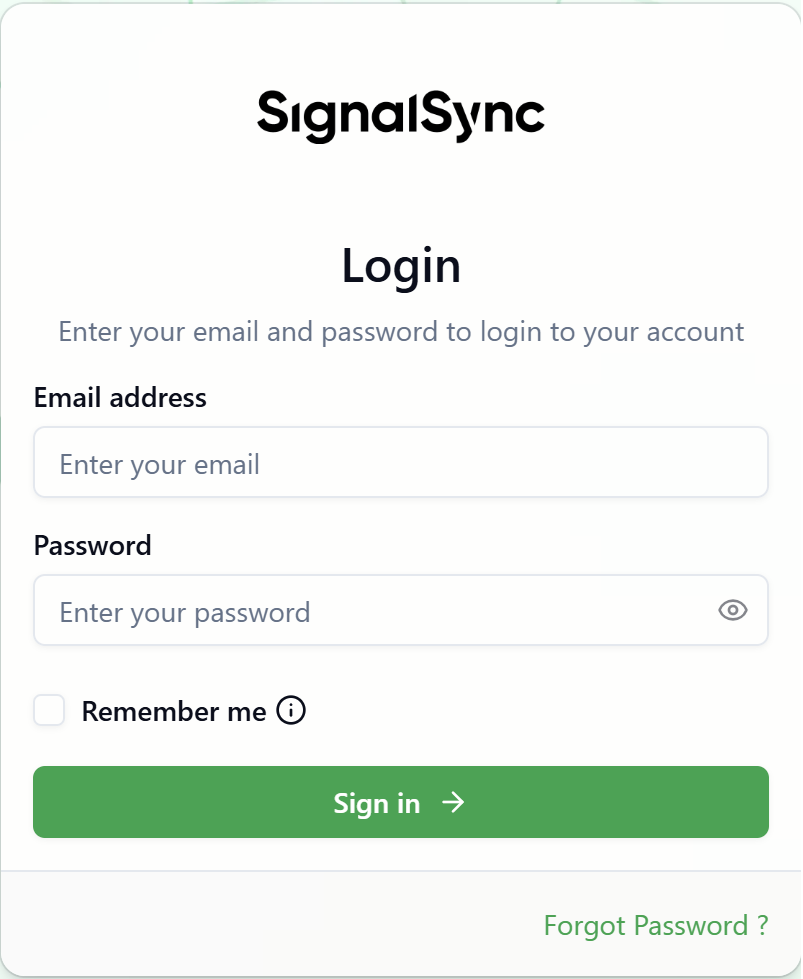
After selecting your tenant, you will be redirected to the SignalSync login page. Enter your SignalSync credentials:
- Email: your SignalSync account email
- Password: your SignalSync account password
Click Sign in.
Click to view Credentials interface
Step 5 — Authorize Access
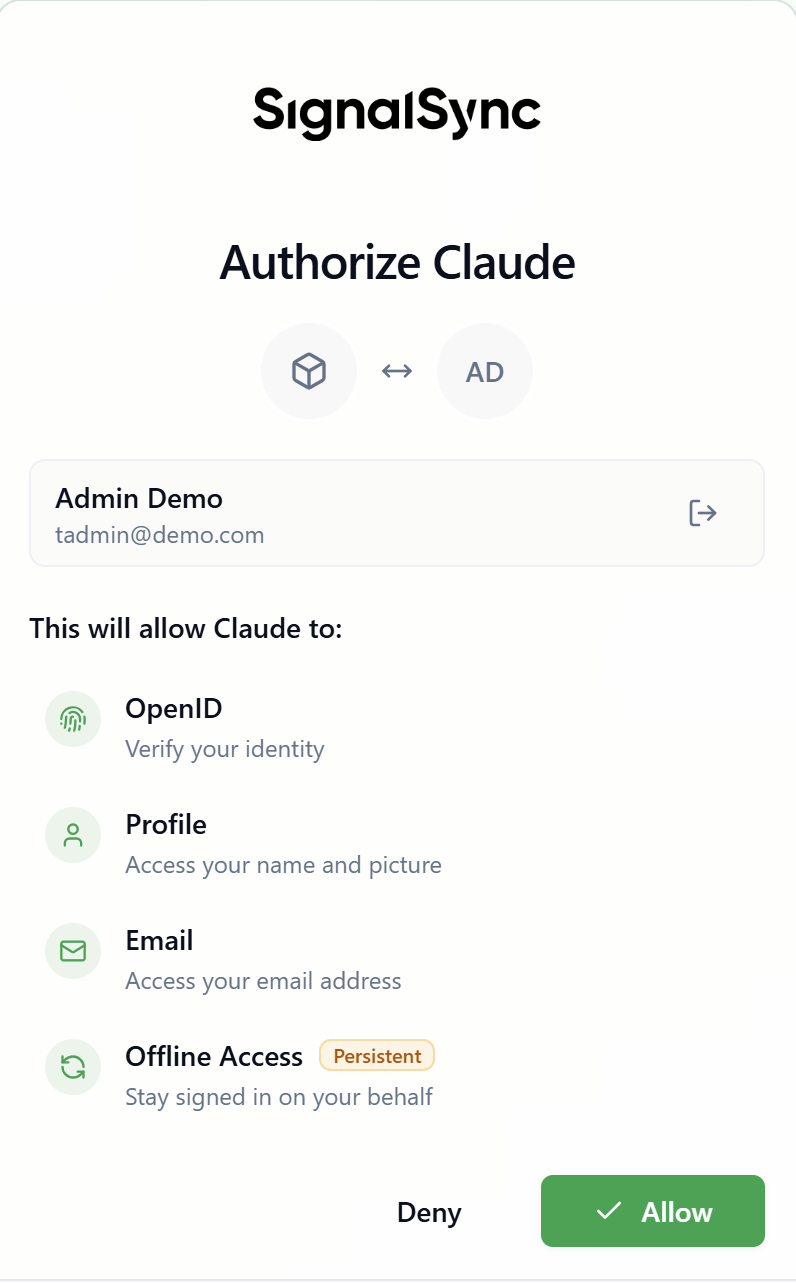
After signing in, SignalSync displays an authorization consent screen listing the permissions being requested:
openid— verify your identityprofile— read your name and account detailsemail— read your email addressoffline_access— maintain the connection between sessions
Click Authorize to grant Claude access to your SignalSync tenant.
Click to view Authorize interface
Step 6 — Verify the Connection
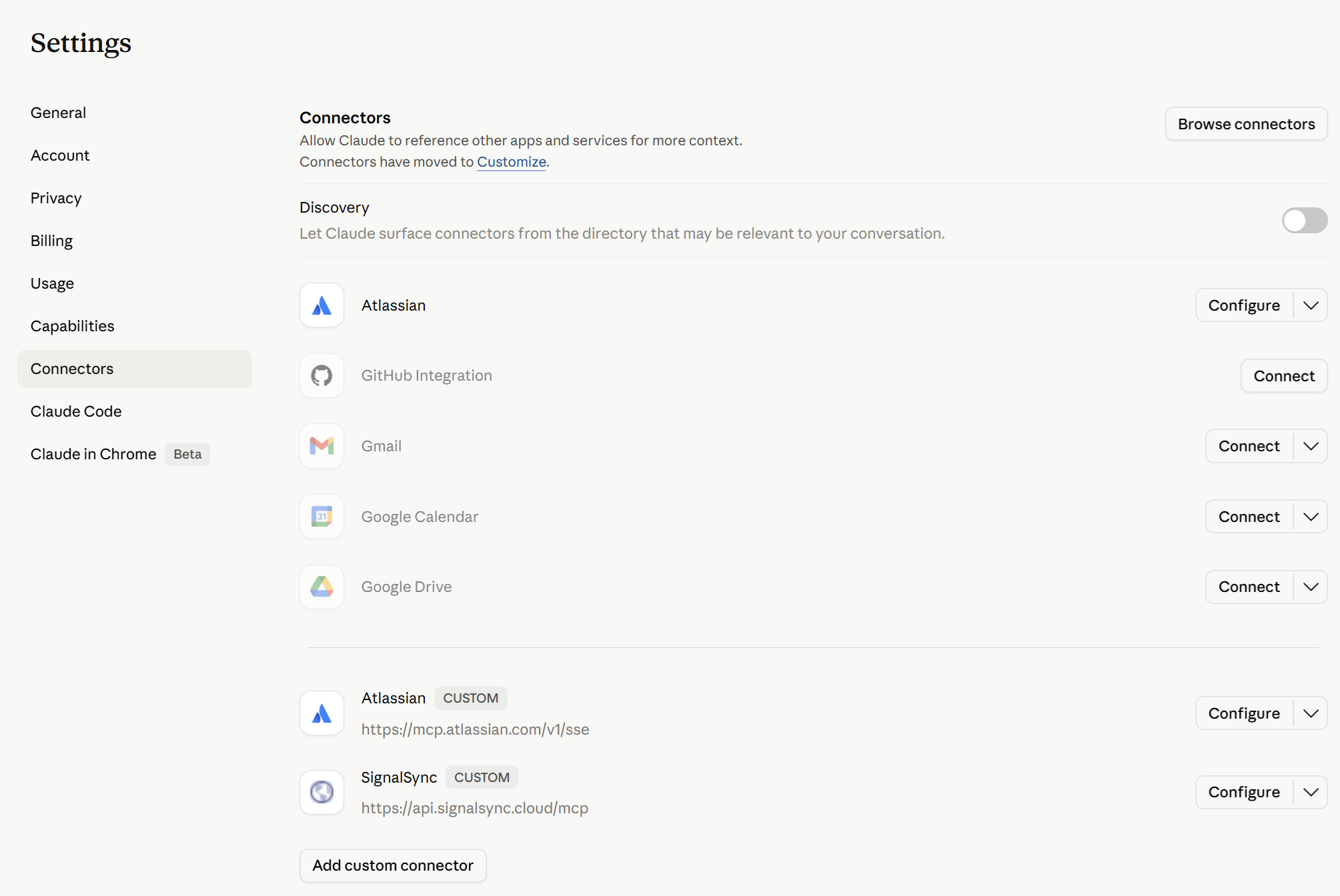
Return to Claude. The SignalSync connector should now appear under Settings → Connectors with status Connected. You will see two tools listed:
| Tool | Description |
|---|---|
query_requests | Query workflow requests with filters by status, type, date, assignee, and more |
query_workflows_definition | Retrieve workflow definitions and their form field schemas |
Click to view Connectors interface
Using the Connector
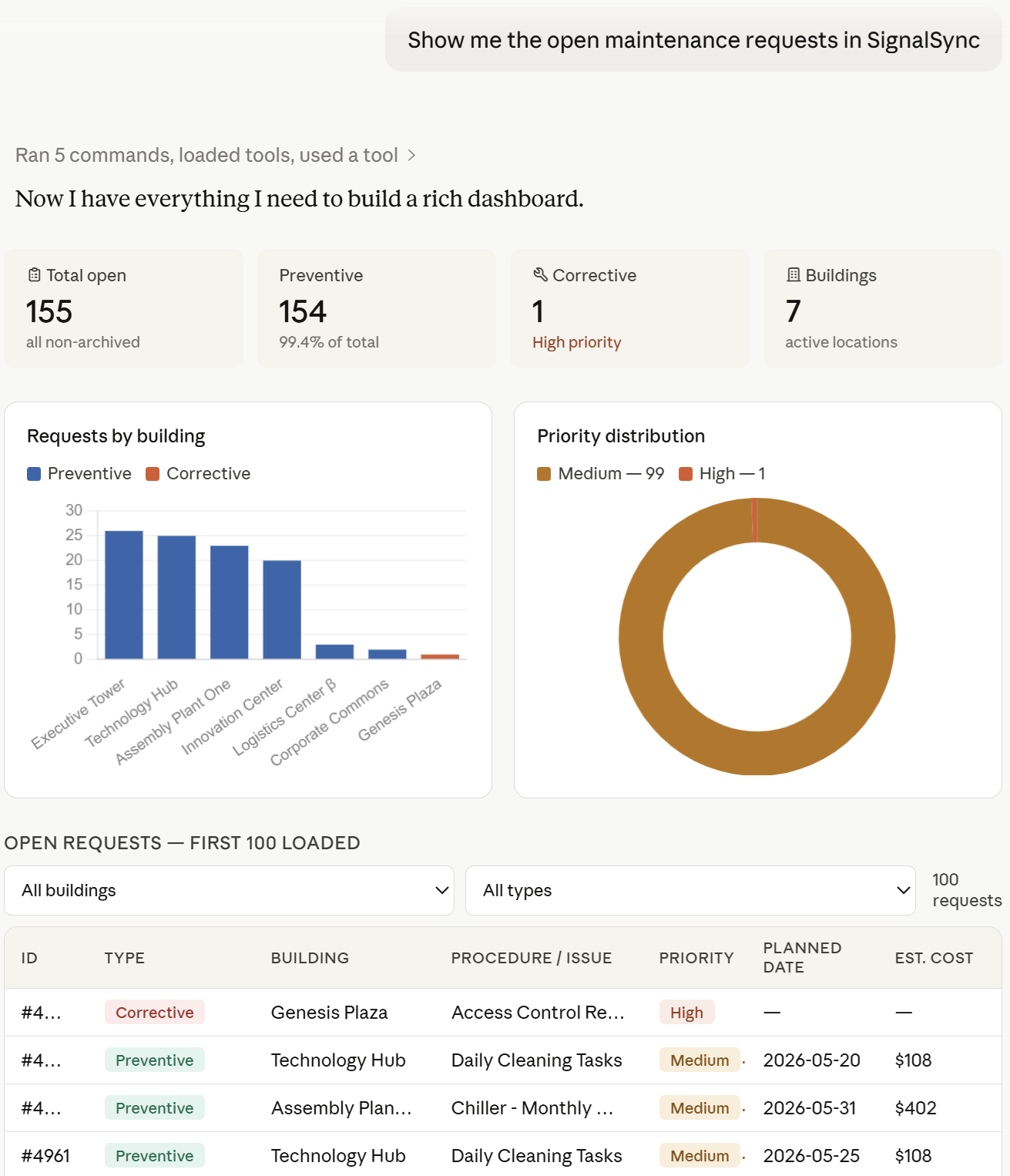
Once connected, you can ask Claude questions about your SignalSync data in natural language. Claude will call the appropriate tool and return a structured, readable response.
Click to view Sample Prompt interface
Example Prompts
Claude can route a question to the SignalSync connector based on context, but if you have other connectors installed (e.g. Jira, ServiceNow, Asana) terms like requests, tickets, or workflows may be ambiguous. Explicitly naming SignalSync in your prompt guarantees Claude calls the right tool.
Querying requests:
"Show me all open maintenance requests in SignalSync"
"How many workflow requests were submitted in SignalSync last month?"
"List the SignalSync requests assigned to me that are pending approval"
"Show me the high-priority SignalSync requests created this week"
"Summarize the open SignalSync requests by workflow type and show me the total count for each"
"In SignalSync, which supervisor has the most pending requests assigned to them?"
Tool Reference
query_requests — Query workflow requests
Retrieves workflow requests from your SignalSync tenant with optional filtering.
Key filter parameters:
| Parameter | Description | Example |
|---|---|---|
workflowType | Filter by workflow type code | "MAINTENANCE" |
status | Filter by request status | "OPEN" |
assignedTo | Filter by assigned user | "[email protected]" |
dateFrom / dateTo | Filter by submission date range | "2026-01-01" |
archiveStatus | Include archived requests | {"equals": "ALL"} |
size | Number of results per page (max 100) | 100 |
page | Page number for pagination | 0 |
Notes:
- Use
archiveStatus: {"equals": "ALL"}andrequestDelegation: {"equals": "ALL"}to retrieve the full tenant dataset without filtering - Use
size: 100and paginate usingpagefor large datasets totalCountin the response is reliable for calculating total pages
query_workflows_definition — Retrieve workflow definitions
Retrieves the workflow definitions configured in your SignalSync tenant, including their form field schemas, available statuses, and action configurations.
Useful for:
- Understanding what workflows are available in your tenant
- Inspecting form fields before querying requests
- Building Rule Chains or integrations that reference workflow structure
Tool Permissions
Claude gives you control over how each tool is used. In Settings → Connectors → SignalSync, you can set the permission for each tool:
| Icon | Permission | Behaviour |
|---|---|---|
| ✅ Auto-approve | Claude calls the tool automatically without asking | Recommended for read-only queries |
| ✋ Ask every time | Claude asks your permission before each tool call | Default setting |
| 🚫 Disabled | Claude cannot use this tool | Use to restrict access |
Both query_requests and query_workflows_definition are read-only tools — they never modify your data. Setting them to Auto-approve gives you the smoothest experience without confirmation prompts on every query.
Data Access and Privacy
- Read-only access: The SignalSync MCP Connector only reads data — it cannot create, modify, or delete workflow requests or definitions.
- Tenant isolation: Claude can only access data within your authenticated tenant. No cross-tenant data access is possible.
- No AI training: SignalSync does not use your data exchanged via MCP for AI training, profiling, or any secondary purpose.
- No conversation storage: SignalSync does not store the content of your Claude conversations.
- Token scope: OAuth tokens are scoped to your user account and tenant. Revoking access in Claude immediately invalidates the token on the SignalSync side.
For full details see our Privacy Statement and Data Processing Agreement.
Disconnecting
To remove the SignalSync connector from Claude:
- Go to Settings → Connectors in Claude
- Find SignalSync and click Uninstall
- Confirm the removal
This immediately revokes Claude's access token. Your SignalSync data and tenant are not affected.
Troubleshooting
Claude shows 'Connection failed' when adding the connector
- Verify the MCP URL is entered exactly as:
https://api.signalsync.cloud/mcp - Ensure your SignalSync tenant is active and reachable at
yourcompany.signalsync.cloud - Check that your Claude plan supports MCP connectors (Pro, Max, Team, or Enterprise required)
- Try disconnecting and reconnecting the connector
I'm redirected to login but can't sign in
- Make sure you are using your SignalSync credentials, not your Claude credentials
- Your SignalSync account must have an active session — verify you can log in directly at
yourcompany.signalsync.cloud - If your organisation uses SSO, contact your SignalSync administrator to ensure your account is enabled for API access
The tools return no data
- Verify your user account has read permissions on workflow requests in your tenant
- Try adding
archiveStatus: {"equals": "ALL"}if you expect to see archived records - Check with your SignalSync administrator that your user profile has access to the relevant workflow types
Claude asks for permission on every query
Go to Settings → Connectors → SignalSync in Claude and change both tool permissions from Ask every time to Auto-approve. Both tools are read-only and safe to auto-approve.