Regional Settings
Regional Settings allow Tenant Administrators to configure organization-wide preferences for language, localization, and email forwarding. These settings establish the default experience for all users within the tenant and ensure consistent data presentation across the platform.
Overview
As a Tenant Administrator, you can configure two main areas:
- Forward Email: Redirect all system-generated emails to a specific address for testing or monitoring purposes
- Localization & Regional Settings: Define language, country, currency, measurement units, date/time formats, and timezone preferences
These settings are applied at the tenant level and serve as defaults for all users, though individual users can customize certain preferences in their personal account settings.
Tenant-Level Settings (configured here by Tenant Administrator):
- Determine the default language used when creating new user accounts
- Set the timezone and date/time formats used throughout the application
- Define currency and measurement units for the organization
- Apply to all system-generated emails and notifications
User-Level Settings (configured in My Account by individual users):
- Allow users to override the interface language for their personal experience
- Personal language preferences take precedence over tenant defaults
- Users cannot change timezone, date formats, or other regional settings—these remain controlled at the tenant level
When a new user is created, SignalSync automatically assigns the tenant's default language. The user can later change their language preference, but all other localization settings (timezone, formats, etc.) remain consistent across the organization.
Forward Email
The Forward Email feature allows you to redirect all system-generated emails to a designated email address. This is particularly useful for:
- Testing email notifications in development or staging environments
- Monitoring email communications before production deployment
- Centralizing email auditing for compliance purposes
Configuring Forward Email
- Navigate to Settings from the left sidebar
- Select the General tab
- Enable the Forward Email toggle switch
- Enter the destination email address in the text field
- Click Save Changes
The description below the email field confirms: "This will forward all emails to the specified email address."
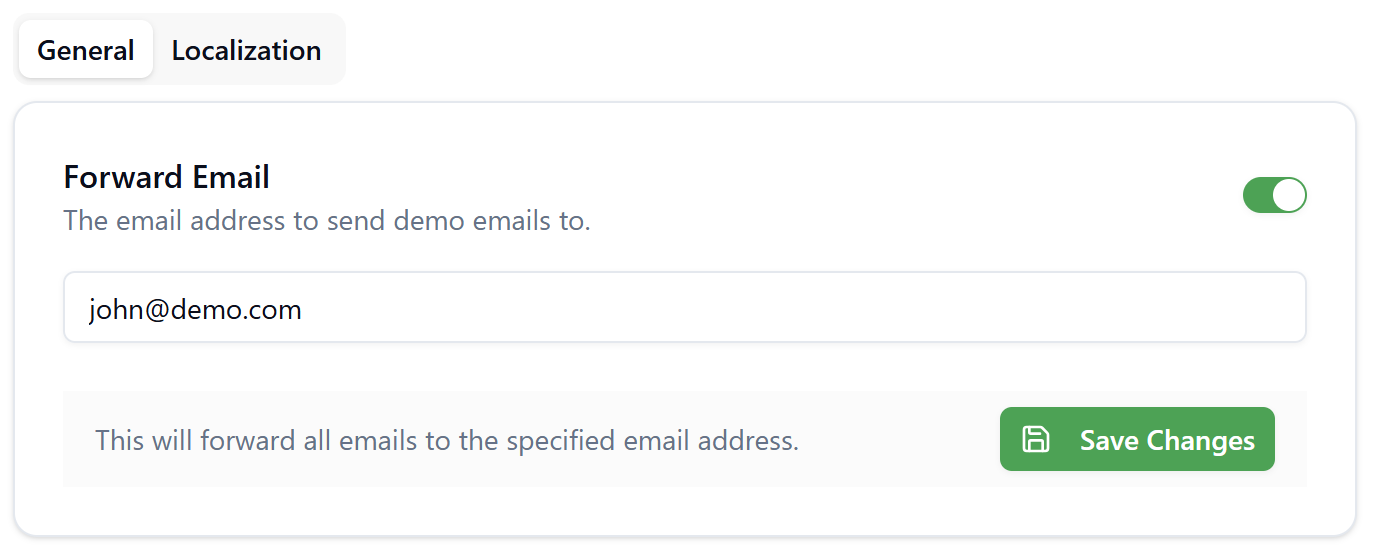
When Forward Email is enabled, all outbound emails (including user activation emails, workflow notifications, and system alerts) will be sent to the specified address instead of the intended recipients. Remember to disable this feature in production environments.
Localization & Regional Settings
Localization & Regional Settings allow you to configure default language, regional, and measurement preferences for your organization. These settings apply to all users within the tenant and affect how data is displayed throughout the platform.
When the SignalSync Cloud Administrator creates a tenant, they select a default language. Once the tenant is created, only the Tenant Administrator can modify these language and regional settings.
Accessing Localization Settings
- Navigate to Settings from the left sidebar
- Select the Localization tab
- Configure the desired settings (see sections below)
- Click Save Changes to apply your preferences
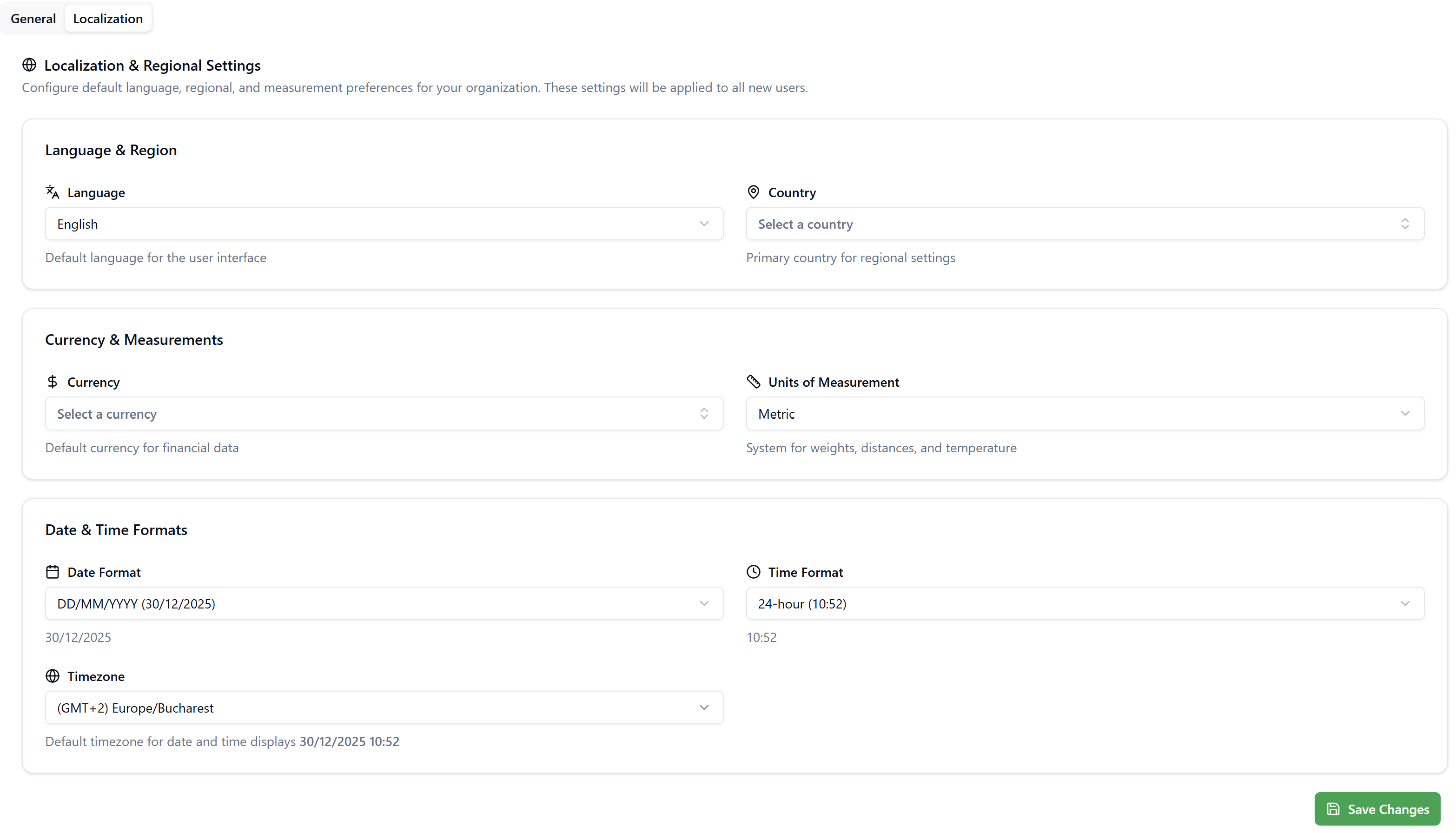
Language & Region
Language
Select the default language for the user interface. This setting determines:
- The language used in the SignalSync application interface
- The language for system-generated emails, including user activation emails
- The default language assigned to newly created users
Available languages are displayed in a dropdown menu. When you change the tenant language, all new users will receive activation emails and see the interface in this language by default.
Country
Select your organization's primary country for regional settings. This setting helps configure appropriate defaults for currency, formats, and regional preferences.
While the tenant's language setting establishes the default, individual users can change their interface language in Manage Account > Profile Information. The user's personal language preference will override the tenant default for their session, but all other users will continue to see the tenant's default language.
Currency & Measurements
Currency
Select the default currency for financial data throughout the platform. This setting affects:
- How monetary values are displayed in reports and dashboards
- Financial calculations and cost tracking
- Budget and expense management features
Units of Measurement
Choose between Metric or Imperial measurement systems for weights, distances, and temperature. This setting ensures consistency in how measurements are displayed across:
- Facility management data
- Asset specifications
- Work order details
- Reporting and analytics
Date & Time Formats
Date Format
Select your preferred date format from the available options. Example formats include:
- DD/MM/YYYY (30/12/2025)
- MM/DD/YYYY (12/30/2025)
- YYYY-MM-DD (2025-12-30)
The selected format will be used consistently throughout the application interface.
Time Format
Choose between:
- 12-hour format: Displays time with AM/PM (e.g., 2:30 PM)
- 24-hour format: Displays time in military format (e.g., 14:30)
Example: "24-hour (10:06)"
Timezone
Select your organization's timezone from the dropdown list. This is a critical setting that affects:
- How timestamps are displayed throughout the application
- Scheduled workflow executions
- Report generation times
- Notification delivery timing
SignalSync stores all date and time data in UTC (Coordinated Universal Time) in the database. The timezone setting controls how this data is displayed to users in the interface. This ensures data consistency while allowing appropriate local time presentation.
Example: If the database stores a timestamp as "2025-12-30 08:06:00 UTC" and your tenant timezone is set to "(GMT+2) Europe/Bucharest", the interface will display "30/12/2025 10:06" to users.
If your workflows include email notifications that display date/time values using FreeMarker binding expressions, you may need to adjust these expressions to ensure they respect the tenant's timezone settings. Consult the workflow documentation for details on timezone-aware date formatting.
Best Practices
When configuring Regional Settings for your tenant:
- Set timezone first: Ensure the timezone is correctly configured before creating workflows or scheduling automated processes
- Communicate changes: If you modify regional settings after users have been active, notify them of the changes, especially timezone adjustments
- Consider your users: If your organization operates across multiple regions, choose formats that will be most familiar to the majority of your users
- Disable Forward Email in production: Remember to turn off email forwarding when moving from testing to production environments
- Test localization changes: After modifying language or regional settings, verify that notifications and reports display correctly
Summary
Regional Settings provide centralized control over your tenant's language, localization, and email preferences. As a Tenant Administrator, properly configuring these settings ensures:
- Consistent user experience across your organization
- Appropriate display of dates, times, and measurements
- Correct language for system communications
- Flexibility for testing and monitoring email notifications
Remember that while users can customize their interface language, all other regional settings remain under tenant-level control to maintain organizational consistency.