Application Parameters
Application Parameters allow Tenant Administrators to configure the behavior of licensed applications within the SignalSync platform. These parameters control various aspects of system functionality, including workflow processing, file management, and automation rules.
Overview
Parameters are pre-configured settings that come bundled with each licensed application. While you cannot create new parameters, you have full control over editing the values to suit your organization's specific needs.
Accessing Application Parameters
- Navigate to Settings from the main menu
- Select Parameters from the settings submenu
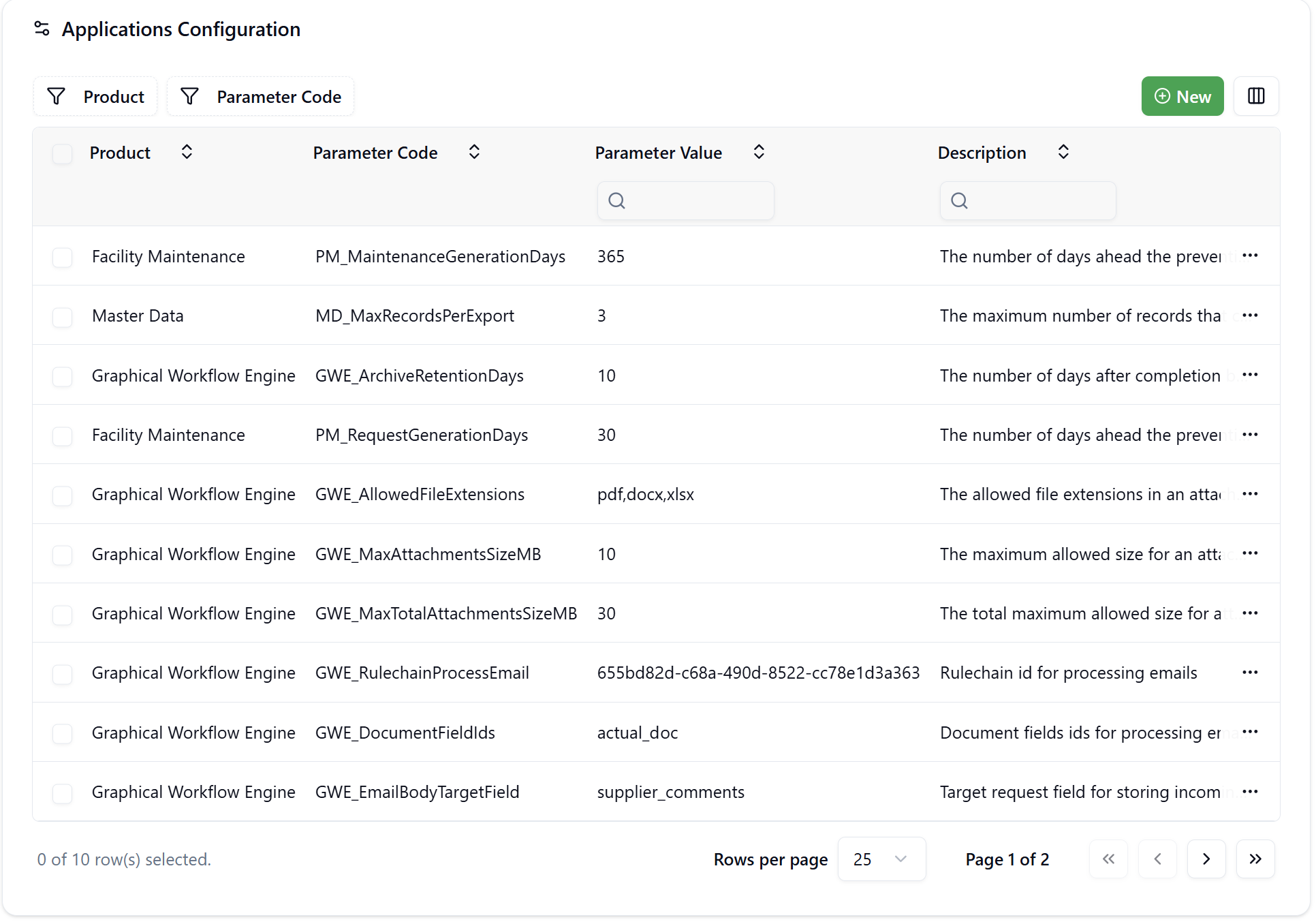
- The Application Configuration screen displays all available parameters organized by product
Understanding Parameters
Each parameter consists of:
- Product: The application module the parameter belongs to
- Parameter Code: A unique identifier for the parameter (read-only)
- Parameter Value: The configurable value that controls behavior
- Description: Explanation of what the parameter controls and its default value
Parameters are specific to your tenant and do not affect other tenants in the system.
Available Parameters by Product
Graphical Workflow Engine (GWE)
The Graphical Workflow Engine parameters control workflow execution, archiving, and file handling capabilities.
Archive and Retention
| Parameter Code | Default Value | Description |
|---|---|---|
GWE_ArchiveRetentionDays | 90 | The number of days after completion before archiving workflow requests. Completed requests will be moved to archive storage after this period. |
Email Processing
| Parameter Code | Default Value | Description |
|---|---|---|
GWE_RulechainProcessEmail | (empty) | Rulechain ID for processing incoming emails. Must reference a valid rulechain configured in your system. |
GWE_DocumentFieldIds | actual_doc, supplier_doc_1, supplier_doc_2 | Document field IDs where email attachments will be stored. Comma-delimited list of field identifiers. |
GWE_EmailBodyTargetField | supplier_comments | Target request field for storing incoming email body content. |
GWE_MaxAttachmentsSizeMB | 10 | The maximum allowed size for a single attachment in megabytes. |
GWE_MaxTotalAttachmentsSizeMB | 30 | The total maximum allowed size for all attachments combined in a single request. |
GWE_AllowedFileExtensions | pdf,docx,xlsx | The allowed file extensions for attachments. Multiple extensions should be comma-delimited. |
Email Processing Workflow:
- Incoming emails are processed by the specified rulechain
- Email attachments are distributed to the document fields listed in
GWE_DocumentFieldIds - The email body content is stored in the field specified by
GWE_EmailBodyTargetField
The GWE_RulechainProcessEmail parameter requires a valid rulechain ID. Configure your email processing rulechain first, then reference its ID here.
Facility Maintenance (PM)
Facility Maintenance parameters control the generation of preventive maintenance tasks and requests.
| Parameter Code | Default Value | Description |
|---|---|---|
PM_MaintenanceGenerationDays | 365 | The number of days ahead the preventive maintenance tasks will be generated for. The system will automatically create PM tasks for this future period. |
PM_RequestGenerationDays | 30 | The number of days ahead the preventive maintenance requests will be generated for. This controls when actual work requests are created from scheduled tasks. |
Planning Cycle:
- Tasks (
PM_MaintenanceGenerationDays): Long-term planning horizon (typically 365 days) - Requests (
PM_RequestGenerationDays): Short-term execution window (typically 30 days)
Keep PM_MaintenanceGenerationDays significantly higher than PM_RequestGenerationDays to maintain a full annual view of scheduled maintenance while only generating actionable requests for the immediate future.
Master Data (MD)
Master Data parameters control data export capabilities and document management.
Data Export
| Parameter Code | Default Value | Description |
|---|---|---|
MD_MaxRecordsPerExport | 10000 | The maximum number of records that can be exported from the database in one operation. |
Performance Consideration: This limit prevents system overload during large export operations. Users exporting larger datasets will need to apply filters or export in batches.
Document Management
| Parameter Code | Default Value | Description |
|---|---|---|
MD_MaxFileSizeMB | 10 | Maximum file size for documents in megabytes. |
MD_FileExtensions | jpg,png,pdf,gif,docx,xlsx | Allowed file extensions for documents (comma delimited). |
Supported File Types:
- Images: jpg, png, gif
- Documents: pdf, docx, xlsx
- Additional: Configure based on your document management needs
Editing Parameter Values
To modify a parameter value:
- Locate the parameter you want to change in the parameters table
- Click the ⋯ (three dots) menu icon on the right side of the parameter row
- Select Edit from the context menu
- Enter the new value in the Parameter Value field
- Click Save to apply the changes
- Parameter changes take effect immediately and apply to all future operations
- Some parameters may require application restart or cache clearing to fully apply
- Always test parameter changes in a non-production environment first
- Document any customizations for future reference
Common Configuration Scenarios
Increasing File Upload Limits
If users need to upload larger files:
- Increase
GWE_MaxAttachmentsSizeMBfor single file limit - Increase
GWE_MaxTotalAttachmentsSizeMBfor total request limit - Add additional file types to
GWE_AllowedFileExtensionsif needed - Verify storage capacity can accommodate larger files
Configuring Email Integration
To enable email processing for supplier responses:
- Create and test your email processing rulechain
- Copy the rulechain ID
- Set
GWE_RulechainProcessEmailto the rulechain ID - Verify
GWE_DocumentFieldIdslists the correct document fields - Confirm
GWE_EmailBodyTargetFieldpoints to the appropriate field
Optimizing Preventive Maintenance Scheduling
For seasonal or project-based maintenance cycles:
- Set
PM_MaintenanceGenerationDaysto cover your full planning cycle - Adjust
PM_RequestGenerationDaysbased on your maintenance team's capacity - Monitor system performance and adjust retention periods accordingly
Best Practices
- Document Customizations: Keep a record of all parameter changes and the business reasons behind them
- Test Before Production: Validate parameter changes in a test environment when possible
- Review Periodically: Regularly review parameters to ensure they still meet business needs
- Monitor Impact: Track system performance and user feedback after parameter changes
- Coordinate Changes: Communicate parameter modifications to affected users and teams
Troubleshooting
Users Cannot Upload Files
Possible Causes:
- File extension is not in the allowed list
- File exceeds maximum size limit
- File contains special characters or invalid filename
- Browser or network issues during upload
Resolution:
- Verify
MD_FileExtensionsincludes the required file type - Check individual files are under
MD_MaxFileSizeMBlimit (default: 10 MB) - Remove special characters from filename and retry
- Test with a small file (under 1 MB) to rule out size issues
- Clear browser cache and retry the upload
Email Processing Not Working
Possible Causes:
- Rulechain ID is empty or invalid
- Rulechain is not active or has errors
- Document field IDs don't match workflow form field identifiers
- Target field for email body doesn't exist in the form
- Field IDs have incorrect case or spelling
- Fields are not the correct type
Resolution:
- Verify
GWE_RulechainProcessEmailcontains a valid rulechain UUID - Confirm the rulechain is active and properly configured in the Rulechain Designer
- Open the workflow in Workflow Form Designer and verify each document field ID
- Ensure
GWE_DocumentFieldIdsexactly matches these IDs (case-sensitive) - Verify the email body target field exists and is a text or textarea field
- Check field IDs include any prefix characters
- Test with a simple configuration first
- Review rulechain logs for processing errors
How to Verify Field IDs:
1. Workflow Form Designer - Select document field
2. Properties Panel - Copy "ID" value exactly
3. Example: If ID shows "actual_doc", parameter must be "actual_doc"
4. Comma-delimited for multiple: actual_doc, supplier_doc_1, supplier_doc_2
Example Configuration:
GWE_RulechainProcessEmail: 655bd82d-c68a-49dd-8522-1c7be1d3a363
GWE_DocumentFieldIds: actual_doc, supplier_doc_1, supplier_doc_2
GWE_EmailBodyTargetField: supplier_comments
PM Tasks Not Generating
Possible Causes:
- PM_MaintenanceGenerationDays is set to 0 or very low value
- PM_RequestGenerationDays is set to 0 or very low value
- PM schedules are not properly configured
- No active preventive maintenance schedules exist
- Schedule dates are outside the generation window
Resolution:
- Confirm
PM_MaintenanceGenerationDaysis set to appropriate value (typically 365) - Ensure
PM_RequestGenerationDaysis set to reasonable value (typically 30 days) - Verify PM schedules are created and active in the Facility Maintenance module
- Review schedule start dates and frequencies
- Ensure at least one schedule has a next generation date within the specified days
Recommended Settings:
PM_MaintenanceGenerationDays: 365 (for annual planning view)
PM_RequestGenerationDays: 30 (for monthly execution window)
Validation Steps:
Navigate to Facility Maintenance and select Preventive Maintenance Schedules. Verify at least one schedule shows "Active" status. Check "Next Generation Date" is within the configured day range. Review System Logs for PM generation job execution. Manually trigger PM generation.
Export Failing with Too Many Records
Possible Causes:
- Dataset exceeds MD_MaxRecordsPerExport limit (default: 10,000 records)
- No filters applied to large dataset
- Query includes archived or historical data
- Export includes related records that multiply the count
Resolution:
- Check the record count before exporting
- Apply date range filters to reduce dataset size
- Use status filters (only "Active" records)
- Exclude archived data if not needed
- Consider increasing
MD_MaxRecordsPerExportif system resources allow - Export in batches using different filter criteria
- Use scheduled exports for large datasets
Best Practice for Large Datasets:
1. Export by date range (one quarter at a time)
2. Export by status (Active, Completed separately)
3. Export by location or department
4. Consider increasing limit: MD_MaxRecordsPerExport = 20000
Note: Higher limits may impact system performance
Parameter Changes Not Taking Effect
Possible Causes:
- Application cache not cleared after parameter change
- Browser cache showing old values
- Parameter value format is incorrect
- Validation error occurred but was not displayed
Resolution:
- Clear application cache after changing parameters
- Refresh browser (Ctrl+F5 or Cmd+Shift+R)
- Verify parameter value format matches expected type
- Check system logs for parameter validation errors
- Re-open the Parameters page to confirm changes were saved
- Test the affected functionality after sufficient time for cache refresh
Cache Clear Steps:
1. Go to Settings and select Parameters
2. Make your change and save
3. Log out and log back in
4. Test affected functionality