Rule Chains Console
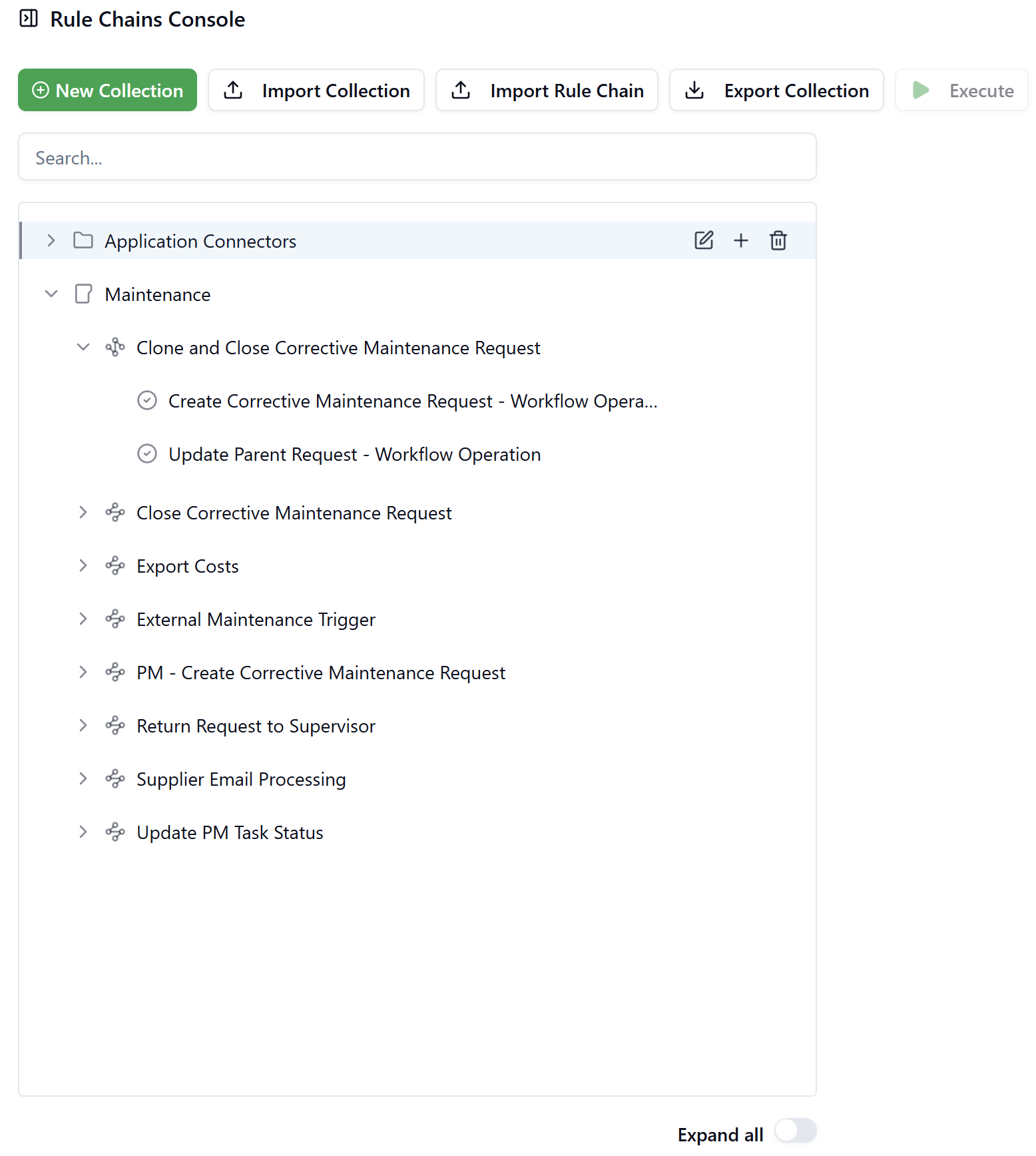
The Rule Chains Console is the central workspace for managing all integration and automation logic in SignalSync. It provides a hierarchical, three-level tree view — Collection → Rule Chain → Node — and exposes toolbar actions for creating, importing, exporting, and executing Rule Chains.
Interface Overview
The console is divided into two main areas:
- Toolbar — global actions that apply to the currently selected item or open dialogs for import/export operations.
- Tree panel — the hierarchical listing of all Collections, Rule Chains, and Nodes belonging to the current tenant.
Click to view the Rule Chains Console
Tree Hierarchy
Each level of the tree is represented by a distinct icon and indentation level:
| Level | Icon | Description |
|---|---|---|
| Collection | Folder | Top-level container grouping related Rule Chains |
| Rule Chain | Branch/node icon | A sequence of processing nodes defining one automation scenario |
| Node | Circle icon | An individual processing step within a Rule Chain |
Collections and Rule Chains can be expanded or collapsed using the chevron arrow on the left. The Expand all toggle at the bottom of the panel expands the entire tree to show all levels simultaneously.
Row-Level Actions
When hovering over a Collection or Rule Chain row, three inline action icons appear on the right side of the row:
| Icon | Action |
|---|---|
| ✎ Edit | Opens the edit drawer for the Collection or Rule Chain |
| + Add | Adds a new Rule Chain to the selected Collection, or a new Node to the selected Rule Chain |
| 🗑 Delete | Prompts a confirmation dialog before permanently removing the item |
Nodes display the same edit, add, and delete icons when hovered.
Search
The Search field at the top of the tree panel filters the visible items in real time by name, across all levels of the hierarchy.
Toolbar Actions
New Collection
Opens the Create new collection drawer. See Collections for full details on the form fields.
Import Collection
Opens an Upload JSON file dialog. Accepts a JSON file exported from another SignalSync tenant or environment. The file must be no larger than 4 MB. A Replace existing? checkbox controls whether an existing Collection with the same name will be overwritten. If unchecked, the import will throw an error if there are any name collisions.
The imported collection is placed as a subcollection if you had already selected a collection in the tree before clicking import. However, editing the collection after import and clearing the Parent Collection assignment turns the imported collection into a root-level collection.
Import Rule Chain
Opens the same Upload JSON file dialog, but imports a single Rule Chain definition (including its nodes) rather than an entire Collection. A Replace existing? checkbox controls whether an existing Rule Chain with the same name will be overwritten. If unchecked, the import will throw an error if there are any name collisions.
If you had already selected a collection in the tree before import, the Rule Chain is imported into that collection; you can reassign it afterward via the Edit Rulechain drawer.
Export Collection / Export Rule Chain
The label of this button updates dynamically based on the currently selected item in the tree:
- When a Collection is selected, the button reads Export Collection and downloads the entire Collection — including all its Rule Chains and their nodes — as a single JSON file.
- When a Rule Chain is selected, the button reads Export Rule Chain and downloads only that Rule Chain and its nodes.
- When nothing is selected, the button is disabled.
The exported JSON file can be imported into any other SignalSync tenant using the Import actions described above.
Execute
Triggers the currently selected Rule Chain. This button is only active when a Rule Chain is selected from the tree; it remains disabled when a Collection or Node is selected, or when nothing is selected.
Clicking Execute opens the Execute Rule Chain dialog, which contains a JSON code editor where an optional input payload can be provided. This payload will be used by FreeMarker expressions within the Rule Chain nodes during execution. Click the green Execute button inside the dialog to run the chain.
Use the Execute action during development and testing to validate a Rule Chain's logic with a sample payload before connecting it to a live GWE workflow event.