Collections
A Collection is the top-level organizational container in the Rule Chains Console. Collections group related Rule Chains by domain or application area — for example, all Rule Chains that support a Maintenance application would typically reside in a Maintenance collection.
Collections support a parent–child hierarchy, allowing nested grouping for more complex deployments where a high-level domain (e.g., Maintenance) contains sub-domains (e.g., Corrective Maintenance, Preventive Maintenance).
Creating a Collection
Click the New Collection button in the toolbar to open the Create new collection drawer.
Click to view the Create new collection drawer
| Field | Required | Description |
|---|---|---|
| Name | Yes | The display name of the Collection as it appears in the tree |
| Description | No | A free-text description of the Collection's purpose |
| Parent Collection | No | Optionally assigns this Collection as a child of an existing one. The dropdown includes a search field and lists all existing Collections. |
Click Create collection to save. The new Collection will appear immediately in the tree panel.
Collections that have a Parent Collection are displayed in the tree indented beneath their parent, using the same folder icon. The name shown in the tree reflects the collection name only — the parent name is not repeated in the label.
Editing a Collection
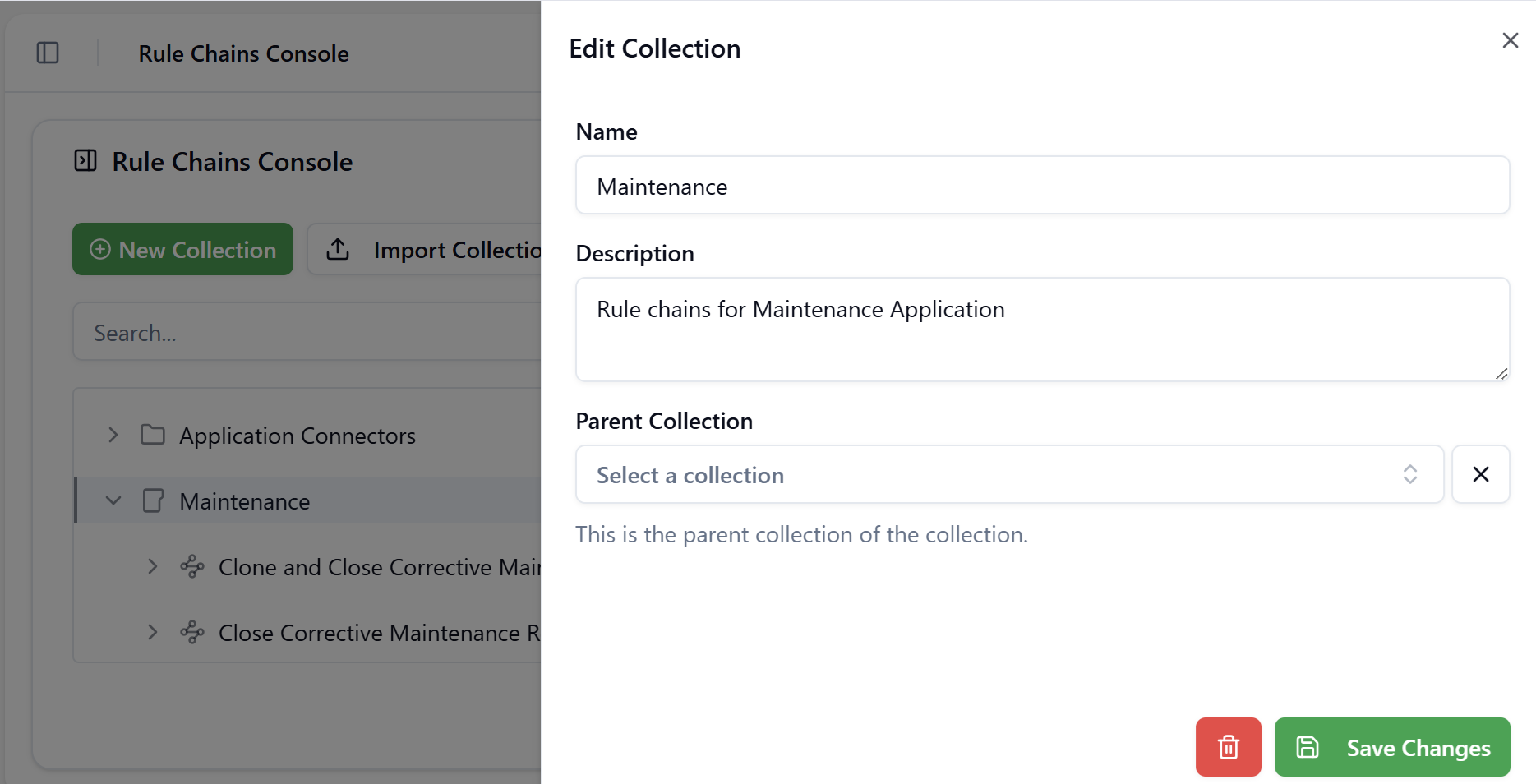
Hover over a Collection row in the tree to reveal the inline action icons, then click the ✎ edit icon. The same drawer used for creation opens with the current values pre-filled. All fields can be modified, including reassigning the Collection to a different Parent. Click Save Changes to apply.
Deleting a Collection
Hover over a Collection row and click the 🗑 delete icon. A confirmation dialog appears before any data is removed.
The dialog warns that:
- The action cannot be undone.
- The Collection will no longer be accessible to the current user or anyone it has been shared with.
- All Rule Chains and their execution logs within the Collection will be permanently removed.
Click Delete to confirm, or Cancel to abort.
Deleting a Collection is irreversible and cascades to all Rule Chains and Nodes it contains, along with their complete execution history.
Importing a Collection
Click Import Collection in the toolbar to open the Upload JSON file dialog.
| Option | Description |
|---|---|
| Replace existing? | When checked, any Collection or Rule Chain in the uploaded file whose name matches an existing entry will overwrite that entry. When unchecked, matched names are imported as new entries alongside the existing ones. |
| File upload area | Drag and drop a JSON file, or click the area to browse. Maximum file size is 4 MB. |
The JSON format for a Collection export includes the Collection metadata and all its nested Rule Chains and Node definitions. This format is compatible across tenants and environments, making it suitable for promoting configurations from a development environment to production.
Exporting a Collection
Select a Collection row in the tree (the row becomes highlighted). The Export button in the toolbar updates its label to Export Collection. Click it to download the Collection as a JSON file.
The exported file includes:
- Collection name and description
- All Rule Chains within the Collection (including their settings, Shared Attributes, authentication configuration, and External API settings)
- All Nodes within each Rule Chain (including node type, execution order, and body content)
Export a Collection before making significant changes. The exported JSON can be re-imported with Replace existing? checked to restore the previous configuration if needed.