User Identities
Overview
User identities—the link between system users and business entities such as employees or suppliers—are a critical part of SignalSync. This linkage enables proper authorization, workflow routing, and data access control throughout the platform.
Understanding User Identity Types
SignalSync supports two primary identity types:
-
Employee Identity: Users linked to employee records within the organization.
This identity type is typically used for internal staff members who manage facilities, approve requests, or oversee operations. -
Supplier Identity: Users linked to supplier or vendor records.
This identity type enables external partners to access specific functionalities, submit maintenance requests, or respond to procurement workflows.
A user can only be assigned one identity type at a time. You cannot define a user as both Employee and Supplier simultaneously. If a person needs to access the system in both capacities, you must create separate user accounts for each role.
User Identities Screen
The User Identities screen provides a comprehensive view of all system users and their assigned identities.
Available Columns
- Email - The user's login email address
- Name - The display name of the user
- Profiles - The security profiles assigned to the user (e.g., Supplier, Facility Manager, Client)
- User Identity Type - Indicates whether the user is linked as an Employee or Supplier
- Assigned Identity Code - The code of the linked employee or supplier record (e.g., SYS001, FMS004, SUP002)
- Assigned Identity Email - The email address from the linked employee or supplier record
Filtering Options
The screen provides three filter dropdowns to help locate specific users:
- Profiles - Filter users by their assigned security profiles
- Assigned Identity Code - Filter by specific employee or supplier codes
- Assigned Identity Email - Filter by the email address of the assigned identity
Assigning Identities Manually
Manual identity assignment allows administrators to explicitly link a user to an employee or supplier record, even when email addresses differ.
Steps to Assign an Identity
- Locate the user in the User Identities view
- Click the menu icon (⋯) at the end of the user's row
- Select Assign Identity from the context menu
- In the Assign Identity dialog:
- Select the User Identity Type (Employee or Supplier)
- Choose the identity from the Assigned Identity Code dropdown
- Search by name or email to quickly find the correct identity
- Click the Assign Identity button to complete the assignment
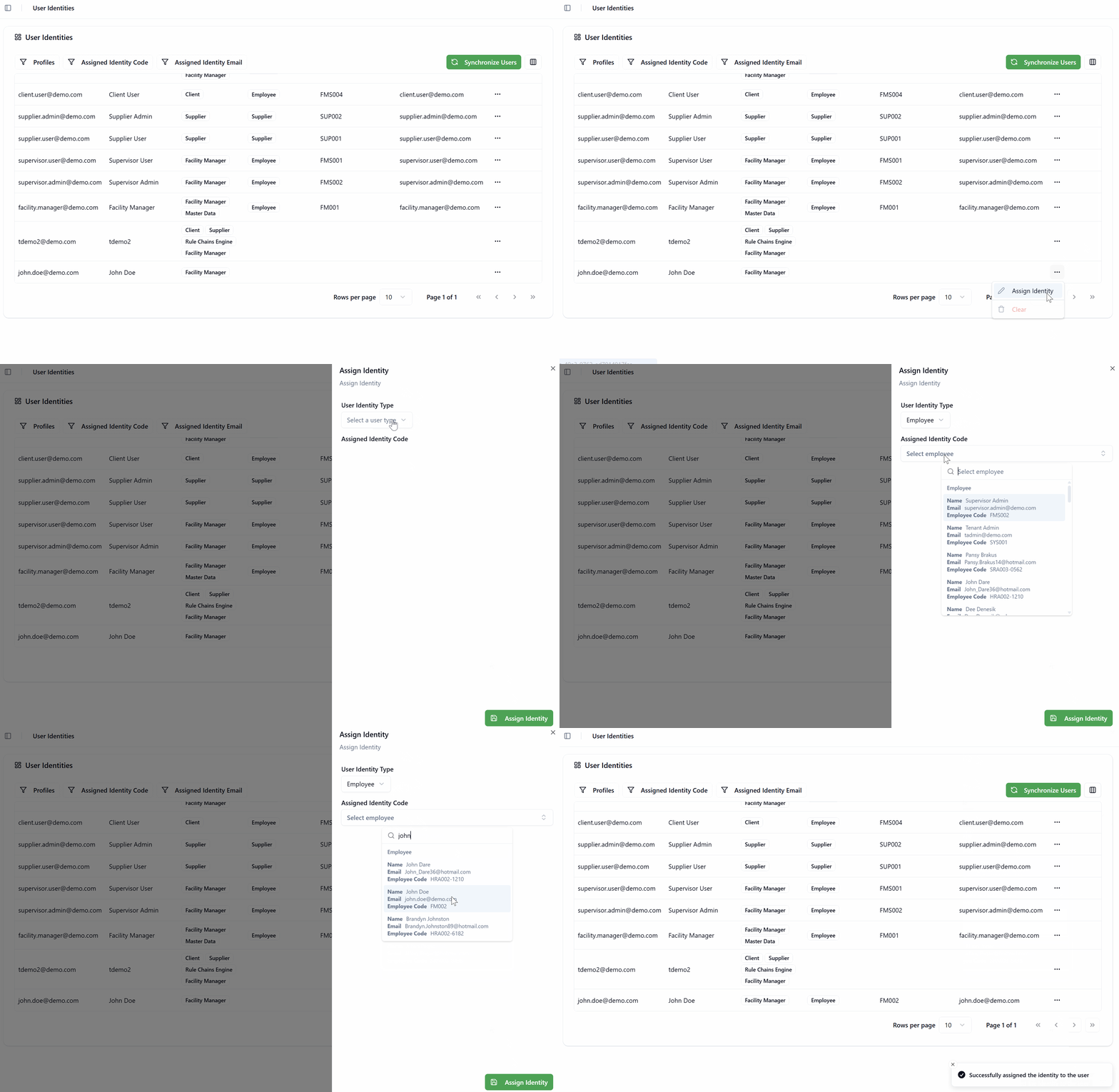
Search Functionality
When selecting an identity, the system displays:
- Name - The full name of the employee or supplier
- Email - The email address on file
- Employee Code or Supplier Code - The unique identifier
The search field allows you to filter results by typing any part of the name, email, or code.
Success Confirmation
After successful assignment, the system displays a confirmation message: "Successfully assigned the identity to the user"
Synchronize Users Feature
The Synchronize Users feature automates the identity assignment process by matching users with employees or suppliers based on email addresses.
How Synchronization Works
- The system scans all users without an assigned identity
- For each user, it searches for an employee or supplier record with a matching email address
- When a match is found, the system automatically creates the identity link
- A summary of synchronized users is displayed upon completion
Steps to Synchronize Users
- Click the Synchronize Users button (located in the top-right corner of the screen)
- Review the confirmation dialog: "Are you sure you want to synchronize all the users?"
- The dialog explains: "This action will assign an identity to each user based on their email."
- Click Synchronize Users to proceed or Cancel to abort
- View the synchronization results in the dialog that appears
Synchronization Results
After synchronization completes, the system displays:
- The number of users successfully synchronized (for example, "5 users were synchronized" or "1 user was synchronized")
- A success notification when synchronization completes
Each employee or supplier identity can only be assigned to one user at a time. SignalSync does not allow multiple users to share the same employee or supplier identity. This ensures clear accountability and prevents authorization conflicts.
If you need to reassign an identity from one user to another:
- Remove or change the identity assignment from the first user
- Then assign it to the new user
This one-to-one relationship between users and identities is fundamental to SignalSync's security and audit trail mechanisms.
Best Practices
When to Use Manual Assignment
- When a user's login email differs from their employee/supplier email
- For temporary assignments or special cases
- When multiple records exist with similar email addresses and you need to select the correct one
When to Use Synchronize Users
- During initial system setup to bulk-assign identities
- After importing new employees or suppliers
- When onboarding multiple new users simultaneously
- As a periodic maintenance task to catch any unassigned users
Identity Management Tips
- Verify Email Consistency - Ensure employee and supplier records have accurate email addresses before running synchronization
- Review Regularly - Periodically check for users without assigned identities
- Document Exceptions - Keep track of manual assignments where emails differ for future reference
- Update Records First - If email addresses need to change, update the employee or supplier record before reassigning the identity
- Test Before Production - In development environments, test synchronization with sample data before running in production
Common Scenarios
Scenario 1: New Employee Joins
When a new employee joins and their user account is created:
- Ensure the employee record exists in the system with the correct email
- Create the user account with the same email address
- Run Synchronize Users to automatically link the identity
- Verify the assignment in the User Identities screen
Scenario 2: Email Address Mismatch
When a user's login email differs from their employee email:
- Manually assign the identity using the Assign Identity dialog
- Document the reason for the discrepancy
- Consider updating one of the email addresses if appropriate for future consistency
Scenario 3: User with Multiple Roles
When a person acts as both employee and supplier:
- Determine the primary role for SignalSync access
- Assign the appropriate identity type based on their primary function
- Consider creating separate user accounts if both roles require distinct permissions
Troubleshooting
User Not Found During Synchronization
Problem: Synchronization completes but certain users remain unassigned.
Solution:
- Verify the employee or supplier record exists in the system
- Check that the email addresses match exactly (case-insensitive)
- Look for typos or extra spaces in email addresses
- Manually assign the identity if email addresses legitimately differ
Cannot Select Identity from Dropdown
Problem: The identity dropdown is empty or doesn't show expected records.
Solution:
- Ensure employee or supplier records have been created in the system
- Verify the records have valid email addresses
- Check that you've selected the correct User Identity Type (Employee vs. Supplier)
- Refresh the page and try again
Duplicate Email Addresses
Problem: Multiple employees or suppliers have the same email address.
Solution:
- Review the data and correct duplicates in the source records
- Manually assign the correct identity after resolving duplicates
- Establish data entry guidelines to prevent future duplicates
Summary
User Identities provide the essential link between system users and business entities in SignalSync. By properly assigning identities through manual assignment or synchronization, you ensure that users have appropriate access to data and workflows relevant to their role as employees or suppliers. Regular maintenance of user identities supports secure, efficient operations across the platform.