Profiles
Overview
Profiles are a core component of SignalSync's security and access control system. They determine which processes, tasks, and homepages users can access within the application. By assigning profiles to users, Tenant Administrators control what functionality each user sees when they log into SignalSync.
Profiles serve three primary purposes:
- Access Control - Determine which processes and tasks appear in a user's navigation menu
- Homepage Assignment - Provide users with customized landing pages displaying relevant metrics and KPIs
- Default Navigation - Optionally set a default URL that users see upon login (such as Management Consoles generated by Graphical Workflow Engine product)
Accessing Profiles task
Profiles task is exclusively available to users with the Tenant Administrator role. To access this feature:
- Navigate to the left sidebar menu
- Expand Settings
- Under Customers and Products section, select Profiles
Understanding Profile Types
SignalSync supports two types of profiles that serve different purposes and have different levels of control.
- System Profiles
- Custom Profiles
System profiles are automatically created by SignalSync when a product license is activated for your organization. These profiles represent the standard, out-of-the-box configurations designed by SignalSync for each licensed application.
Characteristics:
- Created automatically when products are licensed
- One or multiple System profile per product (e.g., "Facility Manager", "Supplier", "Client", "Rule Chains Engine", "Master Data")
- Contains the default processes and tasks for that product
- Completely read-only - Tenant Administrators cannot modify System profiles
- Cannot be deleted or deactivated
- Homepages can only be assigned by SignalSync Cloud Administrators
- Default URL cannot be set by Tenant Administrators
Purpose: System profiles provide standardized access patterns for common roles and ensure consistent functionality across different tenants using the same products.
System profiles are completely read-only for Tenant Administrators. You cannot:
- Edit the profile name or description
- Add or remove processes
- Add or remove homepages (unless added by Cloud Administrator)
- Set a Default URL
- Delete the profile
If you need a profile with different process assignments or settings, create a Custom profile instead.
Custom profiles are created by Tenant Administrators to meet specific organizational needs and business requirements. These profiles provide complete flexibility in combining functionality from multiple products and processes.
Characteristics:
- Created and managed entirely by Tenant Administrators
- Fully customizable (name, description, processes, homepages, Default URL)
- Can combine processes from different products
- Can include processes from both Default and Custom types
- Can be edited, deactivated, or deleted at any time
- No limit on the number of Custom profiles you can create
Purpose: Custom profiles enable you to create role-based access patterns that align with your organization's specific job functions and workflows, even when those roles span multiple products.
Viewing Profiles
To access the Profiles management screen:
- Navigate to the left sidebar menu
- Expand Customers and Products
- Select Profiles
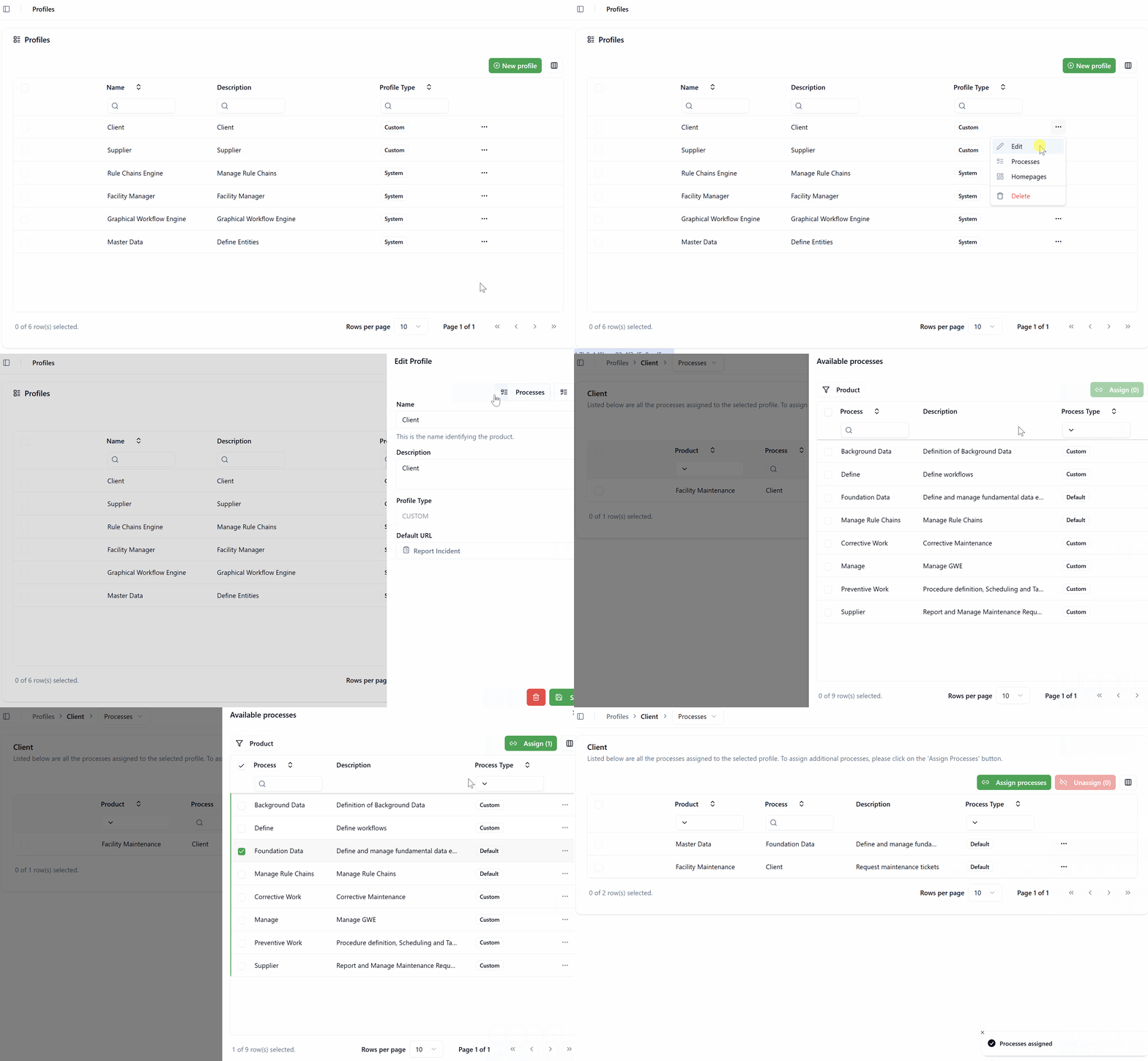
The Profiles table displays the following information:
- Name - The profile name
- Description - A brief explanation of the profile's purpose
- Profile Type - Either "System" or "Custom"
- Menu (⋯) - Actions available for the profile (Edit, Processes, Homepages, Delete)
Available Actions
When you click the menu icon (⋯) next to a profile, you'll see different actions depending on the profile type:
For System Profiles:
- Processes - View assigned processes (read-only)
- Homepages - View assigned homepages (read-only)
For Custom Profiles:
- Edit - Modify profile settings
- Processes - Manage assigned processes
- Homepages - Manage assigned homepages
- Delete - Remove the profile
Creating a Custom Profile
To create a new Custom profile:
- Navigate to the Profiles screen
- Click the New profile button
- In the "Edit Profile" dialog, configure the following:
- Name - Enter a descriptive name for the profile (e.g., "Facility Supervisor", "Contract Administrator")
- Description - Provide a detailed explanation of who should use this profile and what it provides access to
- Profile Type - Automatically set to "CUSTOM" for new profiles
- Default URL - Optionally select a Management Console generated by GWE to serve as the landing page
- Click Save Changes
After creating the profile, you'll need to:
- Assign processes to the profile
- Optionally assign homepages
- Assign the profile to users
Naming Best Practices
Choose profile names that clearly indicate:
- The role or job function (e.g., "Facility Manager", "Maintenance Technician")
- The scope of access (e.g., "Read-Only Viewer", "Administrator")
- The business area (e.g., "Contract Management Team", "Preventive Maintenance Staff")
Good Examples:
- "Facility Manager - Full Access"
- "Supplier Portal User"
- "Maintenance Technician"
- "Contract Administrator"
Avoid:
- Generic names like "Profile 1", "User Group A"
- Ambiguous names that don't indicate purpose
- Names that duplicate existing profiles without differentiation
Editing a Profile
Editing Custom Profiles
To edit a Custom profile:
- Click the menu icon (⋯) next to the profile
- Select Edit
- Modify any of the following:
- Name
- Description
- Default URL
- Click Save Changes
Changes to profile settings take effect immediately for all users with that profile. If you're making significant changes, consider communicating with affected users beforehand.
System Profiles Cannot Be Edited
System profiles do not have an Edit action in their context menu. To create a similar profile with different settings, create a new Custom profile and configure it according to your needs.
Managing Processes
Processes determine which tasks and functionality appear in a user's navigation menu. By assigning processes to a profile, you control what users with that profile can access.
Viewing Assigned Processes
To view processes assigned to a profile:
- Click the menu icon (⋯) next to the profile
- Select Processes
- The process assignment screen displays all currently assigned processes with columns:
- Product - The product the process belongs to
- Process - The process name
- Description - The process description
- Process Type - Either "Default" or "Custom"
Assigning Processes to Custom Profiles
To assign additional processes to a Custom profile:
- Navigate to the profile's Processes screen
- Click the Assign processes button
- In the "Available processes" dialog:
- Use the Product filter to narrow results by product
- Use the Process Type filter to show only Default or Custom processes
- Use the search box to find specific processes by name
- Check the boxes next to the processes you want to assign
- Click Assign (n) where n is the number of selected processes
The assigned processes immediately become visible to all users with this profile.
You can assign multiple processes simultaneously by checking multiple boxes before clicking the Assign button. This is more efficient than assigning processes one at a time.
Unassigning Processes from Custom Profiles
To remove processes from a Custom profile:
- Navigate to the profile's Processes screen
- Check the boxes next to the processes you want to remove
- Click the Unassign (n) button
- Confirm the action
The unassigned processes are immediately removed from the navigation menu for all users with this profile.
When you unassign processes from a profile, users with that profile immediately lose access to those processes and all their tasks. Ensure users have alternative ways to access required functionality before unassigning processes.
Process Assignment Rules
Key Principles:
- The same process can be assigned to multiple profiles (both System and Custom)
- When a process is assigned to a profile, it automatically becomes visible to all users with that profile
- Users with multiple profiles see a combined view of all processes from all their profiles
- Processes are ordered in the navigation menu according to their Order value (defined in Product Hierarchy)
Avoiding Duplicate Processes:
If you assign the same process to multiple Custom profiles and then assign both profiles to the same user, SignalSync will intelligently display only one instance of that process in the navigation menu. However, as a best practice, Tenant Administrators should carefully plan profile assignments to avoid this redundancy and maintain clean profile definitions.
Managing Homepages
Homepages are customized dashboard screens that display key performance indicators (KPIs), metrics, and summary information relevant to specific roles or business functions. Users can select their preferred homepage as a landing page when signing into SignalSync.
Understanding Homepage Types
System Homepages:
- Provided automatically with licensed products
- Created and maintained by SignalSync
- Example: "System Admin Homepage"
Custom Homepages:
- Created by Tenant Administrators to meet specific business needs
- Can display custom metrics, reports, and visualizations
- Example: "Maintenance Dashboard", "Contract Management Overview"
The detailed process for creating Custom homepages is covered in a separate documentation section. This section focuses on assigning existing homepages to profiles.
Why Multiple Homepages per Profile?
A single profile can have multiple homepages assigned to provide users with different business perspectives. This flexibility allows users to choose the view most relevant to their current work context.
Example Use Case: Facility Manager Profile
A Facility Manager might have access to multiple homepages showing:
- Operational Homepage - Open vs. closed work requests, requests by priority, requests by intervention type or location
- Financial Homepage - Actual vs. estimated costs, budget consumption, cost trends over time
- Asset Homepage - Equipment history, maintenance schedules, equipment alerts and warnings
- Performance Homepage - Team productivity metrics, response times, completion rates
Users with this profile can select which homepage they want to see when they sign in, based on what they need to focus on that day.
Viewing Assigned Homepages
To view homepages assigned to a profile:
- Click the menu icon (⋯) next to the profile
- Select Homepages
- The homepage assignment screen displays all currently assigned homepages with columns:
- Homepage - The homepage name
- Homepage Type - Either "System" or "Custom"
Assigning Homepages to Custom Profiles
To assign additional homepages to a Custom profile:
- Navigate to the profile's Homepages screen
- Click the Assign homepages button (or similar action)
- In the "Available Homepages" dialog:
- Use the Homepage Type filter to show only System or Custom homepages
- Use the search box to find specific homepages by name
- Check the boxes next to the homepages you want to assign
- Click Assign (n) where n is the number of selected homepages
Unassigning Homepages from Custom Profiles
To remove homepages from a Custom profile:
- Navigate to the profile's Homepages screen
- Check the boxes next to the homepages you want to remove
- Click the Unassign (n) button
- Confirm the action
Default URL Configuration
What is a Default URL?
A Default URL is a specific destination that users are automatically directed to when they sign into SignalSync. This is typically a Management Console generated by the Graphical Workflow Engine (GWE) that provides a specialized interface for specific business processes.
Default URL vs Homepage Priority
SignalSync uses the following priority order for determining what users see when they sign in:
- Default URL (Highest Priority) - If a Default URL is set on any of the user's profiles, this takes precedence over everything else
- User-Selected Homepage - If no Default URL exists, the homepage the user selected in their Account settings is displayed
- No Landing Page (Lowest Priority) - If neither a Default URL nor a selected homepage exists, users see a blank page with only the left navigation menu
When a Default URL is configured on a profile, it always overrides the user's homepage selection. Users cannot bypass the Default URL by selecting a different homepage. This ensures critical workflows that require specific entry points are consistently accessed correctly.
If you want users to have choice over their landing page, do not set a Default URL on their profile.
Setting a Default URL on Custom Profiles
Only Custom profiles can have a Default URL configured. To set a Default URL:
- Click the menu icon (⋯) next to the Custom profile
- Select Edit
- In the "Edit Profile" dialog, locate the Default URL field
- Select a Management Console from the dropdown (these are generated by GWE)
- Click Save Changes
Available Default URLs: The Default URL dropdown displays Management Consoles that have been created using the Graphical Workflow Engine. These consoles provide specialized interfaces for complex business processes.
Use Default URL when:
- Users in a specific role should always start from a particular Management Console
- A critical process requires a specific entry point
- You want to ensure users don't miss important notifications or tasks shown on a specific console
Do not use Default URL when:
- Users need flexibility to choose their landing page
- The profile is used by people with varied responsibilities
- Multiple equally important entry points exist for the role
Deleting Custom Profiles
Only Custom profiles can be deleted. System profiles are permanent and cannot be removed.
Deletion Process
To delete a Custom profile:
- Click the menu icon (⋯) next to the Custom profile
- Select Delete
- Review the deletion warning dialog
- Click Delete to confirm
Deletion Warning
When you attempt to delete a profile, SignalSync displays a critical warning:
"Are you sure absolutely sure?" "This action cannot be undone. This process(s) will no longer be accessible by you or others you've shared it with"
Deleting a profile is permanent and cannot be undone. The profile is automatically removed from all users who had it assigned.
Critical Consideration: If any users have only this profile assigned and no other profiles, they will be left without access to any processes or tasks. While they can still sign into SignalSync, they will see only a blank page with no navigation menu items. They will effectively have no functionality until another profile is assigned to them.
Before deleting a profile:
- Identify all users with this profile assigned
- Verify that all users have at least one other profile for continued access
- Consider reassigning users to appropriate profiles before deletion
- Document which users were affected for audit purposes
- Communicate changes to affected users
Post-Deletion Actions
After deleting a profile:
- Review the list of users who had the profile assigned
- Verify each user has appropriate alternative profile(s)
- For any users without profiles, assign suitable profiles immediately
- Notify affected users of the change and any impact on their access
Assigning Profiles to Users
Profiles are assigned to users through the Customer Users interface, which is covered in detail in the "Customers and Users" documentation. This section provides a brief overview of the assignment process and its relationship to profiles.
Profile Assignment Methods
SignalSync supports two methods for assigning profiles to users:
Manual Assignment
Tenant Administrators can manually assign profiles when creating or editing users:
- Navigate to Customers and Products > Customers > Select a customer > Users
- Create a new user or edit an existing user
- In the Profiles field, select one or more profiles from the dropdown
- Multiple profiles can be assigned by selecting additional profiles
- Save the user
Automatic Assignment via Security Groups
For organizations using Active Directory or Azure AD (Microsoft Entra), SignalSync can automatically assign profiles based on security group membership:
- Map AD/Azure security groups to SignalSync profiles
- When users authenticate, SignalSync automatically assigns profiles based on their group memberships
- Profile assignments update automatically when group memberships change
Automatic profile assignment through AD/Azure integration streamlines user management, ensures consistency, and reduces administrative overhead. Work with your SignalSync Cloud Administrator to configure security group mappings.
Multiple Profiles per User
A single user can be assigned multiple profiles. This is useful when:
- A user has responsibilities spanning multiple business areas
- A user needs access to functionality from different products
- A user's role requires a combination of standard and custom access patterns
How Multiple Profiles Work:
- Users see a combined view of all processes from all their assigned profiles
- Processes are ordered according to their Order value from Product Hierarchy
- If the same process exists in multiple assigned profiles, it appears only once in the navigation menu
- Users can select a homepage from any of their assigned profiles
A user with both "Facility Manager" and "Contract Administrator" profiles will see:
- All processes from the Facility Manager profile
- All processes from the Contract Administrator profile
- All homepages from both profiles (they can choose which one to use as their landing page)
User Experience: Selecting a Homepage
Users control their own landing page experience through their Account settings. Understanding this process helps you configure profiles effectively.
How Users Select Their Homepage
- Users navigate to their Account settings (click their profile picture/name in the lower left)
- Select the Account tab
- In the Profile Information section, locate the Homepage dropdown
- Click the Homepage dropdown to see available options
- Select their preferred homepage
- Click Save changes
Available Homepage Options
The Homepage dropdown shows:
- A search box to find homepages by name
- A "Homepages" section header
- All homepages from all profiles assigned to the user
What Users See: Users only see homepages that are assigned to at least one of their profiles. If no homepages are assigned to any of their profiles, the dropdown will be empty.
Landing Page Behavior
Scenario 1: Homepage Selected
- User has selected a homepage in Account settings
- No Default URL on any assigned profile
- Result: The selected homepage displays when they sign in
Scenario 2: Default URL Configured
- Default URL is set on at least one assigned profile
- User has selected a homepage in Account settings
- Result: The Default URL overrides the homepage selection; users see the Default URL destination
Scenario 3: No Homepage or Default URL
- No homepage assigned to any profile OR user hasn't selected a homepage
- No Default URL on any assigned profile
- Result: Blank page with only the left navigation menu visible
For the best user experience:
- Assign at least one homepage to each Custom profile
- Only use Default URL when absolutely necessary for workflow requirements
- Guide users to select a homepage in their Account settings during onboarding
- Provide multiple homepage options for roles with diverse responsibilities
Filtering and Searching Profiles
The Profiles screen provides filtering and search capabilities to help you find specific profiles quickly.
Available Filters
- Name - Search by profile name using the search box in the Name column
- Description - Search by description text using the search box in the Description column
- Profile Type - Filter to show only System or Custom profiles
Using Filters Effectively
To find all Custom profiles:
- Click the Profile Type filter
- Select "Custom"
- Only Custom profiles are displayed
To find a specific profile:
- Type part of the profile name in the Name search box
- Results filter as you type
To find profiles by purpose:
- Type keywords in the Description search box
- Profiles with matching descriptions are shown
Common Use Cases
Use Case 1: Creating a Combined-Role Profile
Scenario: Your organization has supervisors who manage both facility maintenance operations and supplier relationships.
Solution:
- Create a Custom profile called "Operations Supervisor"
- Assign process from Facility Maintenance: Preventive Work
- Assign process from Facility Maintenance: Corrective Work
- Assign process from Facility Maintenance: Maintenance Console
- Assign process from Supplier Management: Supplier
- Assign process from Supplier Management: Report Incident
- Assign homepage: Maintenance Dashboard (operational metrics)
- Assign homepage: Supplier Performance (vendor metrics)
- Assign the profile to supervisor users
Benefit: Supervisors access all required functionality from both business areas without switching between different applications.
Use Case 2: Read-Only Access Profile
Scenario: Management needs visibility into operations without the ability to modify data or create new records.
Solution:
- Create a Custom profile called "Executive View"
- Assign process: Reports
- Assign custom reporting processes as needed
- Assign dashboard homepages showing high-level KPIs
- Do not assign processes that allow data modification
- Assign the profile to executive users
Benefit: Executives get the visibility they need without cluttering their interface with operational tasks they don't perform.
Use Case 3: Specialized Workflow Profile with Default URL
Scenario: Your organization uses a custom Management Console for contract approval workflows that must be the first thing contract administrators see.
Solution:
- Create a Custom profile called "Contract Approver"
- Assign relevant Contract Management processes
- Set the Default URL to the Contract Approval Management Console
- Assign the profile to users responsible for contract approvals
Benefit: Contract approvers are immediately directed to their primary workspace, ensuring they don't miss pending approvals while still having access to other contract management functionality through the navigation menu.
Use Case 4: Phased Rollout Profile
Scenario: You're rolling out new functionality to a pilot group before wider deployment.
Solution:
- Create a Custom profile called "Pilot - New Features"
- Assign both existing processes and new pilot processes
- Assign the profile only to pilot group users
- After successful pilot, create a new "Standard - With New Features" profile
- Gradually reassign users from old profiles to the new profile
Benefit: Controlled rollout minimizes risk and allows you to gather feedback before organization-wide deployment.
Best Practices
Profile Design
- Role-Based Design - Create profiles that align with actual job roles in your organization, not arbitrary groupings
- Clear Naming - Use descriptive names that immediately indicate who should use the profile and what it provides
- Comprehensive Descriptions - Write detailed descriptions explaining the profile's purpose, target users, and included functionality
- Regular Review - Periodically review profiles to ensure they still match organizational needs and roles
- Avoid Over-Proliferation - Don't create a new profile for every minor variation; use a reasonable number of well-designed profiles
Process Assignment
- Start with Essentials - Assign only the processes users actually need for their role
- Iterate Based on Feedback - Add processes based on user requests rather than trying to anticipate every possible need
- Consider Process Order - Remember that processes display according to their Order value from Product Hierarchy
- Test Combined Views - When assigning multiple profiles to users, verify the combined navigation makes sense
Homepage Assignment
- Provide Options - Assign multiple homepages to profiles that serve users with varied responsibilities
- Match to Responsibilities - Ensure assigned homepages display metrics relevant to the profile's role
- Guide Selection - Help users understand which homepage is most appropriate for their primary responsibilities
- Default Homepage - If most users in a role need one specific homepage, guide them to select it during onboarding
Default URL Usage
- Use Sparingly - Only set Default URL when workflow requirements truly demand a specific entry point
- Document Decisions - Keep records of why Default URLs were configured for specific profiles
- User Communication - Inform users that they cannot choose their landing page when Default URL is set
- Review Necessity - Periodically evaluate whether Default URLs are still necessary
Profile Lifecycle Management
- Plan Before Creating - Think through the full profile design before creating it
- Test with Pilot Users - Assign new profiles to a small group first to identify issues
- Document Changes - Keep records of profile modifications and the reasons for changes
- Communicate Updates - Inform affected users before making significant profile changes
- Clean Up Obsolete Profiles - Delete Custom profiles that are no longer used to keep the system tidy
User Assignment Strategy
- Principle of Least Privilege - Assign only the profiles users need for their job functions
- Avoid Over-Assignment - Don't assign multiple profiles when one comprehensive profile would suffice
- Plan for Growth - Design profiles that can accommodate new users in the same roles
- Consider Temporary Access - For temporary projects, create time-limited profiles and remove them when complete
- Audit Regularly - Review user profile assignments to ensure they remain appropriate
Troubleshooting
Common Issues and Solutions
Users Cannot See Expected Processes
Problem: Users report that they don't see processes or tasks they need.
Solutions:
- Verify the process is assigned to at least one of the user's profiles
- Check that the process is marked as Active in Product Hierarchy
- Confirm the process contains active tasks
- Ensure the user has been assigned the correct profile(s)
- Ask the user to log out and log back in to refresh their session
Wrong Landing Page Displays
Problem: Users see a different landing page than expected when signing in.
Solutions:
- If a Default URL is configured: Users will always see the Default URL destination, overriding their homepage selection. This is expected behavior.
If no Default URL: Ask the user to:
- Navigate to Account settings
- Check which homepage is selected
- Select their preferred homepage
- Save changes
- If homepage dropdown is empty: Assign homepages to the user's profile(s)
Cannot Delete a Profile
Problem: The Delete option is not available for a profile.
Solution:
This is expected behavior for System profiles. System profiles cannot be deleted as they are managed by SignalSync. If you need a different configuration, create a Custom profile with your desired settings.
Processes Appear Duplicated
Problem: The same process appears to show up multiple times in a user's navigation menu.
Investigation:
Actually, SignalSync automatically prevents duplicate processes from displaying. If you think you see duplicates:
- Look carefully at the process names - they may be similar but not identical
- Check if multiple Custom processes contain the same tasks (tasks can be duplicated, but processes themselves won't be)
- Review the user's assigned profiles to understand what they're inheriting
If you want to prevent confusion, avoid assigning the same process to multiple profiles that the same user has.
User Has No Navigation Menu
Problem: After deleting a profile, a user reports they can log in but see no navigation menu items.
Solution:
This occurs when a user's only profile was deleted. Immediately assign an appropriate profile to the user:
- Navigate to Customer Users
- Find the affected user
- Edit the user
- Assign at least one profile
- Save changes
- Ask the user to log out and log back in
Note: Always verify users have alternative profiles before deleting a profile. Check the user list to see who has the profile before deletion.
Cannot Add Processes to System Profile
Problem: The Processes screen for a System profile doesn't have an "Assign processes" button.
Solution:
This is expected behavior. System profiles are read-only and cannot be modified by Tenant Administrators. To create a similar profile with different process assignments, create a new Custom profile.
Summary
Profiles are the foundation of access control in SignalSync, determining what processes, tasks, and homepages users can access. By understanding the differences between System and Custom profiles, and how to effectively assign processes and homepages, Tenant Administrators can create a tailored user experience that aligns with organizational roles and workflows.