Password Policy
Password Policy allows Tenant Administrators to configure security settings that control user authentication and password requirements across your organization.
Accessing Password Policy Settings
- Log in as a Tenant Administrator
- Navigate to Settings in the main navigation
- Click on Security in the Settings menu
- Select the Password Policy tab
Password Policy configuration is only available to users with Tenant Administrator role.
General Policy
General Policy settings control user authentication security and account protection.
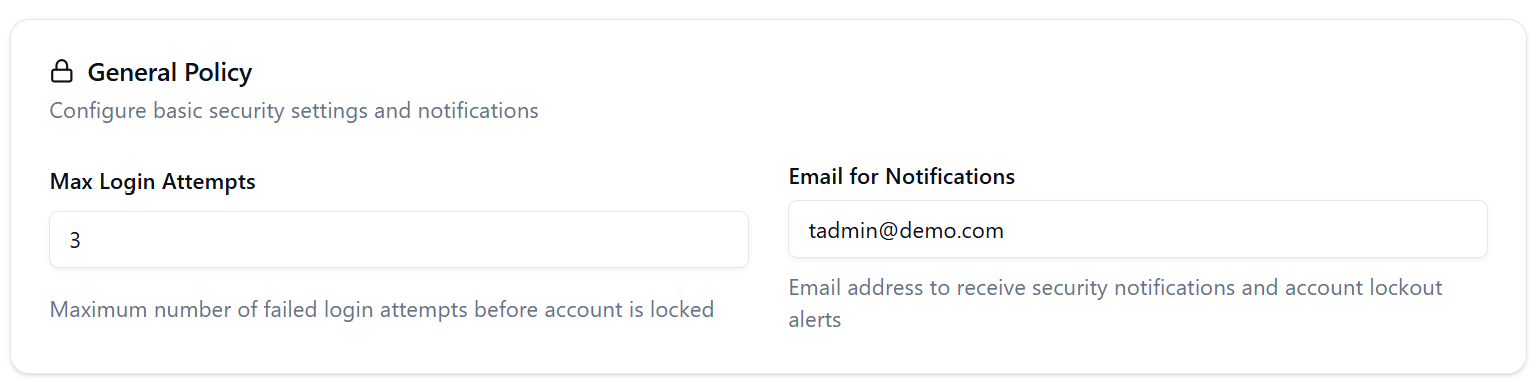
Max Login Attempts
Description: Specifies the maximum number of consecutive failed login attempts before triggering security measures for the user account.
Configuration:
- Field Type: Numeric input
- Valid Range: 0-10
- Default Value: 3
- Special Value: Setting to 0 disables login attempt tracking
Purpose: Protects user accounts from brute force attacks by limiting the number of failed login attempts.
Expected Behavior: When a user exceeds the configured number of failed login attempts, their account should be temporarily locked to prevent unauthorized access.
Email for Notifications
Description: Email address that receives security notifications, including account lockout alerts.
Configuration:
- Field Type: Email input
- Format: Valid email address (e.g., [email protected])
- Recommendation: Use a monitored security team or administrator email address
Purpose: Ensures administrators are promptly notified of security events such as account lockouts.
Notifications Sent:
- Account lockout notifications (when Max Login Attempts is exceeded)
- Security-related alerts for the tenant
Password Complexity Requirements
Password complexity settings enforce minimum security standards for user passwords. All requirements are validated in real-time during password creation and password reset.
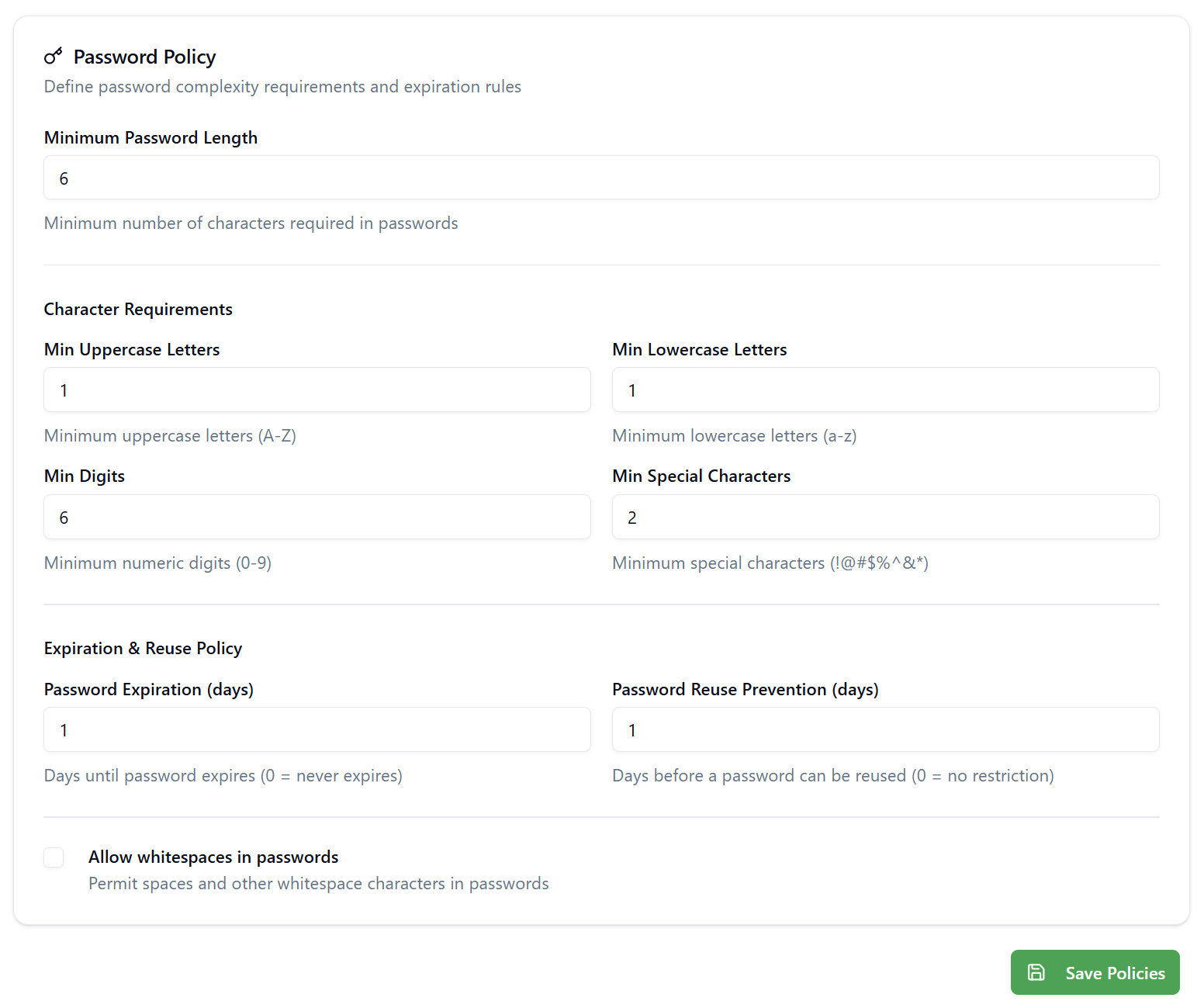
Minimum Password Length
Description: The minimum number of characters required for a valid password.
Configuration:
- Field Type: Numeric input
- Valid Range: 6-128 characters
- Default Value: 6
- Recommendation: 8-12 characters for standard security
Enforcement: Users cannot create or reset passwords shorter than this length.
Character Requirements
Password Policy allows you to enforce specific character types in passwords to increase complexity and security.
Min Uppercase Letters
Description: Minimum number of uppercase letters (A-Z) required in passwords.
Configuration:
- Field Type: Numeric input
- Valid Range: 0-10
- Default Value: 0 (no requirement)
Example: If set to 1, password "example" is invalid, but "Example" is valid.
Min Lowercase Letters
Description: Minimum number of lowercase letters (a-z) required in passwords.
Configuration:
- Field Type: Numeric input
- Valid Range: 0-10
- Default Value: 0 (no requirement)
Example: If set to 1, password "EXAMPLE" is invalid, but "Example" is valid.
Min Digits
Description: Minimum number of numeric digits (0-9) required in passwords.
Configuration:
- Field Type: Numeric input
- Valid Range: 0-10
- Default Value: 0 (no requirement)
Example: If set to 1, password "Example" is invalid, but "Example1" is valid.
Min Special Characters
Description: Minimum number of special characters required in passwords.
Configuration:
- Field Type: Numeric input
- Valid Range: 0-10
- Default Value: 0 (no requirement)
Special Characters Include: !@#$%^&*()_+-=[]{}|;:'",.<>?/~
Example: If set to 1, password "Example1" is invalid, but "Example1!" is valid.
Whitespace Policy
Description: Controls whether whitespace characters (spaces, tabs) are allowed in passwords.
Configuration:
- Field Type: Checkbox
- Options:
- ☑ Allow whitespaces in passwords - Permits spaces and tabs
- ☐ Allow whitespaces in passwords - Prohibits all whitespace
- Default: Disabled (whitespaces not allowed)
Impact: When disabled, users cannot use spaces or tabs anywhere in their password.
Password Lifecycle Management
Password lifecycle settings control password aging and reuse policies.
Password Expiration (days)
Description: Number of days after which user passwords expire and must be changed.
Configuration:
- Field Type: Numeric input
- Valid Range: 0-365 days
- Default Value: 0 (passwords never expire)
- Special Value: Setting to 0 disables password expiration
Purpose: Enforces regular password rotation to minimize risk from compromised credentials.
Common Values:
- 0 days: No expiration (default)
- 90 days: Standard enterprise security policy
- 180 days: Moderate security policy
- 365 days: Relaxed policy for low-risk environments
Password Reuse Prevention (days)
Description: Time period during which users cannot reuse previous passwords.
Configuration:
- Field Type: Numeric input
- Valid Range: 0-365 days
- Default Value: 0 (no restriction on password reuse)
- Special Value: Setting to 0 disables reuse prevention
Purpose: Prevents users from cycling back to previously compromised or weak passwords.
Common Values:
- 0 days: No restriction (default)
- 90 days: Prevents reuse for one quarter
- 180 days: Prevents reuse for two quarters
- 365 days: Prevents reuse for one year
Configuring Password Policy
Step-by-Step Configuration
-
Access Password Policy Settings as described in "Accessing Password Policy Settings" above
-
Configure General Policy:
- Set Max Login Attempts to your desired threshold (recommended: 3-5)
- Enter an Email for Notifications to receive security alerts
-
Set Password Complexity Requirements:
- Define Minimum Password Length (recommended: 8+)
- Configure character requirements based on your security needs:
- Uppercase letters
- Lowercase letters
- Numeric digits
- Special characters
- Choose whether to Allow whitespaces in passwords
-
Configure Password Lifecycle:
- Set Password Expiration period (0 = never expires)
- Set Password Reuse Prevention period (0 = no restriction)
-
Save Changes:
- Click the Save Policies button at the bottom of the page
- Changes take effect immediately
Changes to Password Policy settings apply immediately after saving. However, active user sessions will continue until the user's next login.
User Impact
Password Creation and Reset
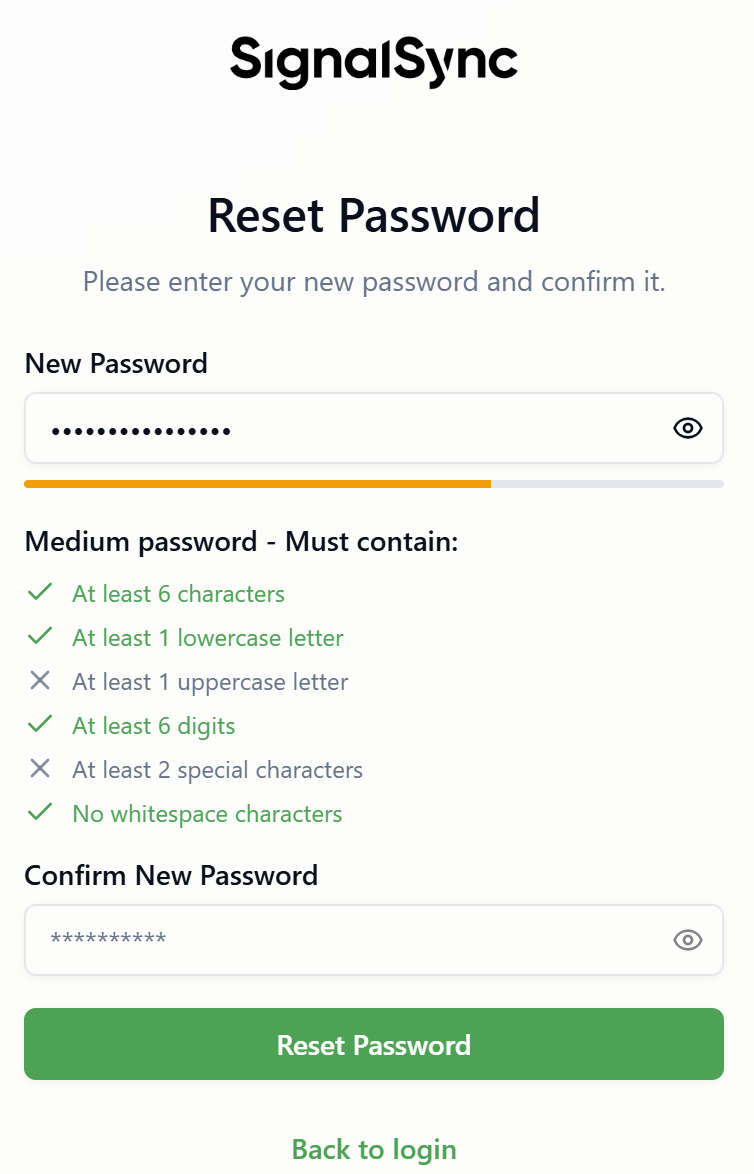
When users create accounts or reset passwords, they must comply with the configured password complexity requirements:
- Real-time validation displays which requirements are met
- Password strength indicator shows password quality
- Error messages clearly indicate which requirements are not met
- Users cannot proceed until all requirements are satisfied
Login Experience
Users experience password policy enforcement during login:
- Failed login attempts are tracked per user account
- After exceeding Max Login Attempts, users receive appropriate messaging
- Users can use "Forgot Password" to reset their credentials
- Email notifications are sent to administrators for security events
Known Limitations & Features in Progress
Some Password Policy features are currently being enhanced to provide comprehensive enterprise-grade security. These improvements are actively under development.
Features Currently in Development
The following security features are being implemented:
Account Lockout Mechanism
Planned Enhancement:
- Persistent account lockout enforcement after maximum failed login attempts
- Configurable auto-unlock duration
- Administrator unlock capability in User Management interface
- Email notifications to configured admin address
Password Expiration Enforcement
Planned Enhancement:
- Automatic password expiration after configured period
- Advance warning notifications (banner and email) before expiration
- Forced password reset flow for expired passwords
- Administrator capabilities to manage password lifecycle
Password Reuse Prevention
Planned Enhancement:
- Password history tracking for each user
- Prevention of password reuse within configured time period
- Clear validation messaging during password reset
Password complexity requirements (minimum length, character requirements, whitespace policy) are fully functional and enforced during password creation and reset.
Upcoming Security Features
In addition to completing the features above, upcoming releases will include:
- User Management Dashboard: Centralized view of all tenant users with security status
- Account Lockout Duration: Configurable automatic unlock timer
- Password Expiration Warning Period: Configurable advance notification before passwords expire
- Admin Override Capabilities: Unlock accounts, force password resets, and extend expiration dates
- Enhanced Audit Logging: Comprehensive logging of authentication events for compliance
Support
If you have questions about these features or encounter unexpected behavior:
- Support Email: [email protected]
- Documentation: https://help.signalsync.cloud
We value your feedback as we complete these enterprise-grade security features.
Summary
Password Policy provides essential security controls for your SignalSync tenant:
- General Policy controls login security and notifications
- Password Complexity ensures strong passwords meeting your organization's standards
- Password Lifecycle settings manage password aging and reuse (implementation in progress)
Regularly review and update your Password Policy settings to maintain appropriate security levels for your organization's needs.