API Keys Management
API Keys provide secure authentication for integrating SignalSync with external applications and services. Tenant Administrators can create, configure, and manage API keys to enable third-party systems to interact with SignalSync's external API endpoints.
API keys are currently used exclusively for authenticating requests to External Rule Chain endpoints. Future releases will extend API key functionality to support additional integration scenarios and provide granular permission controls for specific entities and API operations.
Overview
API Keys enable secure, programmatic access to SignalSync without requiring user credentials. When you create an API key, SignalSync generates a unique token that external applications can use to authenticate their requests. Each API key includes configurable settings for expiration, rate limiting, and permissions.
Key Features:
- Secure token-based authentication for external integrations
- Configurable expiration policies (from 1 day to never expires)
- Built-in rate limiting to prevent abuse
- Enable/disable keys without deletion
- User-specific key assignment for audit tracking
Creating an API Key
Prerequisites
- You must be logged in as a Tenant Administrator
- External Rule Chain endpoints should be configured before creating API keys
Step-by-Step Process
-
Navigate to API Keys Management
- From the left sidebar, expand Settings
- Expand Security & API
- Click API Keys Management
-
Initiate Key Creation
- Click the Create new API key button in the top-right corner
- The "New API Key" dialog will appear
-
Configure Basic Settings
Name (Required)
- Enter a descriptive name for the API key
- Use names that indicate the purpose or integration (e.g., "Building Alarm Integration", "External Maintenance System")
- This helps identify keys when managing multiple integrations
User (Required)
- Select the user this API key will be created for
- This assignment is primarily for audit tracking purposes
- The selected user's identity will be associated with actions performed using this key
-
Set Expiration Policy
Choose when the API key should expire from the following options:
- Never expires - Key remains valid indefinitely (use with caution)
- 1 day - Suitable for testing or temporary integrations
- 7 days - Short-term projects or proof-of-concept work
- 30 days - Recommended default for production integrations
- 90 days - Extended integrations requiring less frequent rotation
- Custom date - Specify an exact expiration date and time
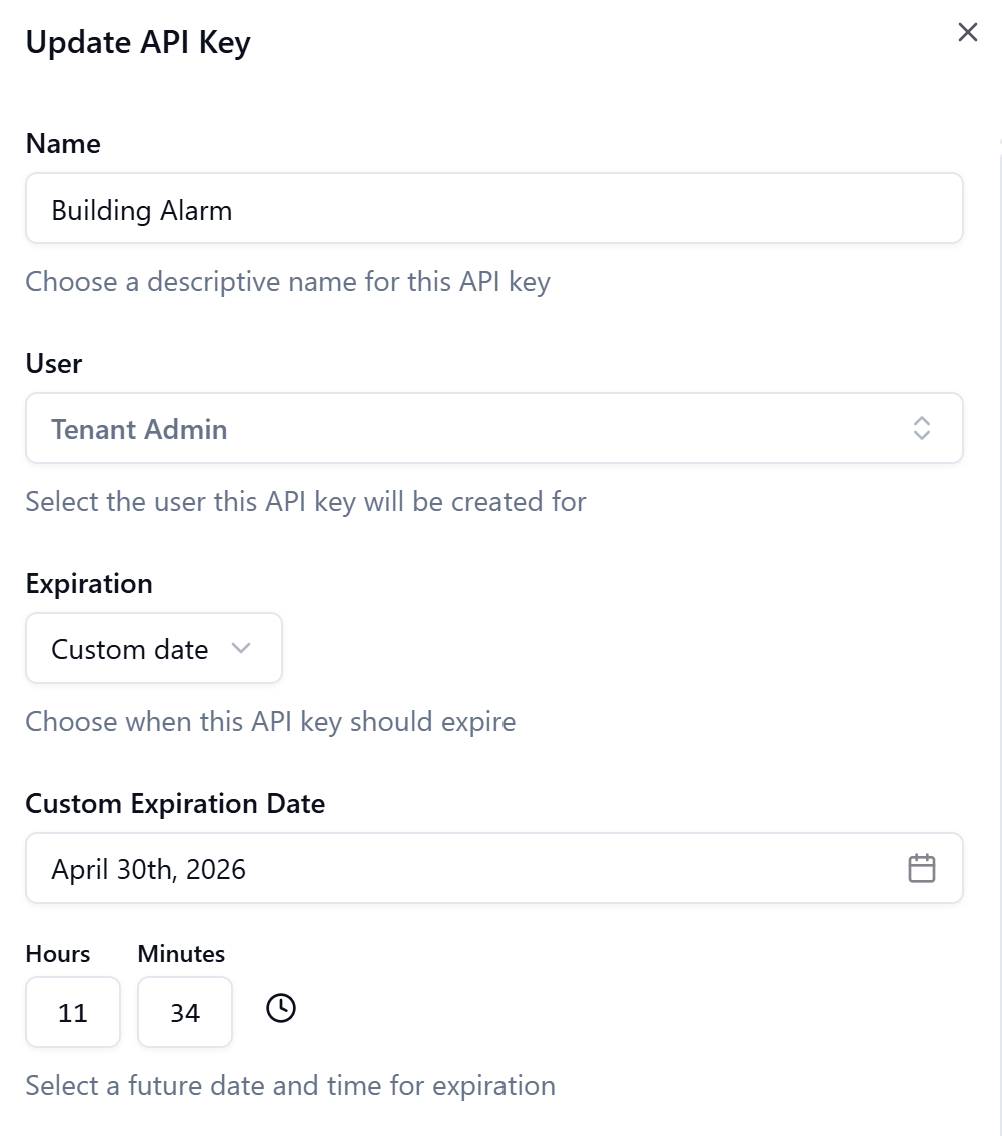
For production environments, avoid using "Never expires" keys. Regular key rotation (30-90 days) is a security best practice that limits the potential impact of compromised credentials.
-
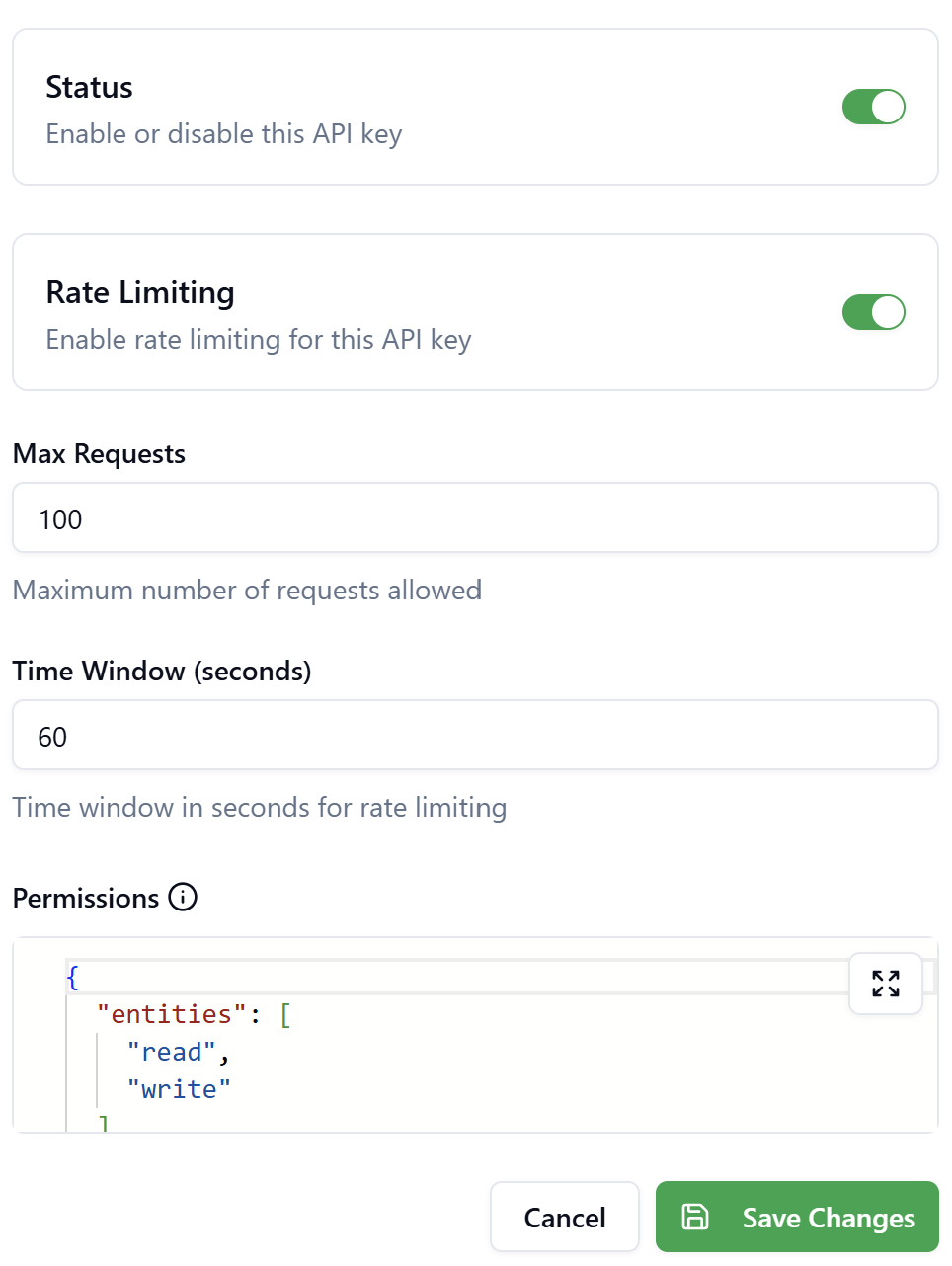
Configure Rate Limiting (Optional)
Rate limiting protects your SignalSync instance from excessive requests and potential abuse.
Enable Rate Limiting Toggle
- Turn on to enforce request limits
- Turn off to allow unlimited requests (not recommended for production)
Max Requests (Default: 100)
- Maximum number of API calls allowed within the time window
- Adjust based on your integration's expected traffic patterns
Time Window (seconds) (Default: 60)
- Time period for measuring request count
- Default setting allows 100 requests per minute
When to Adjust Rate Limits:
- The default 100 requests/60 seconds is reasonable for most integrations
- Increase limits only after careful security assessment
- Consider the impact of potential denial-of-service scenarios
- Document any rate limit increases and their justification
-
Review Permissions
The Permissions field displays the current permission scope in JSON format:
{
  "entities": [
    "read",
    "write"
  ]
}- Create the API Key
- Review all settings carefully
- Click Create API Key to generate the key
Rate Limit ExceededWhen an API key exceeds its rate limit, the API returns an HTTP 429 (Too Many Requests) error. The calling application must implement retry logic with exponential backoff to handle these responses gracefully.
Future EnhancementThe current release supports basic read/write permissions for all entities. Future releases will introduce granular permission controls, allowing you to specify access levels for individual entity types, specific API endpoints, and custom operations.
Save Your API Key Securely
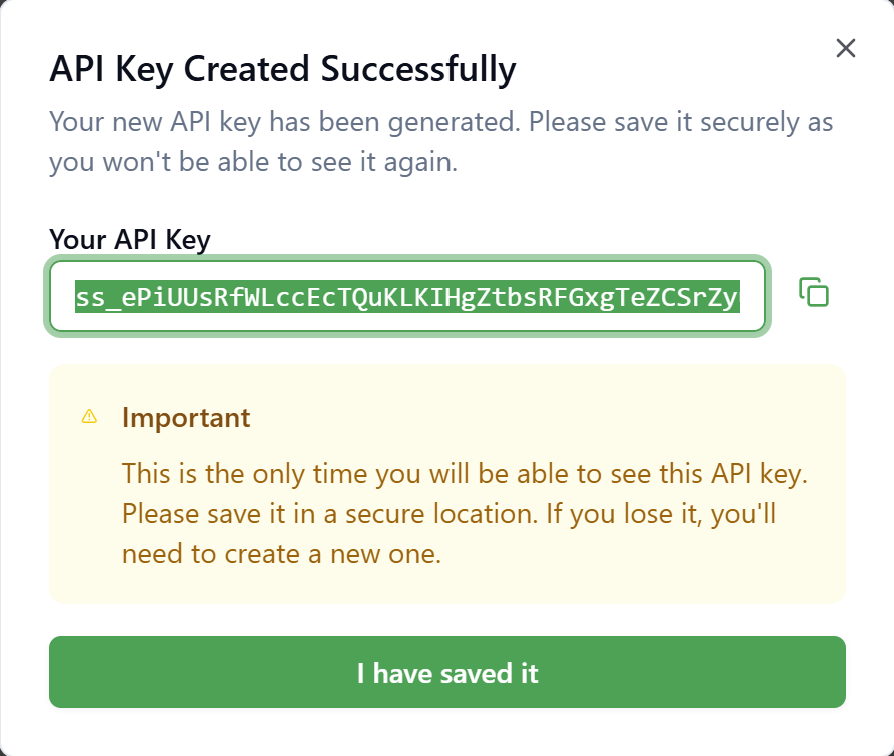
After clicking Create API Key, SignalSync displays the "API Key Created Successfully" confirmation dialog.
This is the only time you will see the complete API key. You cannot retrieve it again after closing this dialog. If you lose the key, you must create a new one.
Immediate Actions Required:
-
Copy the API Key
- Click the copy icon next to the key value
- The full key will be copied to your clipboard
-
Store Securely
- Save the key in a password manager or secure credential vault
- Never store API keys in plain text files
- Do not commit API keys to source control repositories
- Avoid sending keys through unsecured channels (email, chat, unencrypted documents)
-
Provide to Integration Partner
- If sharing with a third-party vendor, use secure transmission methods:
- Encrypted email
- Secure file transfer protocols
- Password-protected documents with separate password delivery
- Your organization's approved secrets management system
- If sharing with a third-party vendor, use secure transmission methods:
-
Acknowledge Save Completion
- Click I have saved it to close the dialog
- The new API key will appear in the API Keys list
Managing Existing API Keys
The API Keys list displays all configured keys with their current status, expiration, and usage information.
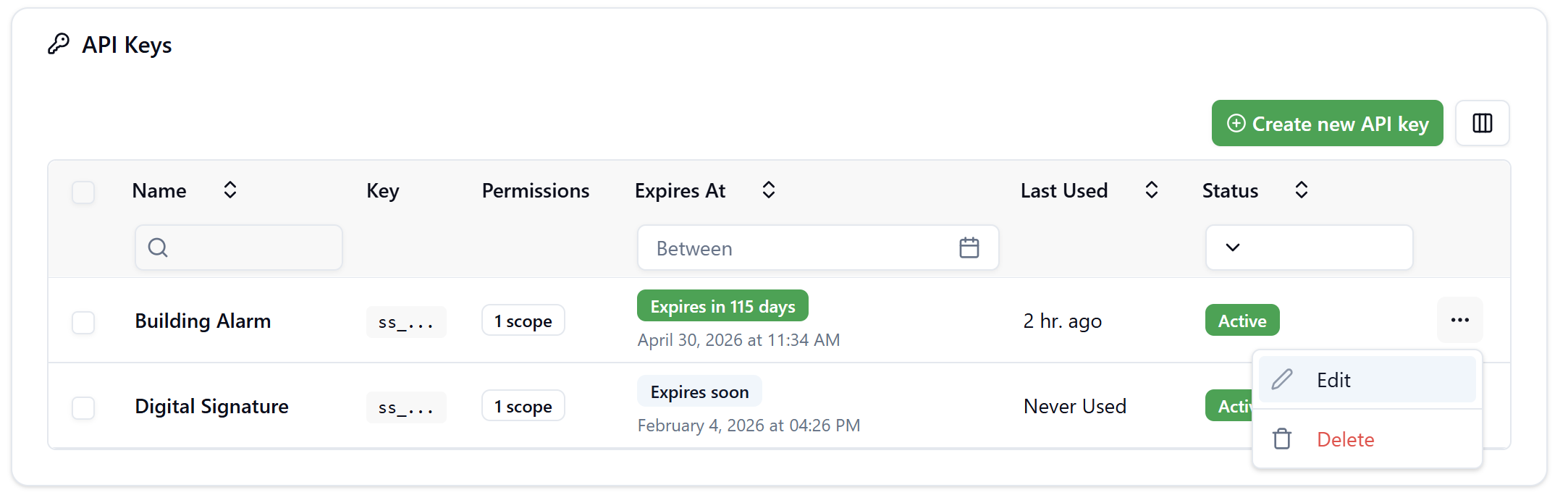
API Keys List Columns
- Name - Descriptive identifier for the API key
- Key - Masked key value (e.g.,
ss_...) for security - Permissions - Current permission scope
- Expires At - Expiration date and status badge
- Green badge: "Expires in X days"
- Yellow badge: "Expires soon"
- Last Used - Timestamp of most recent API call using this key
- Status - Active or Disabled indicator
Key Management Actions
Editing an API Key
You can modify an existing API key's configuration without changing the actual key value.
- Click the three-dot menu (⋯) in the API key row
- Select Edit
- Modify any of the following:
- Name
- User assignment
- Expiration date (to extend or shorten validity)
- Rate limiting settings
- Permissions (when granular controls become available)
- Click Save Changes
Common Edit Scenarios:
- Extending Expiration - Extend a key's validity period before it expires
- Adjusting Rate Limits - Increase limits for high-volume integrations
- Updating Name - Rename keys for better organization
Disabling an API Key Temporarily
To temporarily revoke access without deleting the key:
- Click the three-dot menu (⋯) in the API key row
- Select Edit
- Toggle the Status switch to OFF
- Click Save Changes
Disabled keys:
- Cannot authenticate API requests
- Return HTTP 401 (Unauthorized) errors when used
- Preserve all configuration settings
- Can be re-enabled at any time by toggling Status back to ON
When to Disable Instead of Delete:
- Temporarily suspending an integration during maintenance
- Investigating suspicious activity associated with a key
- Testing integration failure handling
- Preserving audit history while preventing access
Deleting API Keys
To permanently remove one or more API keys:
Delete Individual Key:
- Click the three-dot menu (⋯) in the API key row
- Select Delete
- Confirm the deletion in the dialog
Bulk Delete:
- Check the boxes next to API keys you want to remove
- Click the Delete (X) button in the top-right
- Confirm bulk deletion
Deleted API keys cannot be recovered. External applications using deleted keys will immediately lose access and receive HTTP 401 errors. Coordinate key deletion with integration partners to avoid service disruptions.
Using API Keys for Integration
Accessing External API Endpoints
API keys authenticate requests to SignalSync's External Rule Chain endpoints. These endpoints allow external systems to trigger workflows and execute business logic within SignalSync.
Finding Your API Endpoint URL:
- Navigate to Rule Chains Console
- Open the Rule Chain configured as an External API
- Click Edit Rulechain
- Expand the View API Endpoint section
- Copy the displayed endpoint URL
The endpoint URL format:
https://api.signalsync.cloud/rulechains/{rulechain-id}/execute
For complete details on creating and configuring External Rule Chain endpoints, refer to the Rule Chains documentation section (available in a separate help article).
Authentication Method
Include the API key in the request's x-api-key header. The API key value should be sent directly without any prefix or encoding.
POST /rulechains/{rulechain-id}/execute
Host: api.partners.signalsync.cloud
x-api-key: ss_VFtSOB1zoVnqIdBcLMUnLEfz1fPrYfzFDKBMaRx
Content-Type: application/json

{
  "_building": {
    "label": "Central Academy",
    "value": "007588f8-0709-45a8-b06e-23e1fac5606e"
  },
  "_priority": "Minor",
  "_description": "Building alarm - temperature anomaly detected on the ground floor.",
  "_problem_type": {
    "label": "TEMPERATURE",
    "value": "28e4e941-71f5-499c-977a-5005fafd28f9"
  }
}
Example using cURL:
curl -X POST https://api.signalsync.cloud/rulechains/{rulechain-id}/execute \
  -H "x-api-key: ss_VFtSOB1zoVnqIdBcLMUnLEfz1fPrYfzFDKBMaRx" \
  -H "Content-Type: application/json" \
  -d '{
    "_building": {
      "label": "Central Academy",
      "value": "007588f8-0709-45a8-b06e-23e1fac5606e"
    },
    "_priority": "Minor",
    "_description": "Building alarm - temperature anomaly detected."
  }'
Example using Postman:
- Set the request method to POST
- Enter the endpoint URL:
https://api.signalsync.cloud/rulechains/{rulechain-id}/execute - Navigate to the Authorization tab
- Select API Key as the Auth Type
- Set Key to:
x-api-key - Set Value to your API key
- Set Add to to:
Header - Navigate to the Body tab and enter your JSON payload
Integration Implementation Notes:
- Always use HTTPS (TLS/SSL encrypted) connections
- Send the API key in the
x-api-keyheader (notAuthorizationheader) - Do not include any prefix like "Bearer" or "API" before the key value
- Implement proper error handling for HTTP 401, 403, and 429 responses
- Include retry logic with exponential backoff for rate limit errors
- Log API failures for troubleshooting (without logging the API key itself)
- Monitor key expiration dates and implement automated rotation procedures
Security Best Practices
Key Rotation Policy
Implement regular API key rotation to minimize security risks:
Recommended Rotation Schedule:
- Production Systems - Rotate every 30-90 days
- Testing/Staging - Rotate every 90 days or when testing cycles complete
- Short-Term Projects - Use 7-day or 30-day expiration
- Never use "Never expires" in production environments
Rotation Process:
- Create a new API key with the same permissions
- Update external applications to use the new key
- Test the integration with the new key
- Disable the old key temporarily
- Monitor for any systems still using the old key
- Delete the old key after confirming successful migration
Secure Storage Guidelines
DO:
- ✅ Store API keys in dedicated secrets management systems (HashiCorp Vault, AWS Secrets Manager, Azure Key Vault)
- ✅ Use password managers with encryption at rest
- ✅ Encrypt configuration files containing API keys
- ✅ Restrict access to key storage using role-based access control
- ✅ Maintain an inventory of all API keys and their purposes
- ✅ Document key ownership and responsible parties
DON'T:
- ❌ Commit API keys to Git repositories or version control systems
- ❌ Store keys in plain text configuration files
- ❌ Share keys via unencrypted email or messaging platforms
- ❌ Hard-code keys directly in source code
- ❌ Include keys in log files or error messages
- ❌ Store keys in browser local storage or cookies
- ❌ Share the same key across multiple integrations
Monitoring and Auditing
Track API key usage to identify potential security issues:
Monitoring Indicators:
- Unusual spikes in API request volume
- Requests from unexpected IP addresses or geographic locations
- Failed authentication attempts
- Keys being used after their intended deactivation date
- Access patterns inconsistent with the integration's normal behavior
Response to Suspicious Activity:
- Immediately disable the compromised API key
- Notify relevant stakeholders about the potential security incident
- Review system logs for unauthorized access or data exfiltration
- Create a new API key for legitimate use
- Update the integration to use the new key
- Document the incident and response actions
While SignalSync doesn't provide a user-facing audit log interface, all API key operations are tracked in the backend database with timestamps and user identifiers. Cloud Administrators can access detailed logs through Grafana and Loki for security investigations and compliance reporting.
Troubleshooting
Common Issues and Solutions
HTTP 401 Unauthorized Error
Possible Causes:
- API key is disabled or deleted
- Key has expired
- Incorrect API key format in the header
- Using wrong header name (must be
x-api-key, notAuthorization) - API key contains extra spaces or line breaks
Resolution:
- Verify the API key's Status is "Active" in the API Keys list
- Check the Expires At date hasn't passed
- Confirm you're using the
x-api-keyheader (notAuthorization) - Ensure the API key value has no extra spaces, prefixes, or line breaks
- Test with a newly created API key to rule out key corruption
HTTP 429 Too Many Requests Error
Cause: Rate limit exceeded
Resolution:
- Check the key's rate limiting configuration (Max Requests, Time Window)
- Implement request throttling in your integration code
- Add exponential backoff retry logic to handle rate limit errors gracefully
- Review your application's request patterns for optimization opportunities
- If legitimate high volume, contact your Tenant Administrator to request rate limit increase
- Consider distributing load across multiple API keys if appropriate for your architecture
API Key Not Working Immediately After Creation
Possible Causes:
- Brief propagation delay in the system
- Incomplete key copied from the creation dialog
- Using incorrect API endpoint URL
Resolution:
- Wait 5-10 seconds and retry the request
- Verify you copied the complete key from the creation dialog (including all characters)
- Confirm you're using the correct API endpoint URL from the Rule Chain configuration
- Test with a simple API testing tool (Postman, cURL) to isolate integration code issues
Lost or Forgotten API Key
Important: API keys cannot be retrieved after the creation dialog closes.
Resolution:
- Delete the lost key if you can identify which one it is
- Create a new API key with the same configuration settings
- Update your integration with the new key value
- Test the integration to confirm the new key works correctly
- Implement a key management process to prevent future loss (use password manager, secrets vault, etc.)
Rule Chain execution fails despite valid API key
Possible Causes:
- Rule Chain is disabled or not configured as an External API
- Request payload doesn't match Rule Chain's expected input format
- Rule Chain has internal errors or missing configuration
Resolution:
- Verify the Rule Chain's "Is External" toggle is enabled
- Review the Rule Chain configuration in the Rule Chains Console
- Check the request payload matches the expected JSON structure
- Test the Rule Chain manually within SignalSync before external integration
- Review Rule Chain execution logs for specific error messages
Cannot create new API key
Possible Causes:
- Insufficient permissions (only Tenant Administrators can create API keys)
- Required fields not completed in the creation form
- System or network connectivity issues
Resolution:
- Confirm you're logged in with Tenant Administrator role
- Ensure Name and User fields are filled in
- Try refreshing the page and attempting creation again
- If issue persists, contact your SignalSync Cloud Administrator
Frequently Asked Questions
Q: Can Customer Administrators create API keys?
A: No, only Tenant Administrators can create and manage API keys. This restriction ensures centralized control over external integrations and maintains security governance.
Q: How many API keys can I create?
A: There is no enforced limit on the number of API keys. However, for security and manageability, create only the keys you need and retire unused keys promptly.
Q: Can I regenerate an API key without changing its configuration?
A: Currently, you cannot regenerate the key value itself. If a key is compromised, you must create a new key, update your integrations, and delete the compromised key.
Q: What happens to API requests when a key expires?
A: Expired keys immediately fail authentication and return HTTP 401 errors. Monitor expiration dates and rotate keys before they expire to prevent service interruptions.
Q: Can I use the same API key for multiple integrations?
A: While technically possible, it's not recommended. Create separate API keys for each integration to enable granular access control, independent rate limiting, and simplified troubleshooting.
Q: How do I audit API key usage?
A: The "Last Used" column in the API Keys list shows the most recent request timestamp. For detailed usage analytics and security auditing, Cloud Administrators can access comprehensive logs through Grafana and Loki.
Q: Will API keys support OAuth2 or JWT authentication in the future?
A: SignalSync's roadmap includes expanded authentication options and more sophisticated permission models. Check release notes and product announcements for updates on these features.
Summary
API Keys provide secure, flexible authentication for integrating SignalSync with external applications. By following the security best practices outlined in this guide—including regular key rotation, secure storage, and appropriate rate limiting—you can enable powerful integrations while maintaining strong security posture.
Key Takeaways:
- Only Tenant Administrators can manage API keys
- Always save the complete key immediately upon creation
- Implement 30-90 day rotation policies for production keys
- Never commit API keys to source control
- Use rate limiting to protect against abuse
- Monitor key usage and respond quickly to suspicious activity
- Current API keys work exclusively with External Rule Chain endpoints
For questions about API Keys or integration requirements, contact your SignalSync administrator or refer to the Rule Chains documentation for endpoint configuration details.