Two-Factor Authentication
Two-Factor Authentication (2FA) adds an extra layer of security to your SignalSync account by requiring a second form of verification in addition to your password. Even if someone obtains your password, they cannot access your account without the second authentication factor.
Overview
SignalSync supports two methods of two-factor authentication:
Authenticator App (Recommended)
- Uses Time-based One-Time Password (TOTP) technology
- Compatible with Google Authenticator, Microsoft Authenticator, and other TOTP apps
- Generates 6-digit codes that refresh every 30 seconds
- Works offline once configured
Email Verification
- Sends 6-digit codes to your registered email address
- Useful as a backup when you don't have access to your authenticator device
- Codes expire after 10 minutes
- Requires email delivery for each login
Your organization's Tenant Administrator can enforce 2FA for all users. When enforced, you must set up and use 2FA to access SignalSync. Individual users can also enable 2FA voluntarily for enhanced personal account security.
How Two-Factor Authentication Works
Authentication Flow
- Enter Credentials: You log in with your email and password as usual
- Verify Identity: SignalSync prompts for a 6-digit verification code
- Provide Second Factor: Enter the code from your authenticator app or request one via email
- Access Granted: After successful verification, you're logged into SignalSync
When 2FA is Required
- Every Login: 2FA verification is required each time you log in to SignalSync
- All Devices: 2FA applies to every device and browser you use
- Session Duration: Once authenticated, your session remains active until it expires, at which point you'll need to re-authenticate
Users who authenticate via Microsoft OAuth2 (single sign-on) do not use SignalSync's 2FA system. Instead, they rely on the multi-factor authentication policies configured in Microsoft Entra ID.
Organization-wide 2FA Enforcement
For Tenant Administrators
Tenant Administrators can enforce Two-Factor Authentication across the entire organization to ensure all users maintain strong security practices.
Enabling Organization-wide Enforcement
- Navigate to Settings from the left sidebar
- Click Security
- Select the Two-Factor Authentication tab
- Toggle Enforce Organization-wide Two-Factor Authentication to ON
- Click Save Changes
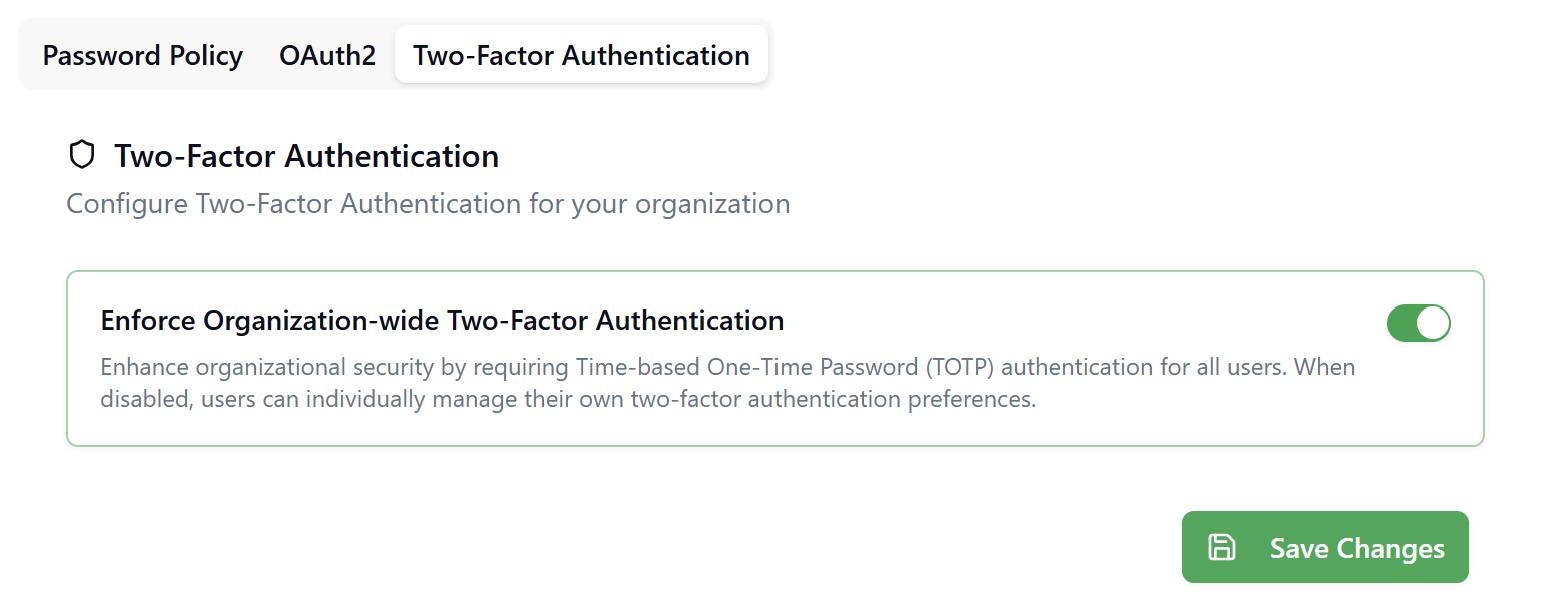
Effect of Enforcement:
- All existing users without 2FA will be required to set it up at their next login
- New users must configure 2FA during their first login
- Users cannot disable 2FA while enforcement is active
- Currently logged-in users are not immediately affected; enforcement applies at next login
Disabling Organization-wide Enforcement
- Navigate to Settings → Security → Two-Factor Authentication
- Toggle Enforce Organization-wide Two-Factor Authentication to OFF
- Click Save Changes
Effect of Disabling:
- Users can continue using 2FA if they choose
- Users gain the option to disable 2FA in their personal account settings
- Existing sessions remain active; users are not logged out
- Individual users retain control over their own 2FA settings
2FA enforcement applies only to users who authenticate with email and password. Users authenticating via OAuth2 are not affected by this setting, as they use their identity provider's authentication policies.
Enabling 2FA as an Individual User
Even if your organization hasn't enforced 2FA, you can enable it voluntarily to protect your account.
Setting Up 2FA
Step 1: Access Authentication Settings
- Click your profile picture or name in the bottom-left corner
- Select My Account
- Click the Authentication tab
- Locate the Two-factor authentication section
- Click Enable 2FA
Step 2: Configure Your Authenticator App
The "Two-Factor Configuration" dialog appears with a QR code.
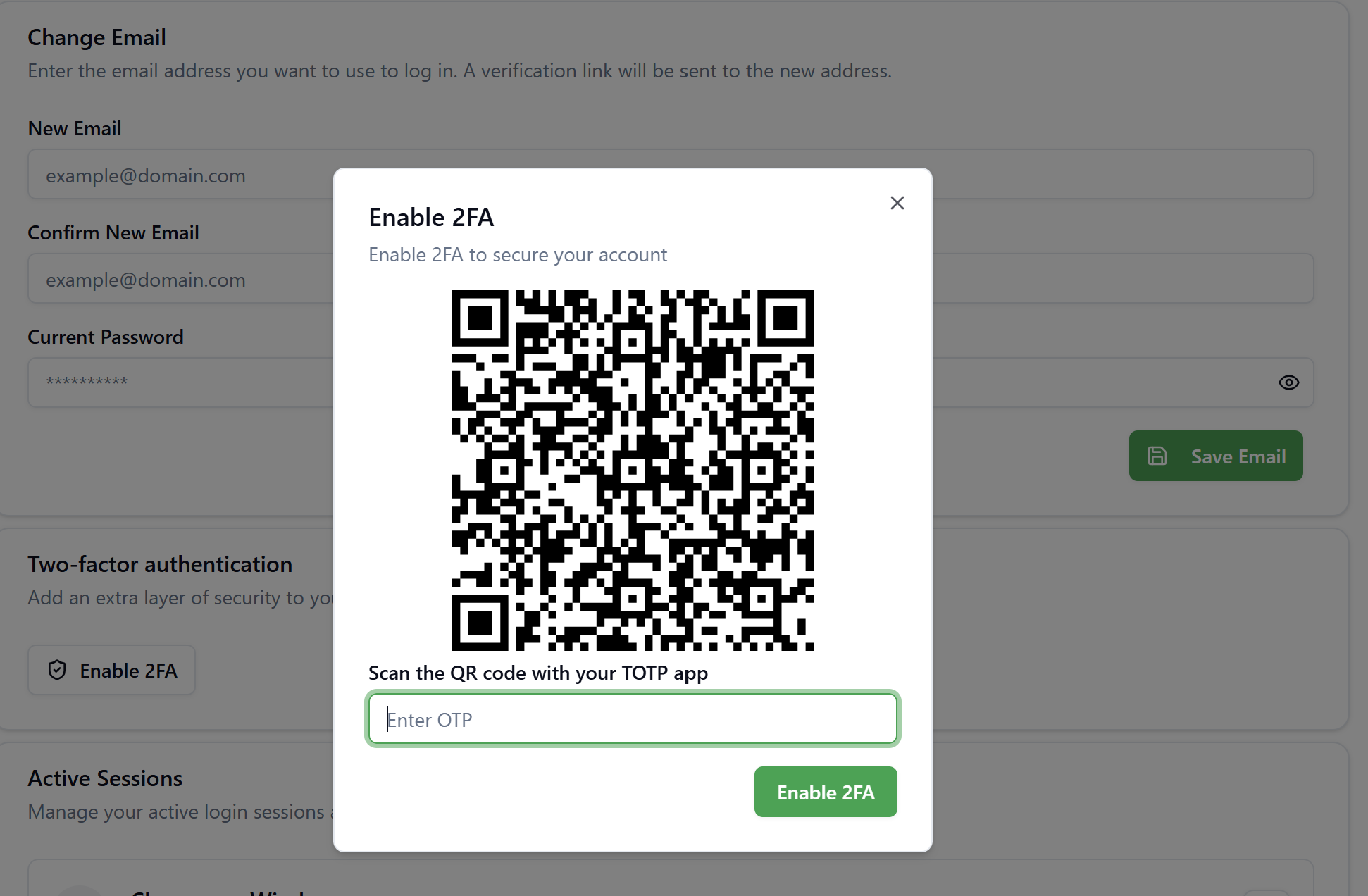
Using Google Authenticator or Microsoft Authenticator:
- Open your authenticator app on your mobile device
- Tap the + button to add a new account
- Select Scan QR Code or Scan a barcode
- Point your camera at the QR code displayed in SignalSync
- The app automatically adds SignalSync and begins generating codes
Step 3: Verify and Enable
- In the "Two-Factor Configuration" dialog, enter the current 6-digit code from your authenticator app in the Enter OTP field
- Click Enable 2FA
- If the code is correct, 2FA is now active on your account
- You'll see a confirmation message: "Two-factor authentication is enabled"
Keep your authenticator app secure and backed up. If you lose access to your device, you'll need to use email verification and reconfigure 2FA.
Using Two-Factor Authentication at Login
Login with Authenticator App
- Navigate to SignalSync and enter your email and password
- Click Login
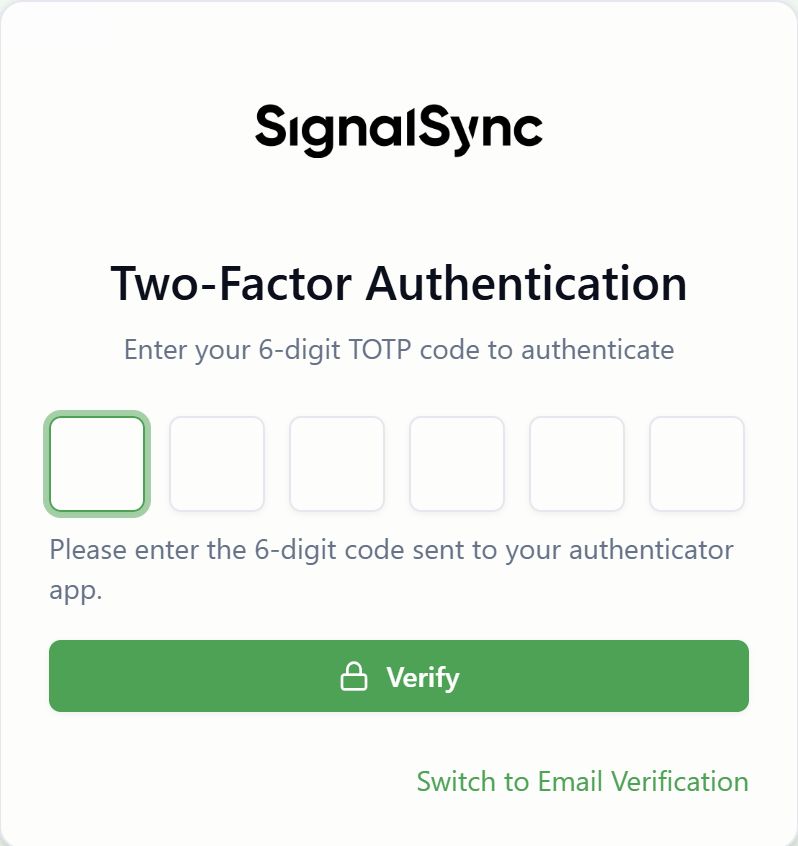
- The "Two-Factor Authentication" screen appears
- Open your authenticator app and find the SignalSync entry
- Enter the current 6-digit code in the verification fields
- Click Verify
The code refreshes every 30 seconds. If a code expires before you enter it, simply use the new code that appears.
Login with Email Verification
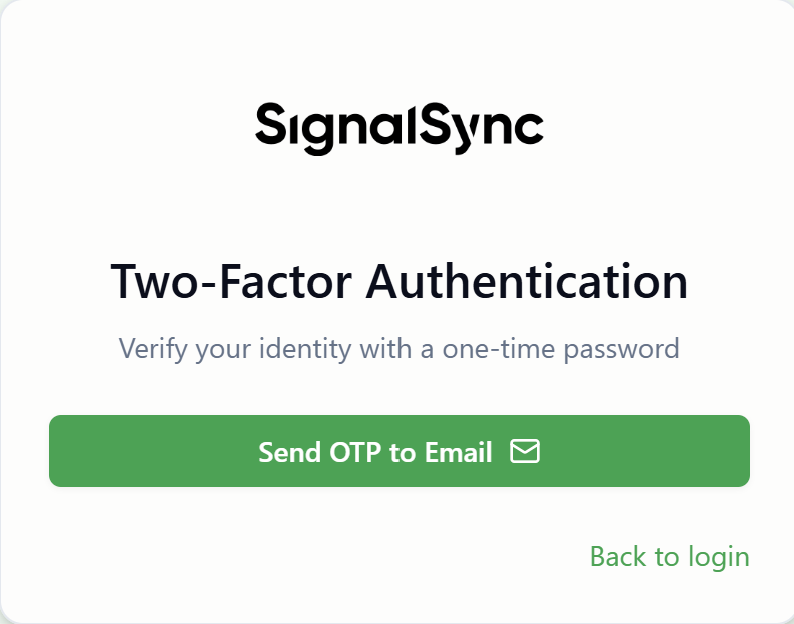
If you don't have access to your authenticator app, you can receive a code via email instead.
- On the "Two-Factor Authentication" screen, click Switch to Email Verification
- Click Send OTP to Email
- Check your email inbox for a message from SignalSync
- Enter the 6-digit code from the email
- Click Verify
Email Code Properties:
- Codes expire after 10 minutes
- Only the most recent code is valid (requesting a new code invalidates previous ones)
- Check spam/junk folders if you don't receive the email within a minute
- You can request a new code if the previous one expires
You can choose between authenticator and email verification on every login. Email verification is always available as a backup option, even if you primarily use an authenticator app.
Managing Your 2FA Settings
Viewing 2FA Status
To check if 2FA is enabled on your account:
- Go to My Account → Authentication tab
- Look for the Account Security Overview section
- A checkmark next to "Two-factor authentication" indicates 2FA is active
Reconfiguring Your Authenticator
If you need to set up a new device or lost access to your authenticator:
- Log in using email verification (click "Switch to Email Verification" at login)
- Go to My Account → Authentication tab
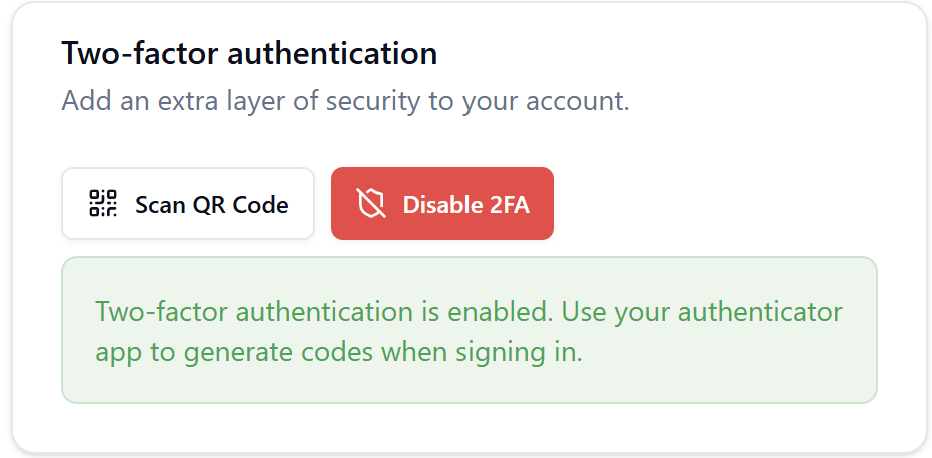
- In the Two-factor authentication section, click Scan QR Code
- Follow the setup process with your new device
- Scanning a new QR code invalidates your previous authenticator configuration
- You cannot have multiple devices using the same 2FA configuration simultaneously
- The previous device's codes will stop working once you scan the new QR code
Disabling 2FA (When Not Enforced)
If your organization hasn't enforced 2FA, you can disable it:
- Go to Manage Account → Authentication tab
- In the Two-factor authentication section, click Disable 2FA
- Enter your current password in the confirmation dialog
- Click Disable 2FA
Effect of Disabling:
- Your current session remains active (you're not logged out)
- Future logins will only require email and password
- Your authenticator app entry can be deleted
- You can re-enable 2FA anytime by scanning a new QR code
If your organization has enabled "Enforce Organization-wide Two-Factor Authentication," the Disable 2FA button will not be available. Contact your Tenant Administrator if you have concerns about this policy.
Recovery & Troubleshooting
Lost access to authenticator device
Recovery Process:
- Go to the SignalSync login page
- Enter your email and password
- On the 2FA verification screen, click Switch to Email Verification
- Click Send OTP to Email
- Check your email and enter the 6-digit code
- After logging in, go to My Account → Authentication
- Click Scan QR Code in the Two-factor authentication section
- Set up 2FA with your new device by scanning the QR code
Important: This process creates a new 2FA configuration. Your old authenticator entry will no longer work.
Authenticator codes not working
Common Causes & Solutions:
- Time Synchronization Issue: Ensure your mobile device's date and time are set to automatic/network time
- Code Expired: TOTP codes refresh every 30 seconds. If you entered a code just as it changed, try the new code
- Wrong Account Selected: Verify you're viewing the code for SignalSync (not another service)
- Authenticator App Issues: Try closing and reopening your authenticator app
- Configuration Mismatch: If problems persist, reconfigure 2FA by scanning a new QR code
Immediate Workaround: Use email verification to log in, then reconfigure your authenticator.
Not receiving email verification codes
Troubleshooting Steps:
- Check Spam/Junk Folder: Email filters may incorrectly classify 2FA emails
- Verify Email Address: Ensure the email address on your account is correct
- Wait Before Retrying: Allow 1-2 minutes for email delivery
- Check Email Quotas: Ensure your mailbox isn't full
- Request New Code: Old codes are invalidated when you request a new one
Email Content: The email subject is "Two-Factor Authentication" from "The SignalSync Team" and contains a 6-digit code that expires in 10 minutes.
2FA required but wasn't previously
Cause: Your organization's Tenant Administrator has enabled Enforce Organization-wide Two-Factor Authentication.
Required Action:
- On your next login, you'll see the "Two-Factor Configuration" dialog
- Follow the setup process to configure 2FA
- You cannot bypass this requirement while enforcement is active
- Contact your Tenant Administrator if you have questions about this policy
Note: This is a security policy decision made by your organization to protect all user accounts.
Cannot disable 2FA
Cause: Your organization has enabled Enforce Organization-wide Two-Factor Authentication.
Resolution:
- You cannot disable 2FA while organizational enforcement is active
- The Disable 2FA button will not appear in your account settings
- This is an organization-level security policy
- Contact your Tenant Administrator to discuss this requirement
Security Message: When 2FA is enforced, you'll see: "Two-factor authentication is enabled. Use your authenticator app to generate codes when signing in."
Active sessions after disabling 2FA
Behavior:
- Disabling 2FA does not log you out of your current session
- You can continue working in any currently active browser or device sessions
- The change only affects future login attempts
Security Implications:
- If you disable 2FA due to security concerns, manually sign out of all sessions
- Go to My Account → Authentication → Active Sessions
- Review and terminate any suspicious sessions
Multiple authenticator apps or devices
Current Limitation:
SignalSync does not support registering multiple authenticator devices simultaneously. Each time you scan a new QR code:
- The previous authenticator configuration becomes invalid
- Only the most recently configured device will generate valid codes
- Previous devices must be removed from your authenticator app
Workaround:
- Use a single primary authenticator device
- Keep email verification as your backup method
- Consider using an authenticator app that syncs across devices (e.g., Microsoft Authenticator with cloud backup)
Security Best Practices
For All Users
Authenticator App Security:
- Use reputable authenticator apps (Google Authenticator, Microsoft Authenticator, Authy)
- Keep your authenticator app updated to the latest version
- Enable biometric protection (fingerprint, face ID) on your authenticator app if available
- Back up your device regularly (some authenticator apps offer cloud backup)
Device Security:
- Protect your mobile device with a strong PIN, password, or biometric lock
- Don't share your device with others
- Report lost or stolen devices immediately
- Reconfigure 2FA if you suspect your device was compromised
Email Security:
- Maintain a strong, unique password for your email account
- Enable 2FA on your email account provider
- Don't forward 2FA emails to others
- Delete 2FA code emails after use
Code Management:
- Never share your 6-digit verification codes with anyone
- Don't photograph or screenshot QR codes
- Be cautious of phishing attempts requesting your 2FA codes
- SignalSync support will never ask for your 2FA codes
For Tenant Administrators
Policy Decisions:
- Evaluate whether organization-wide 2FA enforcement aligns with your security requirements
- Consider compliance obligations (HIPAA, SOC 2, ISO 27001) that may require 2FA
- Communicate policy changes to users in advance
- Provide training and support resources for users unfamiliar with 2FA
Rollout Strategy:
- Announce 2FA enforcement with advance notice
- Provide step-by-step guides and training sessions
- Consider a grace period for users to set up 2FA voluntarily before enforcement
- Establish a support process for users experiencing setup difficulties
User Support:
- Designate IT support staff to help users with 2FA issues
- Document common troubleshooting scenarios
- Be prepared to assist users who lose access to their authenticator devices
- Monitor help desk tickets related to 2FA for patterns indicating documentation gaps
Frequently Asked Questions
Q: Do I need 2FA if I use Microsoft OAuth2 to log in?
A: No, OAuth2 users authenticate through Microsoft Entra ID and use Microsoft's multi-factor authentication policies instead of SignalSync's 2FA. The "Enforce Organization-wide Two-Factor Authentication" toggle does not affect OAuth2 users.
Q: Can I use 2FA on multiple devices?
A: SignalSync does not support multiple authenticator devices simultaneously. Each time you scan a new QR code, the previous configuration becomes invalid. Use email verification as a backup method.
Q: What happens if I lose my phone with my authenticator app?
A: Use email verification to log in. Go to the 2FA verification screen, click "Switch to Email Verification," and have a code sent to your email. After logging in, reconfigure 2FA with a new device by scanning a new QR code.
Q: How long is a 2FA code valid?
A: Authenticator app codes are valid for approximately 30 seconds before they refresh. Email codes expire after 10 minutes.
Q: Do I need to enter a 2FA code every time I log in?
A: Yes, 2FA verification is required for every login attempt. There is no "remember this device" or trusted device feature. Your session remains active for 24 hours once authenticated.
Q: Can I disable 2FA if I don't want to use it?
A: Only if your organization has not enforced 2FA. When enforcement is active, you cannot disable 2FA. If enforcement is not active, you can disable 2FA in My Account → Authentication → Two-factor authentication → Disable 2FA.
Q: Will I be logged out if my Tenant Administrator enforces 2FA?
A: No, you will not be immediately logged out. You'll be required to set up 2FA the next time you log in. Your current active session continues uninterrupted.
Q: Can I switch between authenticator app and email verification?
A: Yes, you can choose your verification method on every login. Even if you primarily use an authenticator app, email verification is always available as a fallback option.
Q: What if I request multiple email codes?
A: Only the most recent email code is valid. Requesting a new code automatically invalidates any previously sent codes.
Q: Can a Tenant Administrator reset my 2FA if I'm locked out?
A: No, Tenant Administrators cannot reset individual user 2FA configurations. If you're locked out, use email verification to log in and reconfigure your authenticator.
Q: Does disabling 2FA log me out of active sessions?
A: No, disabling 2FA does not terminate your current session. The change only affects future login attempts.
Q: Will my 2FA codes work if I scan the QR code again?
A: No, scanning a new QR code creates a new configuration and invalidates all previous codes. Your old authenticator entry will stop working.
Summary
Two-Factor Authentication provides essential protection for your SignalSync account by requiring both your password and a verification code to log in. Whether mandated by your organization or enabled voluntarily, 2FA significantly reduces the risk of unauthorized access.
Key Takeaways:
- Flexible Methods: Choose between authenticator apps (recommended) or email verification
- Organization Control: Tenant Administrators can enforce 2FA across all users
- Individual Choice: Enable 2FA voluntarily even without organizational enforcement
- Recovery Options: Use email verification if you lose access to your authenticator device
- Every Login: 2FA verification is required each time you log in
- OAuth2 Exempt: Users authenticating via Microsoft OAuth2 use their identity provider's 2FA policies
For questions about your organization's 2FA policies or implementation assistance, contact your Tenant Administrator or IT support team.