OAuth2 Configuration
OAuth2 Configuration allows Tenant Administrators to enable single sign-on (SSO) authentication using external identity providers. Currently, SignalSync supports Microsoft Entra ID (formerly Azure Active Directory) for OAuth2 authentication.
Overview
When OAuth2 is enabled, users can authenticate using their organizational identity provider credentials instead of, or in addition to, traditional username and password authentication. SignalSync uses Just-In-Time (JIT) provisioning to automatically create user accounts on first login.
Key Benefits
- Centralized Identity Management: Manage user identities in Microsoft Entra ID
- Single Sign-On: Users authenticate once with their organizational credentials
- Automatic User Provisioning: User accounts created automatically on first login
- Group-Based Access Control: Assign SignalSync Profiles based on Entra security groups
- Enhanced Security: Leverage multi-factor authentication and conditional access policies from Microsoft Entra
How It Works
- User clicks "Login with Microsoft" button on SignalSync login page
- User is redirected to Microsoft authentication page
- User enters Microsoft credentials (with MFA if configured)
- Microsoft validates credentials and returns user information to SignalSync
- SignalSync automatically creates user account (if first login) and assigns profiles based on group membership
- User is logged into SignalSync and redirected to their configured homepage
Accessing OAuth2 Configuration
- Log in as a Tenant Administrator
- Navigate to Settings in the main navigation
- Click on Security in the Settings menu
- Select the OAuth2 tab
OAuth2 configuration is only available to users with Tenant Administrator role.
Authentication Method Coexistence
SignalSync supports both OAuth2 and traditional password authentication simultaneously within the same tenant.
Important: Each individual user can only use one authentication method:
- OAuth2 users: Can only login via "Login with Microsoft" button
- Password users: Can only login with email and password
Typical Usage Pattern
- Internal employees: Use OAuth2 authentication with Microsoft Entra ID
- External partners/suppliers: Use traditional password authentication
This allows organizations to maintain centralized authentication for internal users while providing access to external collaborators without requiring them to be in the organization's identity provider.
External users (suppliers, contractors, partners) should be created in a separate Customer within SignalSync for easier management and reporting.
Technical Flow Diagram
Click to view: Complete OAuth2 authentication and provisioning sequence diagram
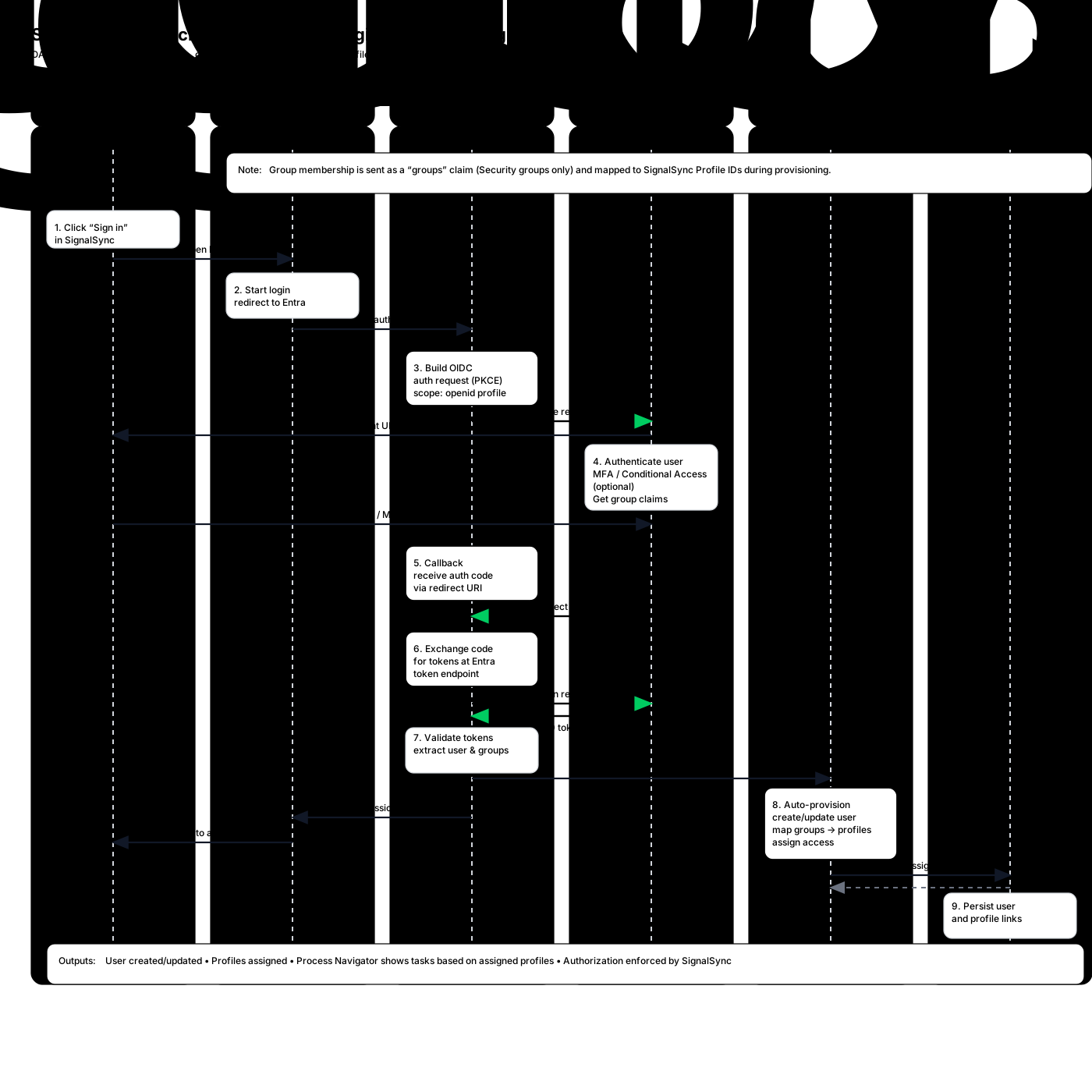
SignalSync ↔ Microsoft Entra ID Integration Flow
The following diagram illustrates the complete OAuth 2.0 / OpenID Connect authentication flow, including user authentication, group claims retrieval, and automatic user provisioning.
Flow Summary
Authentication Phase (Steps 1-7):
- User initiates login from SignalSync
- Browser redirects to SignalSync Auth API
- Auth API builds OIDC authorization request with PKCE
- User authenticates with Microsoft Entra (including MFA if configured)
- Microsoft returns authorization code via callback
- SignalSync exchanges code for tokens
- Tokens validated and user/group information extracted
Provisioning Phase (Steps 8-9):
- SignalSync automatically provisions user:
- Creates or updates user account
- Maps Microsoft Entra security groups to SignalSync profiles
- Assigns appropriate access rights
- User and profile assignments persisted to database
Session Phase:
- Session/JWT created for authenticated user
- User redirected to application homepage
- Process Navigator displays tasks based on assigned profiles
Enabling OAuth2 Authentication
Enable OAuth2 Toggle
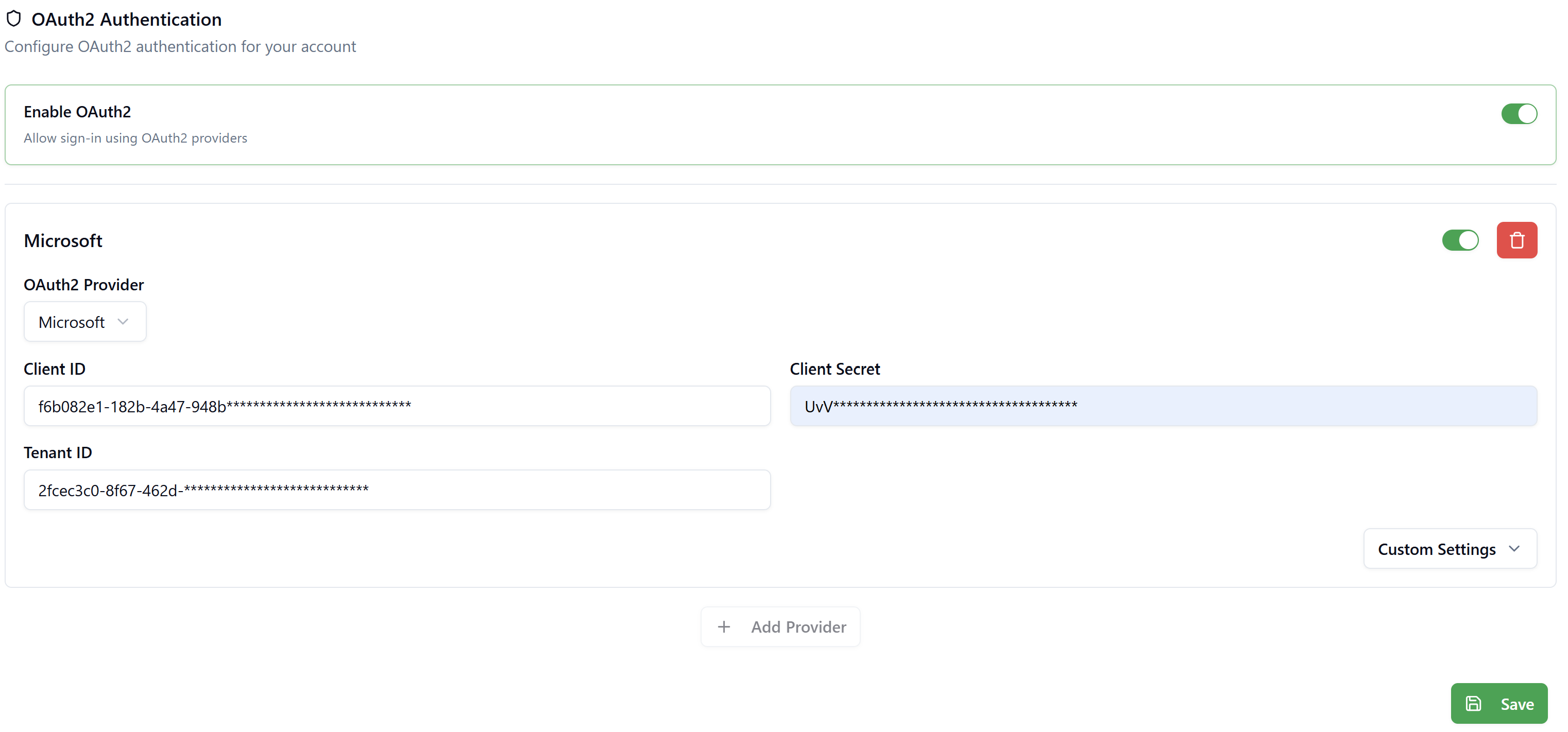
At the top of the OAuth2 Configuration page, you'll find the Enable OAuth2 toggle.
Configuration:
- Toggle: On/Off
- Default: Disabled (Off)
- Effect: When enabled, displays "Login with Microsoft" button on login page
Steps to Enable:
- Ensure Microsoft Entra configuration is complete (Configuration Guide below).
- Toggle Enable OAuth2 to On
- Configure provider settings (Client ID, Client Secret, Tenant ID)
- Configure field mappings
- Click Save at the bottom of the page
User Experience:
- When Enabled: Login page shows both email/password fields AND "Login with Microsoft" button
- When Disabled: Login page shows only traditional email/password authentication
Microsoft Provider Configuration
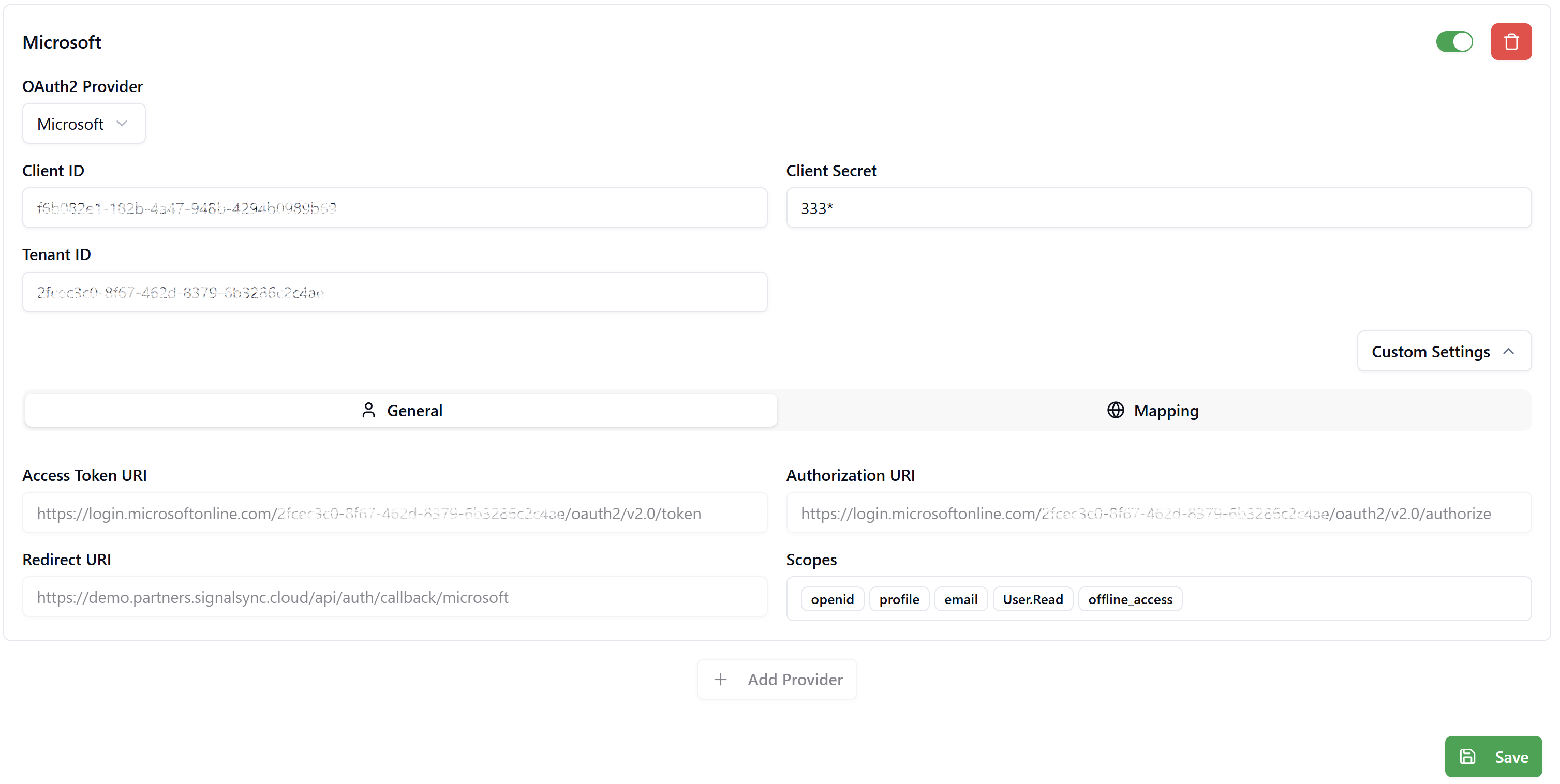
The Microsoft OAuth2 provider configuration requires information from your organization's Microsoft Entra ID (Azure AD).
Provider Settings
OAuth2 Provider
Description: Specifies the OAuth2 identity provider.
Configuration:
- Dropdown selection
- Available option: Microsoft
- Currently, only Microsoft Entra ID is supported
If your organization requires additional OAuth2 providers (Google, Okta, etc.), please contact SignalSync Support at [email protected]
Client ID
Description: The Application (Client) ID from your Microsoft Entra app registration.
Configuration:
- Field Type: Text input (UUID format)
- Example:
550e8400-e29b-41d4-a716-446655440000 - Required: Yes
How to Obtain: Provided by your Microsoft Entra Administrator during app registration see Configuration Guide below.
Client Secret
Description: The secret value used to authenticate SignalSync with Microsoft Entra.
Configuration:
- Field Type: Password input (masked)
- Display: Shows masked characters (e.g.,
333*) - Required: Yes
- Security: Store securely, never share
How to Obtain: Generated by your Microsoft Entra Administrator during app registration see Configuration Guide below.
The Client Secret is sensitive information. It should only be entered by authorized administrators and never shared outside your organization.
Tenant ID
Description: The Directory (Tenant) ID from your Microsoft Entra organization.
Configuration:
- Field Type: Text input (UUID format)
- Example:
7a9d4f21-b3e2-4c8a-9f41-1e6a92d8f7bc - Required: Yes
How to Obtain: Provided by your Microsoft Entra Administrator during app registration (see Configuration Guide below).
Custom Settings
Click Custom Settings to expand advanced configuration options. This section contains two tabs: General and Mapping.
General Tab
The General tab displays the OAuth2 endpoints used for authentication. These values are automatically generated based on your Tenant ID and cannot be modified.
Access Token URI
Description: The Microsoft endpoint used to obtain access tokens.
Format: https://login.microsoftonline.com/{tenant-id}/oauth2/v2.0/token
Configuration: Read-only, automatically generated
Authorization URI
Description: The Microsoft endpoint used for user authentication.
Format: https://login.microsoftonline.com/{tenant-id}/oauth2/v2.0/authorize
Configuration: Read-only, automatically generated
Redirect URI
Description: The callback URL where Microsoft redirects users after authentication.
Format: https://{your-tenant}.signalsync.cloud/api/auth/callback/microsoft
Configuration: Read-only, automatically generated based on your SignalSync tenant domain
Important: This exact URI must be registered in your Microsoft Entra app registration.
Scopes
Description: OAuth 2.0 / OpenID Connect scopes requested from Microsoft Entra ID during user authentication.
Values:
openid- Enables OpenID Connect authentication and issues an ID Token.profile- Grants access to basic user profile information (name, surname, etc.).email- Provides access to the user’s email address (if available).User.Read- Allows reading the signed-in user’s profile via Microsoft Graph.offline_access- Enables issuing refresh tokens for long-lived sessions.
Configuration: This configuration is read-only and follows Microsoft Entra OAuth2 requirements.
Mapping Tab
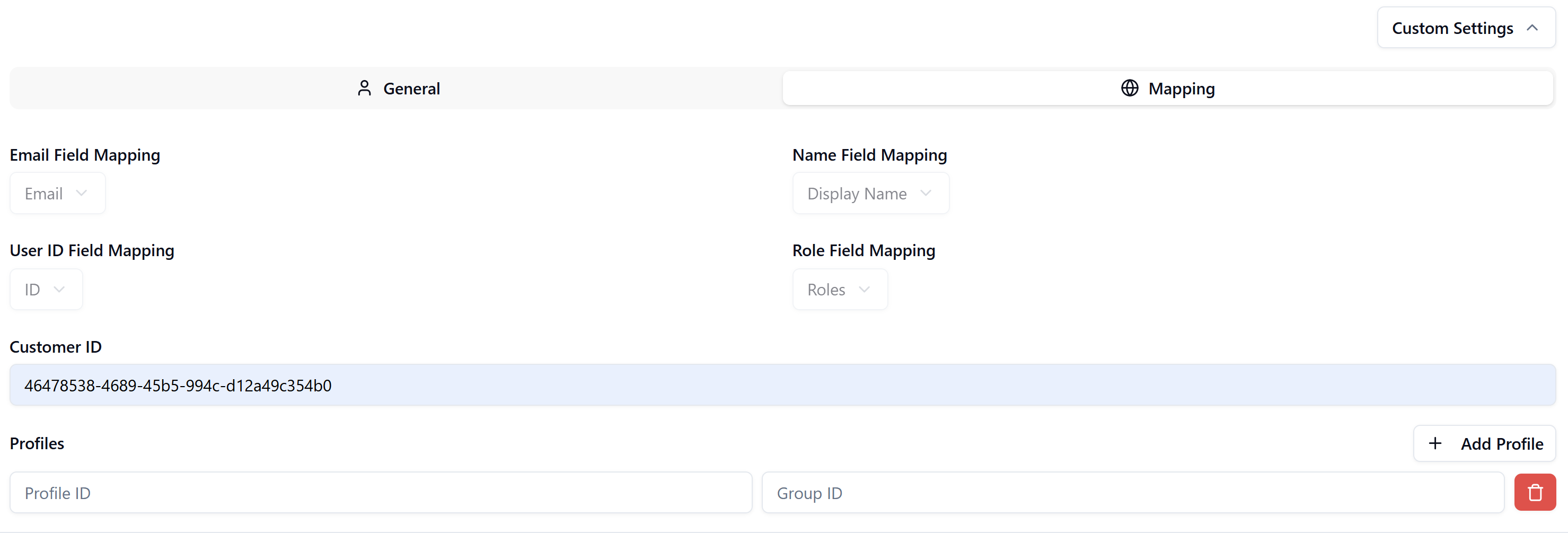
The Mapping tab configures how user information from Microsoft Entra is mapped to SignalSync user accounts.
Field Mappings (Read-Only)
These mappings define which Microsoft Entra fields are used to populate SignalSync user data. These mappings are fixed and cannot be changed.
Email Field Mapping
- Value:
Email - Purpose: Maps user's email address from Microsoft to SignalSync email field
Name Field Mapping
- Value:
Display Name - Purpose: Maps user's display name from Microsoft to SignalSync name field
User ID Field Mapping
- Value:
ID - Purpose: Maps Microsoft's unique user identifier to SignalSync user ID
Role Field Mapping
- Value:
Roles - Purpose: Maps Microsoft Entra security group membership for profile assignment
Customer ID
Description: The SignalSync Customer under which OAuth2 users will be created.
Configuration:
- Field Type: UUID input
- Required: Yes
- Format: UUID (e.g.,
46478538-4689-45b5-994c-d12a49c354b0)
Purpose: All users authenticating via OAuth2 will be automatically assigned to this Customer in SignalSync.
How to Find Customer ID:
- Navigate to Settings → Customers
- Click on the desired Customer in the table
- The Customer ID appears in the URL:
/customers/{customer-id} - Copy the UUID from the URL and paste into the Customer ID field
Example URL: https://{your-tenant}.signalsync.cloud/customers/46478538-4689-45b5-994c-d12a49c354b0
For internal employees, use your main organizational Customer. For external users requiring OAuth2, consider creating a separate Customer for easier access management.
Profiles
Description: Mapping between Microsoft Entra Security Groups and SignalSync Profiles.
Purpose: When a user logs in via OAuth2, SignalSync checks their Microsoft Entra security group membership and automatically assigns corresponding SignalSync Profiles.
Configuration:
- Each row maps one Profile ID to one Group ID
- Multiple mappings can be configured
- Format: UUID to UUID
Columns:
Profile ID (Left Column)
- SignalSync Profile UUID
- Users will be assigned this profile if they are members of the corresponding Microsoft Entra group
Group ID (Right Column)
- Microsoft Entra Security Group Object ID
- The security group membership used to determine profile assignment
Actions:
- Add Profile: Click the "+ Add Profile" button to create a new mapping
- Delete: Click the red trash icon to remove a mapping
How to Find Profile ID:
- Navigate to Administration → Managing Profiles
- Click on the desired Profile in the table
- The Profile ID appears in the URL:
/profiles/{profile-id} - Copy the UUID from the URL and paste into the Profile ID field
Example URL: https://{your-tenant}.signalsync.cloud/profiles/d85c14fe-ad0a-4431-9ac4-cc3859d9498c
How to Obtain Group ID:
- Your Microsoft Entra Administrator provides the Security Group Object IDs
- See the Configuration Guide below for instructions on finding Group IDs in Microsoft Entra
If a user is not a member of any mapped security groups, they will be created in SignalSync but will not have access to any processes. Ensure all users are assigned to at least one security group that maps to a SignalSync Profile.
Example Configuration:
| Profile ID (SignalSync) | Group ID (Microsoft Entra) |
|---|---|
| 45b43993-44ab-4a35-944f-b1e53cf1eb21 | 52752c82-7664-412e-bec0-3c6f956ba2d8 |
| d85c14fe-ad0a-4431-9ac4-cc3859d9498c | 620d61bb-5c4b-4f1e-ac70-e790afdf325f |
| fa169707-18a9-4186-9170-50f583168291 | 8a5bc6c0-7e6b-46f5-a5ed-8d5727599767 |
User Provisioning Flow
Automatic User Creation (Just-In-Time Provisioning)
When a user logs in via OAuth2 for the first time:
- Authentication: User authenticates with Microsoft Entra credentials
- User Creation: SignalSync automatically creates a user account with:
- Email: From Microsoft Entra email field
- Name: From Microsoft Entra display name field
- Customer: Assigned to configured Customer ID
- Provider: Set to "microsoft"
- Profile Assignment: System checks user's Microsoft Entra security group membership
- Profile Mapping: For each group the user belongs to:
- If group ID matches a configured mapping, assign corresponding SignalSync Profile
- Login Complete: User is redirected to their configured homepage/default URL
Subsequent Logins
For users who have already been provisioned:
- Authentication: User authenticates with Microsoft Entra
- Profile Sync: System updates profile assignments based on current group membership
- Login: User accesses SignalSync with updated profile access
Profile assignments are refreshed each time a user logs in. If a user's group membership changes in Microsoft Entra, their SignalSync profile access will update on next login.
Login Experience
For OAuth2 Users
When OAuth2 is enabled, the SignalSync login page displays:
- Traditional Login Section:
- Email address field
- Password field
- "Sign in" button
- Separator: "Or continue with"
- OAuth2 Login Section:
- "Login with Microsoft" button
- Forgot Password Link: Still available for password-based users
OAuth2 Login Flow:
- User clicks "Login with Microsoft" button
- Redirected to Microsoft authentication page
- Enters Microsoft credentials (Entra ID username/password)
- Completes MFA if configured in Microsoft Entra
- Redirected back to SignalSync
- Automatically logged in and redirected to homepage
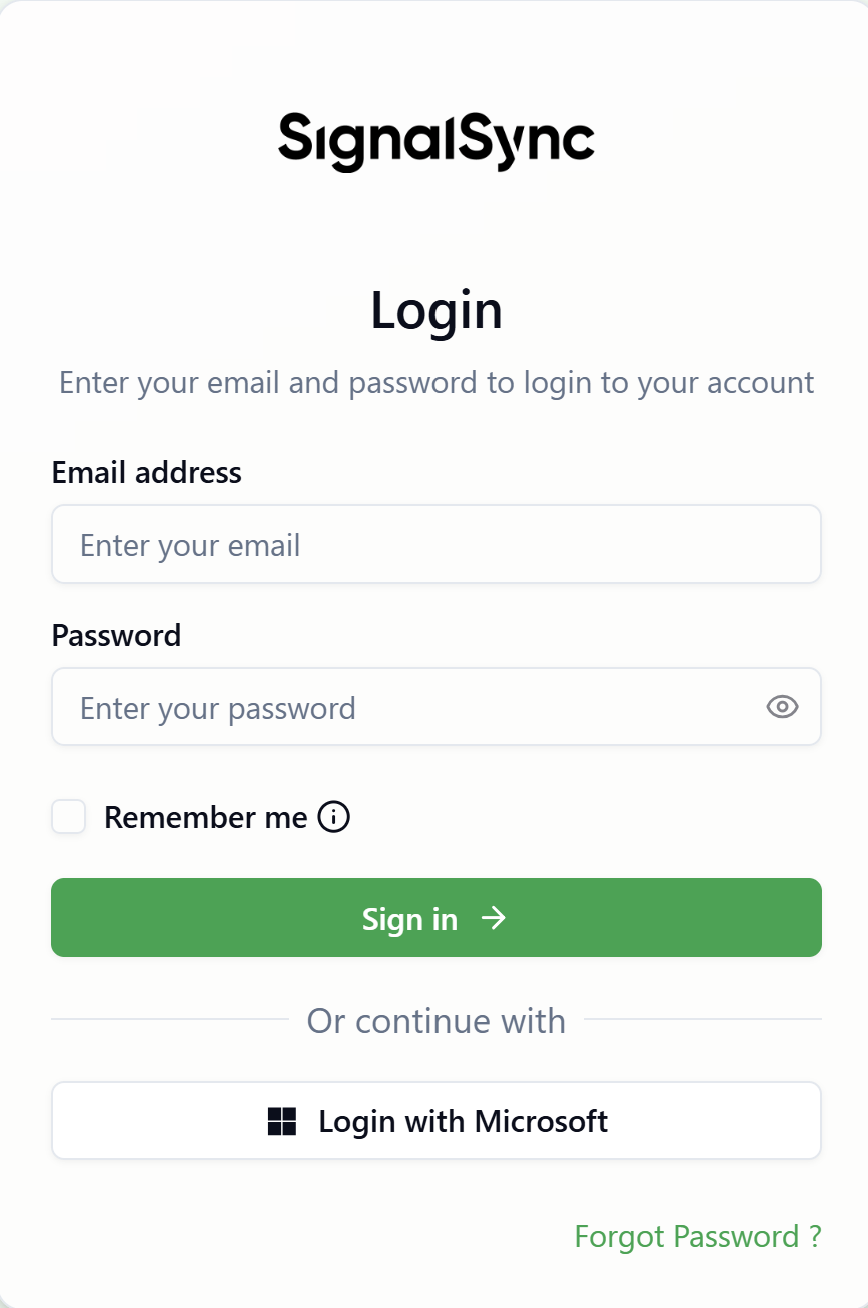
Users who were created via OAuth2 can only use "Login with Microsoft". The email/password fields will not work for OAuth2 users. Similarly, users created with passwords cannot use OAuth2 login.
Configuring OAuth2: Step-by-Step
Prerequisites
Before configuring OAuth2 in SignalSync, you need:
- Microsoft Entra Administrator Access: Someone with Global Administrator or Application Administrator role
- Microsoft Entra Configuration Completed: App registration created with required settings
- Information from Entra Admin:
- Application (Client) ID
- Directory (Tenant) ID
- Client Secret value
- Security Group Object IDs (for profile mapping)
Configuration Steps
-
Coordinate with Microsoft Entra Administrator
- Request app registration in Microsoft Entra (Configuration Guide below).
- Obtain required IDs and secret
-
Access OAuth2 Settings
- Navigate to Settings → Security → OAuth2
-
Enable OAuth2
- Toggle Enable OAuth2 to On
-
Configure Provider Settings
- OAuth2 Provider: Select "Microsoft"
- Enter Client ID
- Enter Client Secret
- Enter Tenant ID
-
Configure Mappings
- Click Custom Settings to expand
- Select Mapping tab
- Enter Customer ID for OAuth2 user assignment
- Add Profile mappings:
- Click "+ Add Profile"
- Enter SignalSync Profile ID
- Enter Microsoft Entra Group ID
- Repeat for each profile mapping
-
Verify Settings
- Review all entered information
- Confirm redirect URI matches Entra app registration
-
Save Configuration
- Click Save button at bottom of page
- Configuration takes effect immediately
-
Test OAuth2 Login
- Open SignalSync login page in incognito/private window
- Verify "Login with Microsoft" button appears
- Test login with a Microsoft Entra user account
- Verify user is created and profiles assigned correctly
Always test OAuth2 authentication with a test user before rolling out to all users. Use an incognito/private browser window to test the full login flow.
Microsoft Entra ID Configuration Guide
This section provides step-by-step instructions for your Microsoft Entra Administrator to configure the SignalSync application in Microsoft Entra ID.
Click to expand: Complete Microsoft Entra setup instructions
SignalSync integrates with Microsoft Entra ID (formerly Azure Active Directory) using OAuth 2.0 / OpenID Connect for authentication and authorization.
When a user signs in via Microsoft Entra:
- The user account is automatically provisioned in SignalSync (if it does not already exist)
- One or more SignalSync Profiles are assigned based on Microsoft Entra Security Group membership
In SignalSync, a Profile represents:
- A logical grouping of processes
- Each process defines the tasks available in the Process Navigator
This allows centralized access control in Microsoft Entra while SignalSync enforces process-level authorization.
Authorization Model (Group → Profile Mapping)
SignalSync supports a mapping between:
- Microsoft Entra Security Groups
- SignalSync Profile IDs
This approach:
- Keeps identity governance in Microsoft Entra
- Avoids manual user administration in SignalSync
- Supports multiple applications and business domains (not only Facility Management)
1. Registering the SignalSync Application
Access Microsoft Entra Admin Center
- Navigate to: https://entra.microsoft.com
- Sign in using a Global Administrator account
Create an App Registration
-
Go to: Identity → Applications → App registrations
-
Select New registration
-
Complete the following fields:
-
Name: SignalSync
-
Supported account types: Select the option appropriate for your organization
-
Redirect URI
- Platform: Web
- URI:
https://your-tenant.signalsync.cloud/api/auth/callback/microsoft
Replace Tenant DomainReplace
your-tenantwith your actual SignalSync tenant domain (e.g.,demo.signalsync.cloud)
-
-
Select Register
-
Record the following values (you'll need these for SignalSync OAuth2 configuration):
- Application (client) ID
- Directory (tenant) ID
2. Authentication Configuration
Configure Redirect URIs
- Open the registered application
- Go to Authentication
- Under Web, verify or add the redirect URI:
https://your-tenant.signalsync.cloud/api/auth/callback/microsoft
Configure Front-channel Logout
- Front-channel logout URL:
https://your-tenant.signalsync.cloud/auth/logout
Token Settings
- Ensure the following options are disabled:
- Access tokens
- ID tokens
SignalSync retrieves user identity data during the OAuth flow and does not rely on token persistence in the browser.
Save the configuration.
3. API Permissions
Configure Microsoft Graph Permissions
- Navigate to API permissions
- Ensure the following Delegated permission is present:
User.Read
No additional Microsoft Graph permissions are required for standard authentication and group-based authorization.
An administrator must grant consent for these permissions before users can authenticate.
4. Client Secret Configuration
Create a Client Secret
- Go to Certificates & secrets
- Select New client secret
- Configure:
- Description: SignalSync Client Secret
- Expiration: Recommended 24 months
- Select Add
Store the Secret Value
- Copy the value from the Value column
- Important:
- The secret value is displayed only once
- Store it securely before leaving the page
- You'll need this value for SignalSync configuration
Set a calendar reminder to regenerate the client secret before it expires to avoid authentication disruptions.
5. Group Claims Configuration
SignalSync requires group information to be included in the authentication token.
Add Group Claims
- In the application, go to Token configuration
- Select Add groups claim
- Choose: Security groups
- Save the configuration
Only Security Groups are supported for profile mapping. Distribution lists and Microsoft 365 groups will not work.
6. Security Group Strategy
Purpose of Security Groups
Microsoft Entra Security Groups are used to:
- Represent roles or access scopes relevant to your organization
- Control which SignalSync Profiles are assigned during login
Group Creation Guidelines
Group Configuration:
- Group type: Security
- Membership type: Assigned (recommended for controlled access)
- Group naming:
- Must be unique
- Should reflect business roles or application responsibilities
- Example patterns:
SignalSync-AppName-RoleSignalSync-Core-AdminSignalSync-Workflow-User
SignalSync does not impose naming restrictions. Group names are for administrative clarity only.
Creating Security Groups
- Navigate to: Identity → Groups → All groups
- Select New group
- Configure:
- Group type: Security
- Group name: Enter descriptive name (e.g., "SignalSync-Facility-Admin")
- Group description: Optional description
- Membership type: Assigned
- Select Create
- Copy the Object ID - you'll need this for SignalSync mapping
Adding Users to Groups
- Navigate to: Identity → Groups → All groups
- Select a group
- Open Members
- Select Add members
- Search for and select users
- Select Add
Plan your group structure before implementation. Consider:
- What roles exist in your organization?
- What SignalSync processes should each role access?
- Should groups be application-specific or cross-functional?
7. Mapping Entra Groups to SignalSync Profiles
For each Microsoft Entra Security Group used for SignalSync:
-
Copy the Group Object ID:
- Go to: Identity → Groups → All groups
- Select the group
- Copy the Object ID
-
Identify the SignalSync Profile:
- Work with your SignalSync Tenant Administrator to identify profile names
- The SignalSync Tenant Administrator will obtain Profile UUIDs from SignalSync
-
Document the mapping:
| Microsoft Entra Group Name | Group Object ID | SignalSync Profile Name | Profile UUID |
|---|---|---|---|
| SignalSync-FM-Admin | 52752c82-7664-412e-bec0-3c6f956ba2d8 | Facility Manager | (obtained from SignalSync) |
| SignalSync-FM-User | 620d61bb-5c4b-4f1e-ac70-e790afdf325f | Facility User | (obtained from SignalSync) |
This mapping enables SignalSync to:
- Automatically create users on first login
- Assign the correct profiles based on group membership
8. Required Information for SignalSync Configuration
The following information must be provided to the SignalSync Administrator to complete the integration:
Application Details
- Application (Client) ID
- Directory (Tenant) ID
- Client Secret value
Authorization Mapping
For each security group:
| Group Name | Group Object ID | Intended SignalSync Profile |
|---|---|---|
Security Considerations
Authentication Provider Lock-in
Once a user account is created via OAuth2:
- The user can only authenticate via "Login with Microsoft"
- Password-based login will not work for OAuth2 users
- User record is permanently associated with the
microsoftprovider
Client Secret Management
- Rotation: Regenerate client secrets before expiration (recommended 24 months)
- Storage: Store secrets securely, never commit to source control
- Access: Limit access to client secrets to authorized administrators only
Group Membership Sync
- Profile assignments update on each login
- Changes to group membership in Microsoft Entra take effect on next login
- Removing a user from all mapped groups removes all profile access
External User Management
- External users requiring password authentication should be in separate Customer
- External users cannot use OAuth2 authentication unless added to Microsoft Entra
- Consider security implications of OAuth2 for external collaborators
Summary
OAuth2 Configuration enables secure, centralized authentication for SignalSync users:
- Enable Toggle: Turn OAuth2 authentication on/off for your tenant
- Provider Settings: Configure Microsoft Entra connection details (Client ID, Secret, Tenant ID)
- Field Mappings: Define how user data flows from Microsoft to SignalSync
- Customer Assignment: Specify which Customer OAuth2 users belong to
- Profile Mapping: Link Microsoft Entra security groups to SignalSync profiles for automatic access control
- Just-In-Time Provisioning: Users created automatically on first login
- Coexistence: OAuth2 and password authentication work side-by-side for different user types
OAuth2 authentication provides enterprise-grade security while simplifying user management and improving the login experience for your organization.