Corrective Work
Corrective Maintenance refers to reactive work performed to restore an asset or facility to a functioning state after a failure or issue has occurred. The SignalSync application manages this lifecycle through a structured standard best-practice workflow involving different roles.
The default Corrective Maintenance flow is a comprehensive workflow designed to handle the majority of maintenance cases without modifications. It follows a standard lifecycle of reporting, dispatching, execution, and multi-level approvals.
Click to view the Corrective Maintenance flow
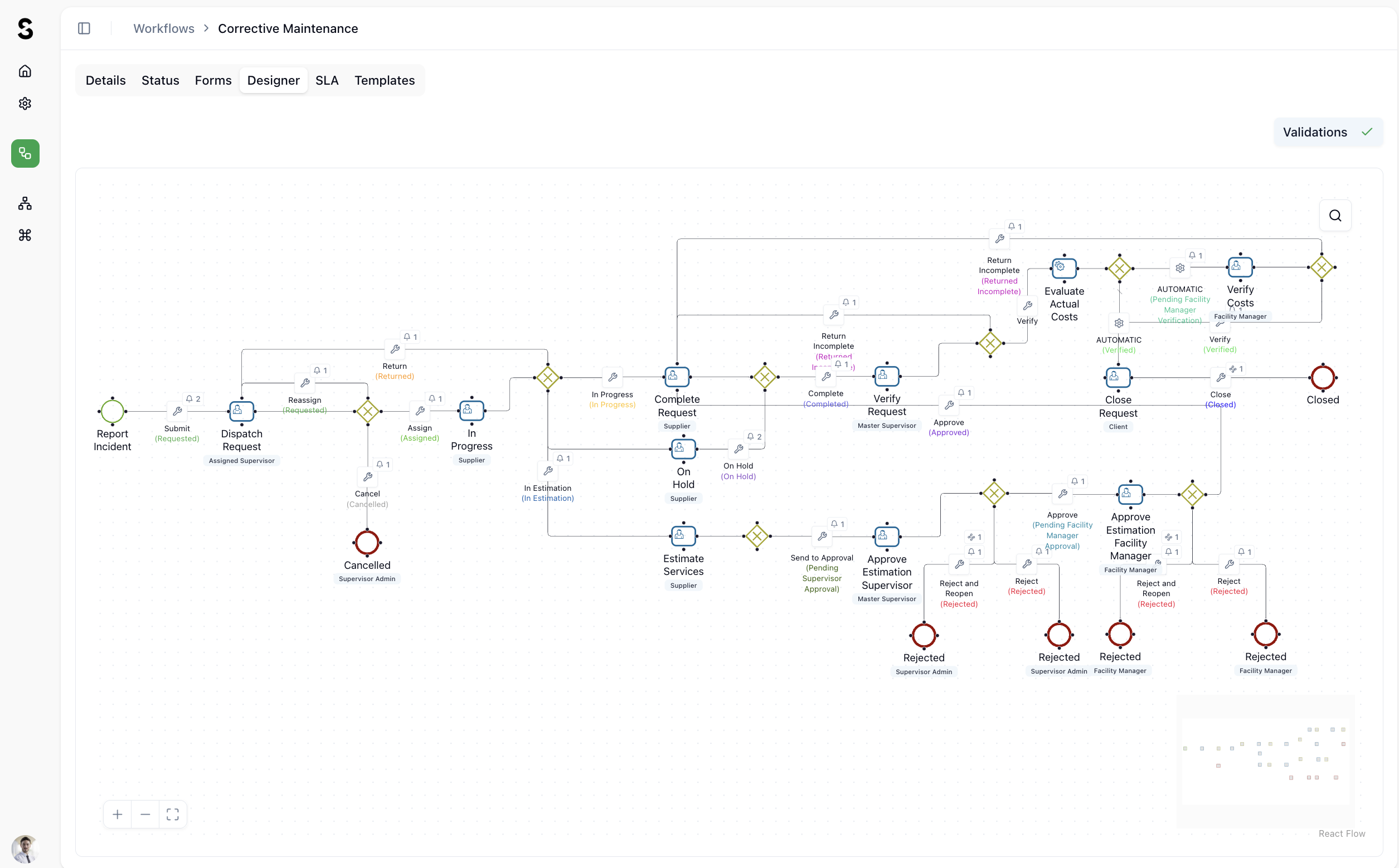
The steps of the Corrective Maintenance workflow are organized below by their logical sequence in the flow.
A. Initiation & Dispatching
- Report Incident: The starting point of the flow.
- Submit (Requested): Initiated by the requester.
- Dispatch Request: Acted upon by the Assigned Supervisor. From here, the Supervisor can:
- Cancel: Leads to the Cancelled status (Supervisor Admin).
- Reassign: Returns the request to the dispatching pool.
- Assign: Moves the task forward to a specific technician or supplier.
B. Execution & Estimation
- In Progress (Assigned): Acted upon by the Supplier (Technician).
- In Progress: The Supplier begins the work.
- In Estimation: If the work requires a cost quote, it moves to this status.
- Estimate Services: Acted upon by the Supplier.
- On Hold: The Supplier can pause the work if parts or further information are needed.
C. Verification & Internal Approvals
Once the Supplier selects Complete Request, the flow moves to supervisory checks:
- Verify Request: Acted upon by the Master Supervisor.
- Return Incomplete: Sends the request back to the Supplier to fix issues.
- Approve: Moves the request to cost evaluation.
- Approve Estimation Supervisor: Acted upon by the Master Supervisor.
- Reject and Reopen / Reject: Leads to Rejected status (Supervisor Admin).
D. Financial & Facility Management Approval
For tasks involving costs, higher management must step in:
- Evaluate Actual Costs: A verification step for the financial data.
- Approve Estimation Facility Manager: Acted upon by the Facility Manager.
- Reject / Reject and Reopen: Leads to Rejected status (Facility Manager).
- Verify Costs (Verified): Acted upon by the Facility Manager or triggered automatically if costs meet predefined criteria.
E. Completion & Closure
- Close Request: The final step, usually acted upon by the Client to confirm satisfaction.
- Close (Closed): The terminal state of the workflow.
Summary of Roles & Transitions
| Role | Key Responsibilities in this Flow |
|---|---|
| Assigned Supervisor | Initial dispatch, reassignment, or cancellation. |
| Supplier | Execution of work, providing estimates, and marking completion. |
| Master Supervisor | Technical verification and initial approval of work and estimates. |
| Facility Manager | Final financial approval and cost verification. |
| Client | Final closure of the request. |
Reporting an Incident (Client role by default)
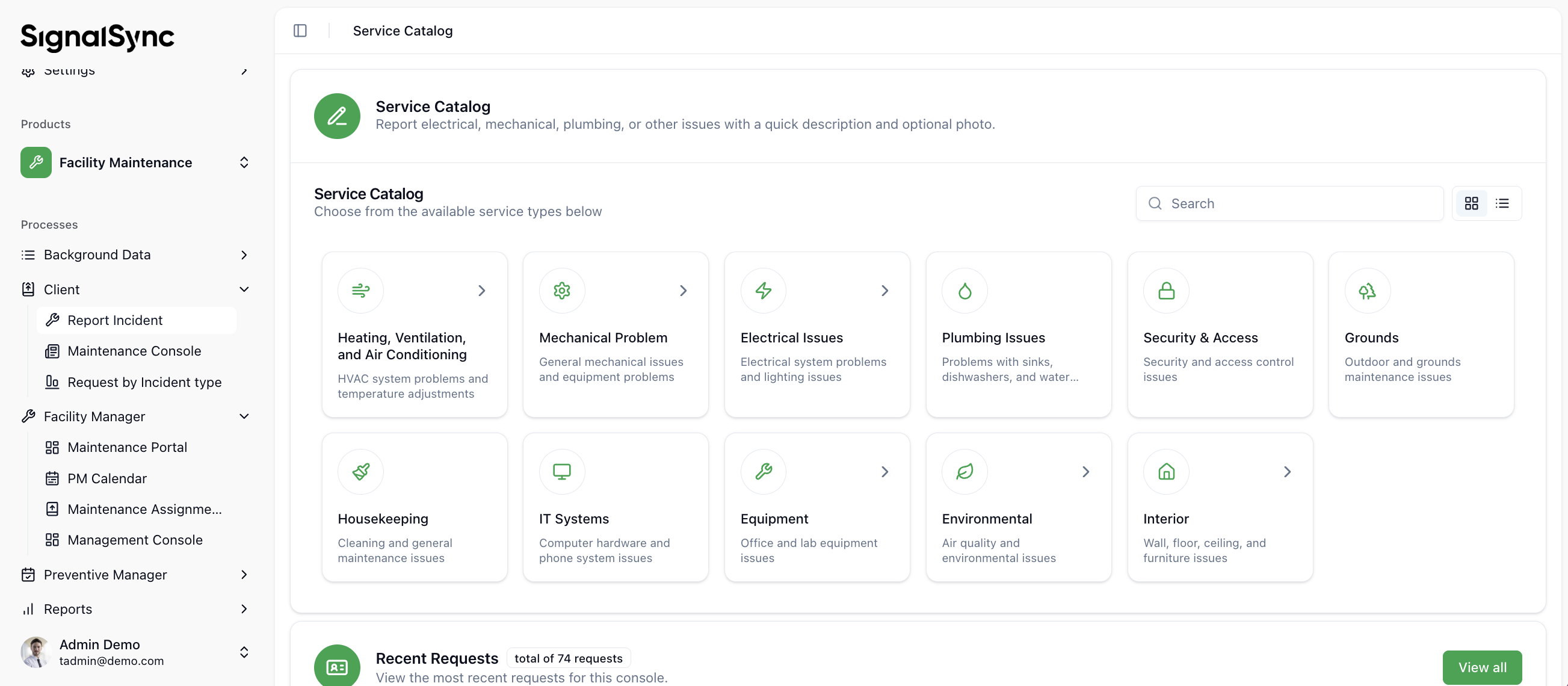
The process begins when a user identifies an issue or requests a service available in the Service Catalog.
- Navigate to the Service Catalog: From the main dashboard, either:
- Locate the Service Catalog section and click Report Incident:
Click to view Report Incident
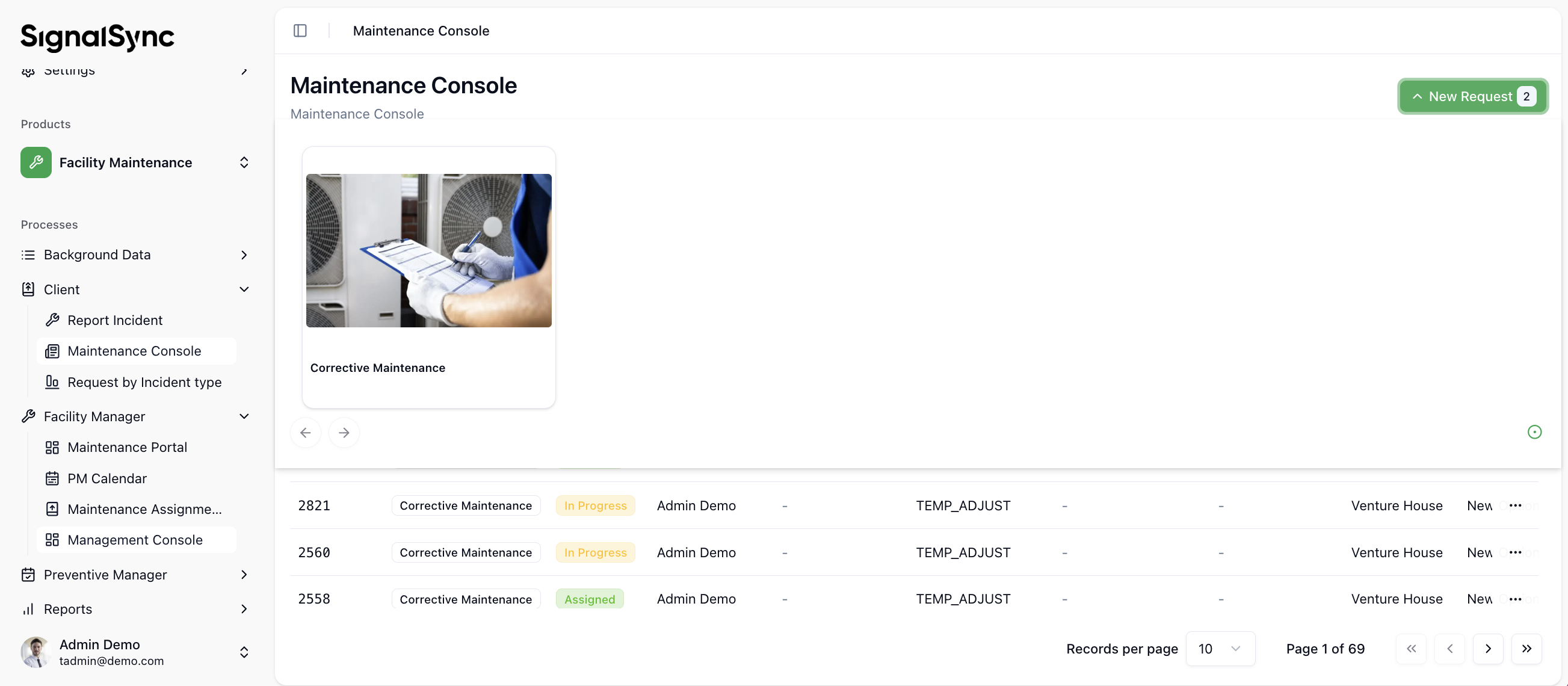
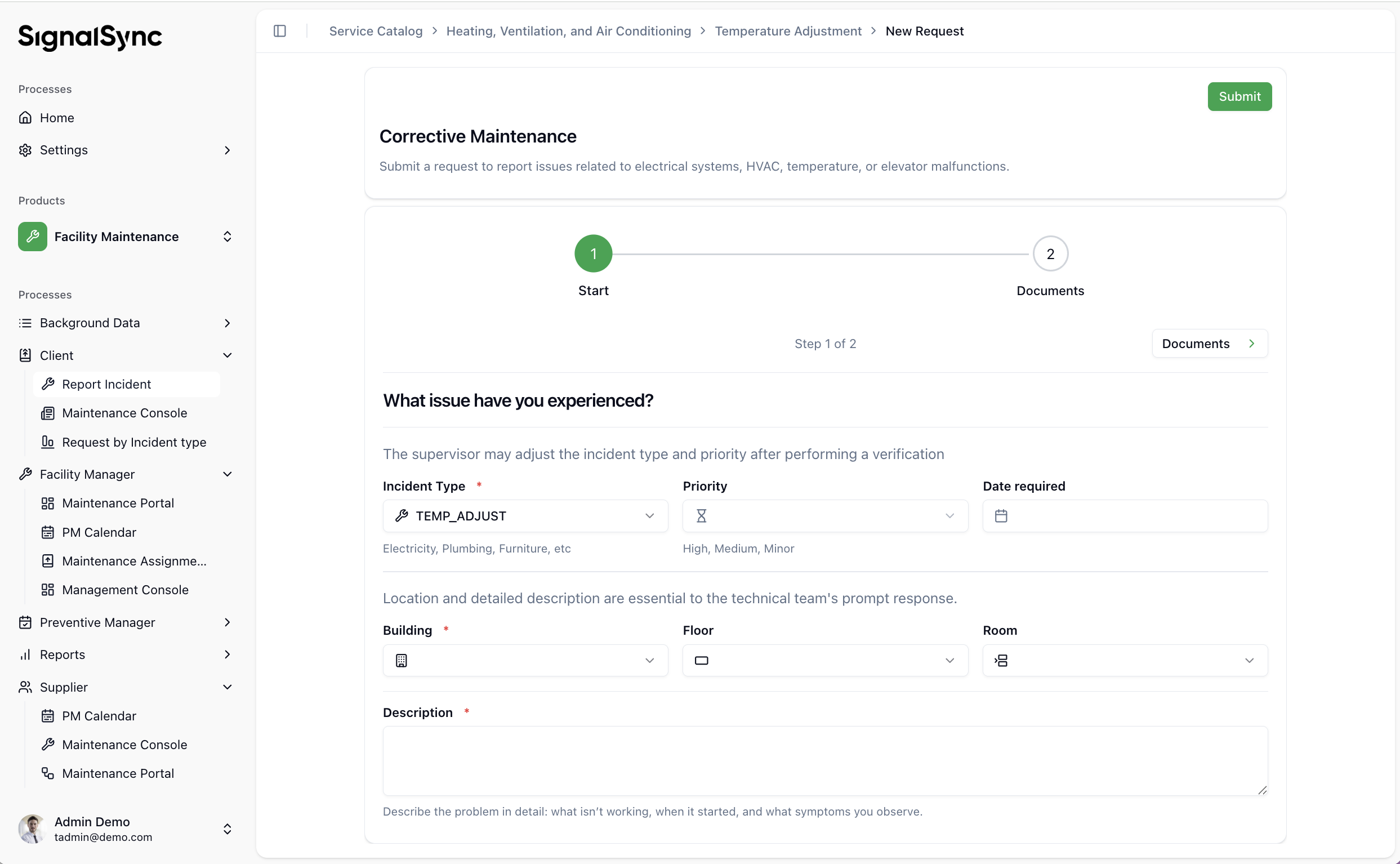
- Or, from the Maintenance Console, click New Request and choose from the available request types:
Click to view New Request
- Select a Category: Click on the tile representing the domain of the issue (e.g., Electrical, HVAC, Sanitary).
- Fill in the Form:
- Incident Type: Select the specific problem from the dropdown list.
- Priority: Choose the urgency level (Urgent, Normal, or Low).
- Location: Select the Building, Floor, and specific Room/Zone.
- Description: Provide a detailed explanation of the issue (what is not working, when it started).
- Documents: Click the Documents tab to upload photos or supporting files to help identify the issue.
- Submit: Click the Submit button to create the ticket.
Click to view the New Request form
Assessment & Allocation (Supervisor)
Once reported, the request is sent to a Supervisor for validation. The ticket status is "Submitted".
- Validation: The Supervisor reviews the request to ensure the priority and category are correct.
- Action — Allocate: The Supervisor selects a Service Provider (internal team or external contractor) and clicks Allocate. The status changes to "Allocated".
- Action — Cancel: If the request is a duplicate or invalid, the Supervisor can cancel it.
Service Provider: Taking Ownership
The assigned Service Provider receives a notification. They must open the ticket and choose one of the following actions:
- Start Work: For standard repairs that do not require a cost estimate. This changes the status to "In Progress".
- Create Estimate: For complex issues requiring cost approval before starting work.
- Return: If the provider cannot resolve the issue (e.g., lack of competence, wrong assignment), they can return the ticket with a comment.
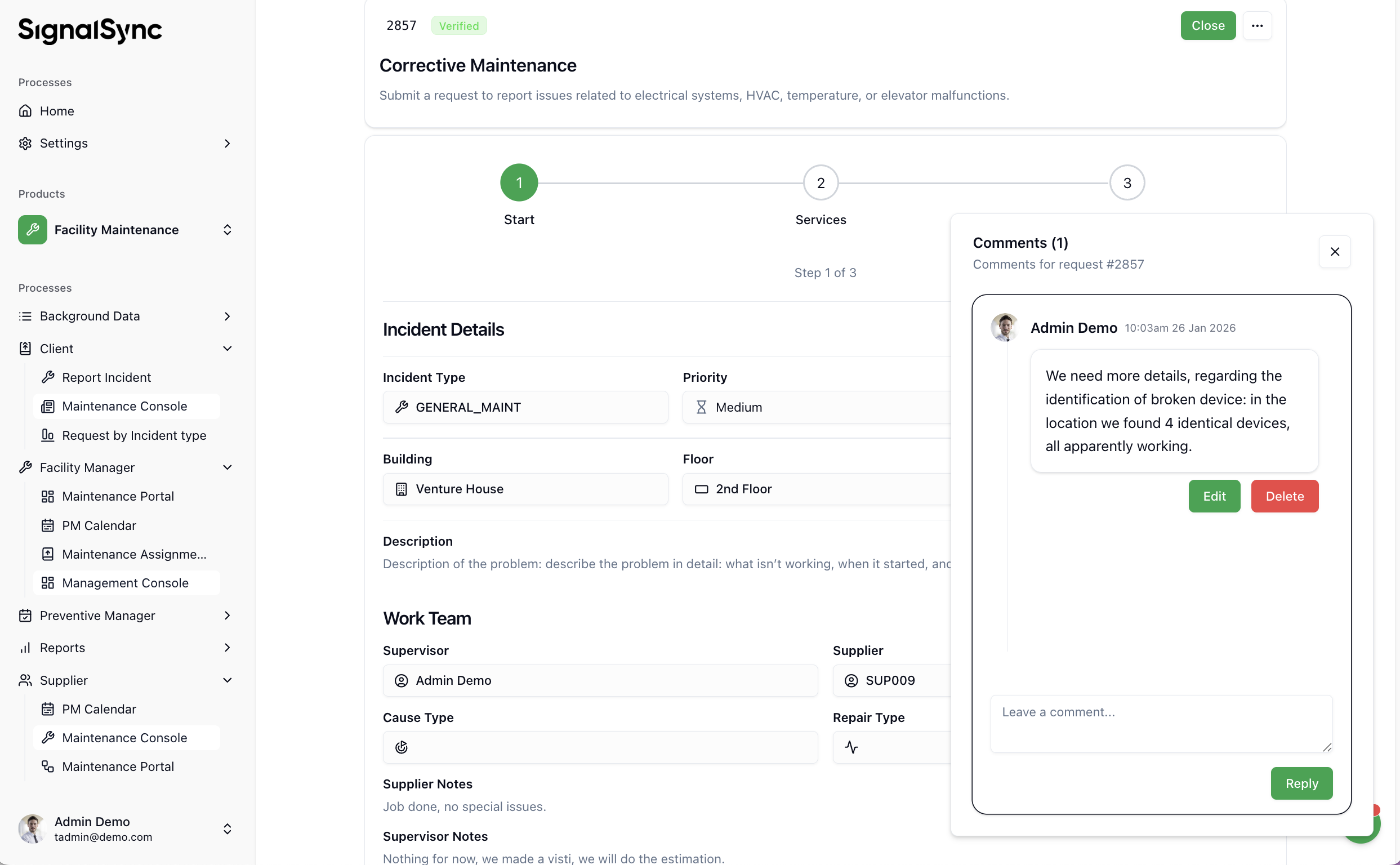
For additional information about the ticket, the Service Provider can use the chat to communicate with the Requester. The Chat is accessed by clicking its icon:
Click to view the Chat icon

The Chatbox is available on every ticket from the Requested status onward. It enables communication between the Requester and the Service Provider for any details or clarifications needed for successful execution of the Service Request.
Click to view the Chatbox
Cost Estimates
If the work requires budget approval, the Provider enters the Estimate Phase.
Creating the Estimate
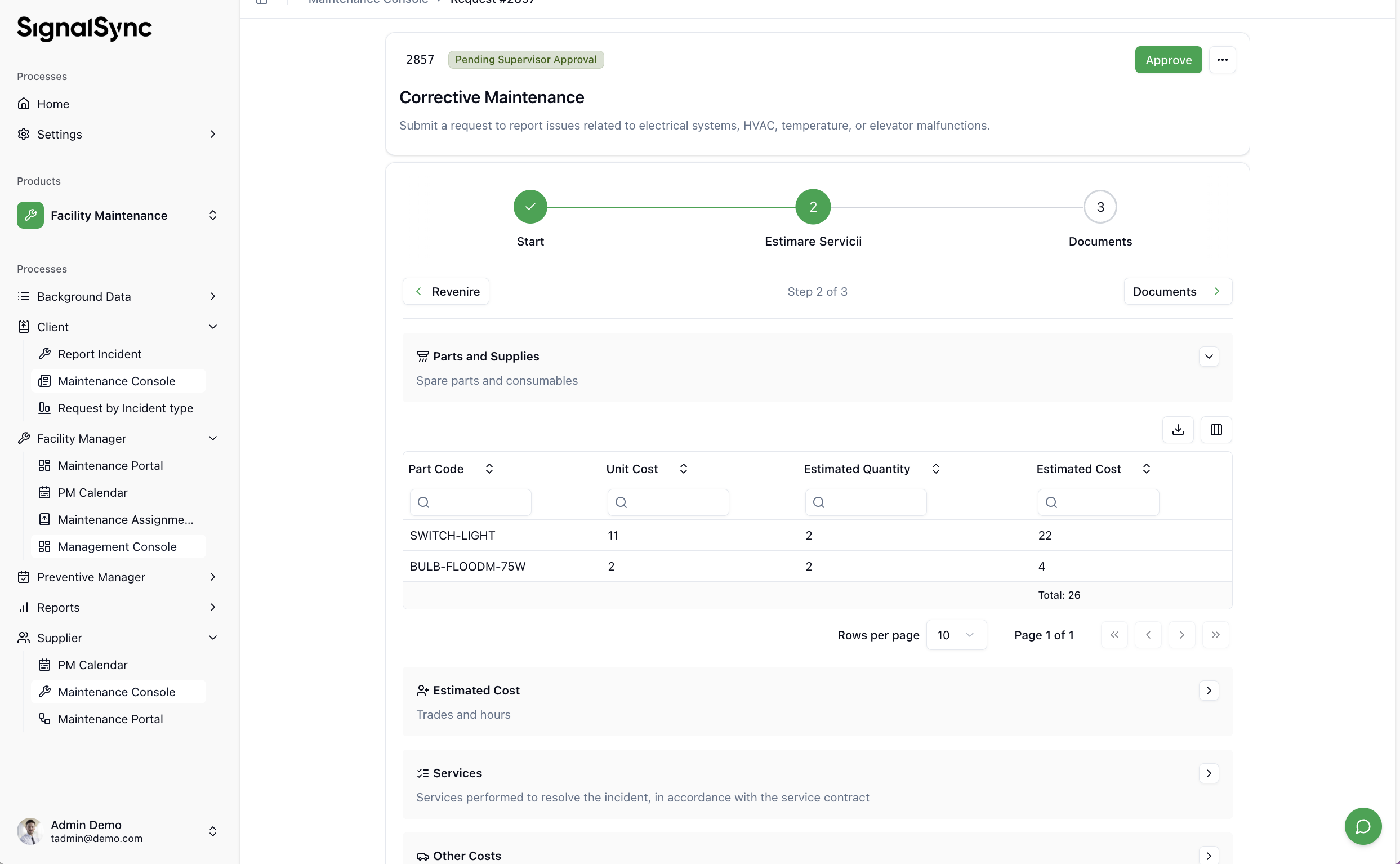
In the Services tab of the incident, the Provider must document the estimated costs:
- Spare Parts: Add name, quantity, and unit price.
- Labor (Cost of Work): Estimated hours and hourly rate.
- Services: External services (e.g., equipment rental).
- Other Costs: Administrative or transport fees.
- Estimate Document: Upload the formal estimate document (mandatory).
Once completed, the Provider clicks Send Estimate for Approval.
Click to view Cost Estimate
The Approval Chain
- Supervisor Approval: The Supervisor reviews the costs and can Approve or Reject the estimate.
- Facility Manager Approval: For higher-value estimates, the workflow may require a second approval from the Facility Manager.
If an estimate is Rejected, the workflow ends. If it is Rejected with Re-open, the ticket is rejected and regenerated to restart the allocation process (e.g., to find another resolution approach or to assign a different provider).
Execution & Resolution
When the work is approved (or if no estimate was needed), the status is "In Progress".
Recording Activity
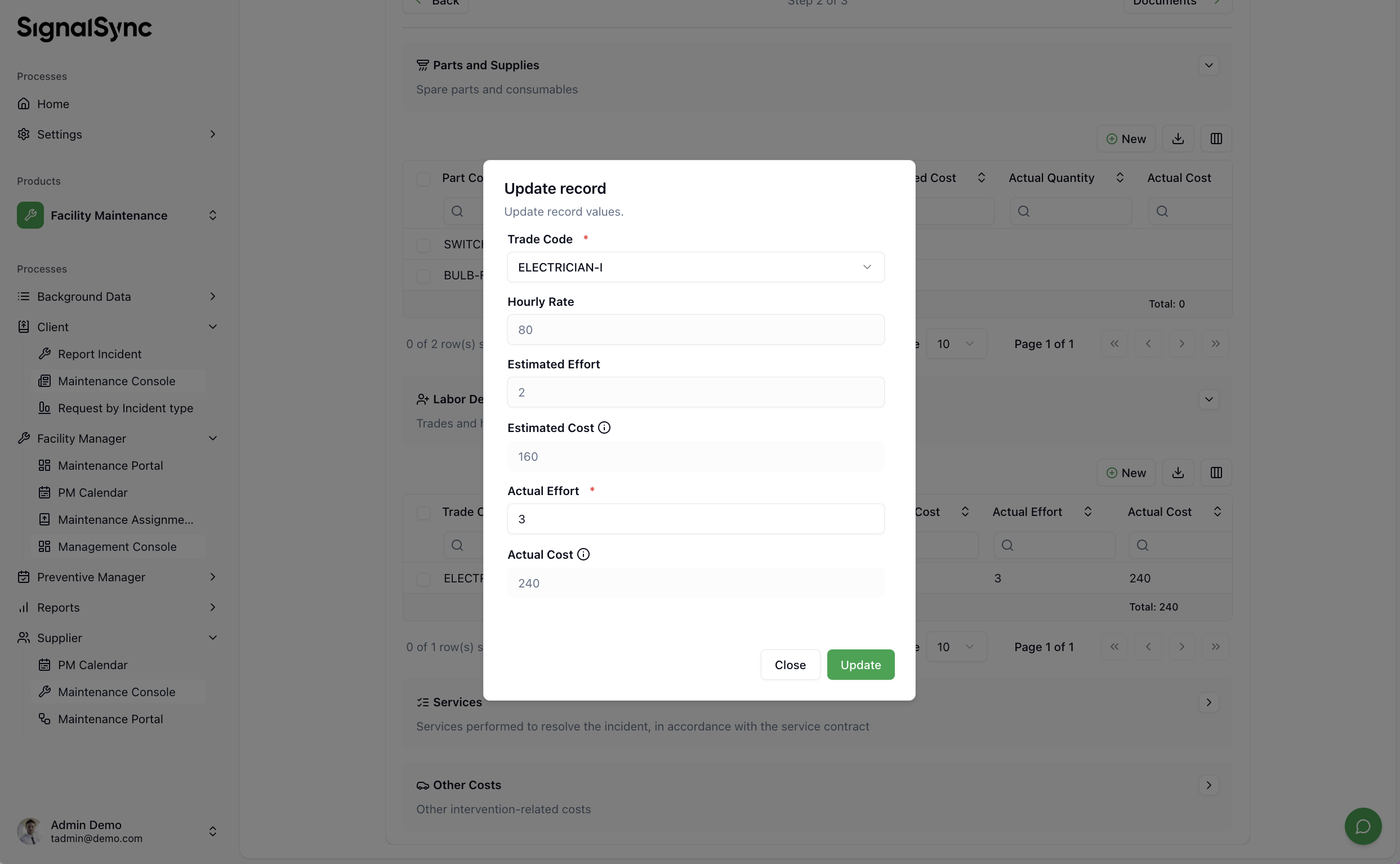
Upon completion, the Provider must document the actual work performed in the system:
- Work Duration: Enter the Start Date, End Date, and Total Hours worked.
- Actual Costs: Update the estimated costs with the final actual costs (consumed materials, actual hours).
- Reception Report: Upload the signed completion report or protocol.
If the user signs the report on-site using a mobile device with a touchscreen, a Signature field component can be inserted into the form so the Client or Approver can sign directly on the device. The signature is then embedded into the auto-generated document. This scenario is common with courier companies, where the recipient signs with a finger on a touchscreen mobile device at the time of delivery.
- Comments: Add technical observations in the Provider Observations field.
Click Completed to finish the work.
Click to view Update Costs
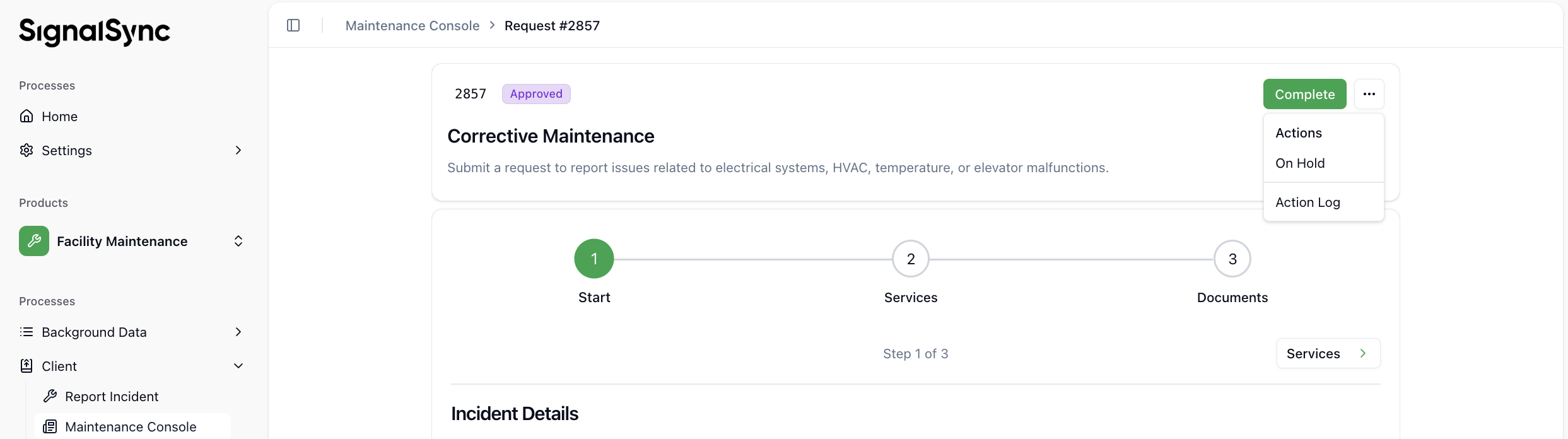
Pending Status (On Hold)
If work cannot proceed (e.g., waiting for spare parts, bad weather, no access), the Provider can switch the status to "On Hold" and must provide a reason. This pauses the SLA clock.
Click to view On Hold
Verification & Closing
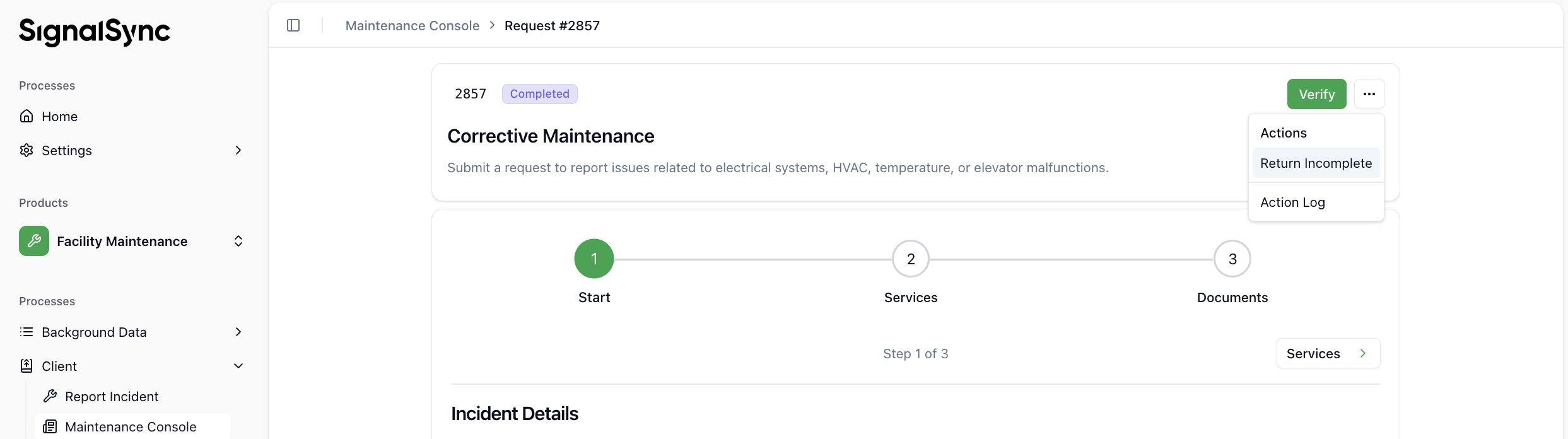
- Verification (Supervisor): The Supervisor checks the quality of the work and the documentation.
- Verify: Accepts the work.
- Return Incomplete: Sends the ticket back to the Provider if documents are missing or the work is unsatisfactory.
Click to view the Verification step
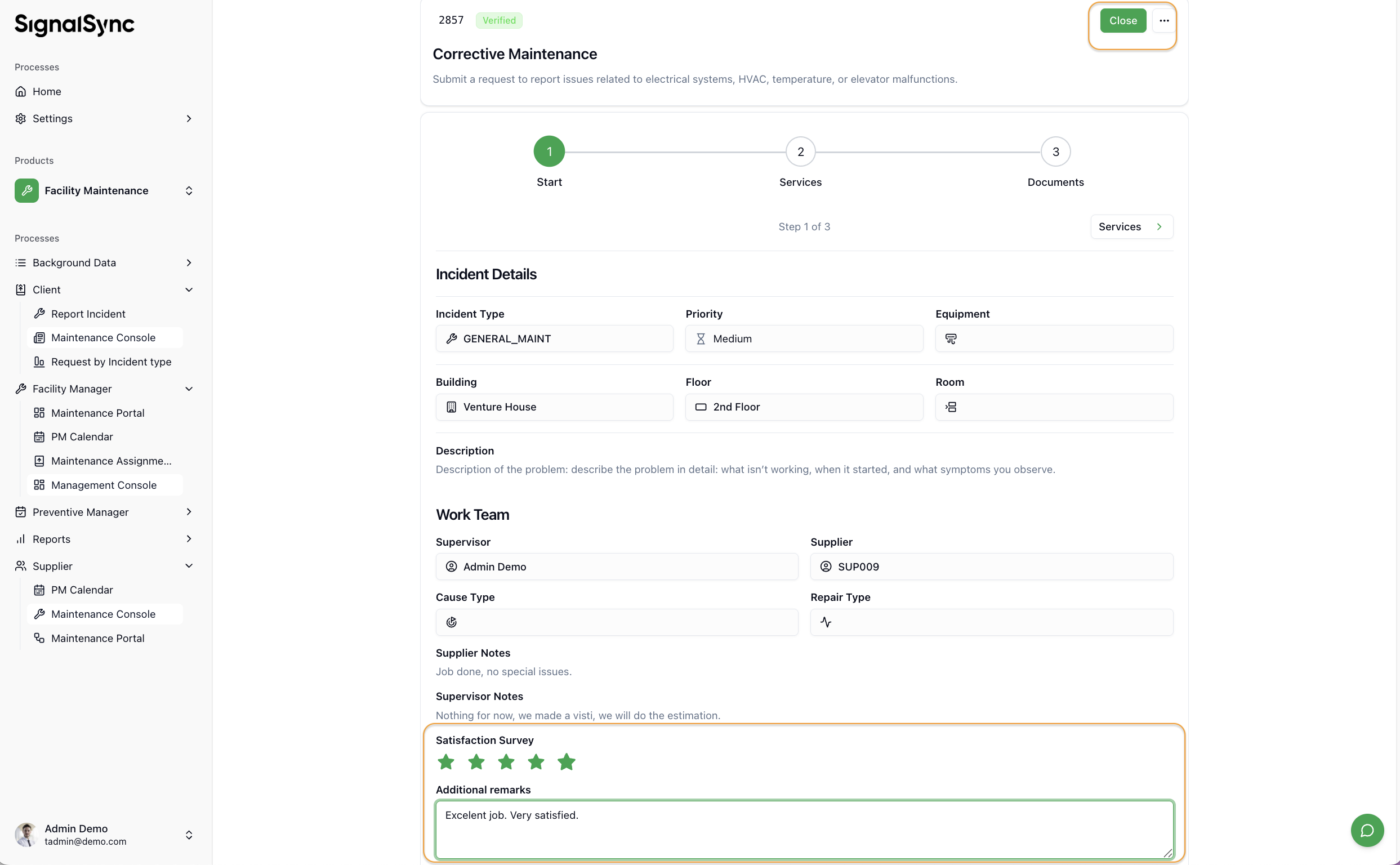
- Closing (Client): The original requester confirms the issue is resolved and clicks Close. At this step, the requester can add comments and rate the service (1–5 stars).
Click to view the Satisfaction rating