Preventive Work
Preventive Work, or Preventive Maintenance (PM), involves planned interventions designed to keep equipment and facilities in optimal operating condition and prevent unexpected failures.
Unlike Corrective Maintenance, which is reactive, PM requests are generated automatically by the SignalSync system based on pre-defined schedules and assigned procedures.
The Preventive Maintenance (PM) workflow is significantly more streamlined than the corrective one, focusing on scheduled tasks and quality verification rather than financial approvals and estimations.
Click to view the Preventive Maintenance flow
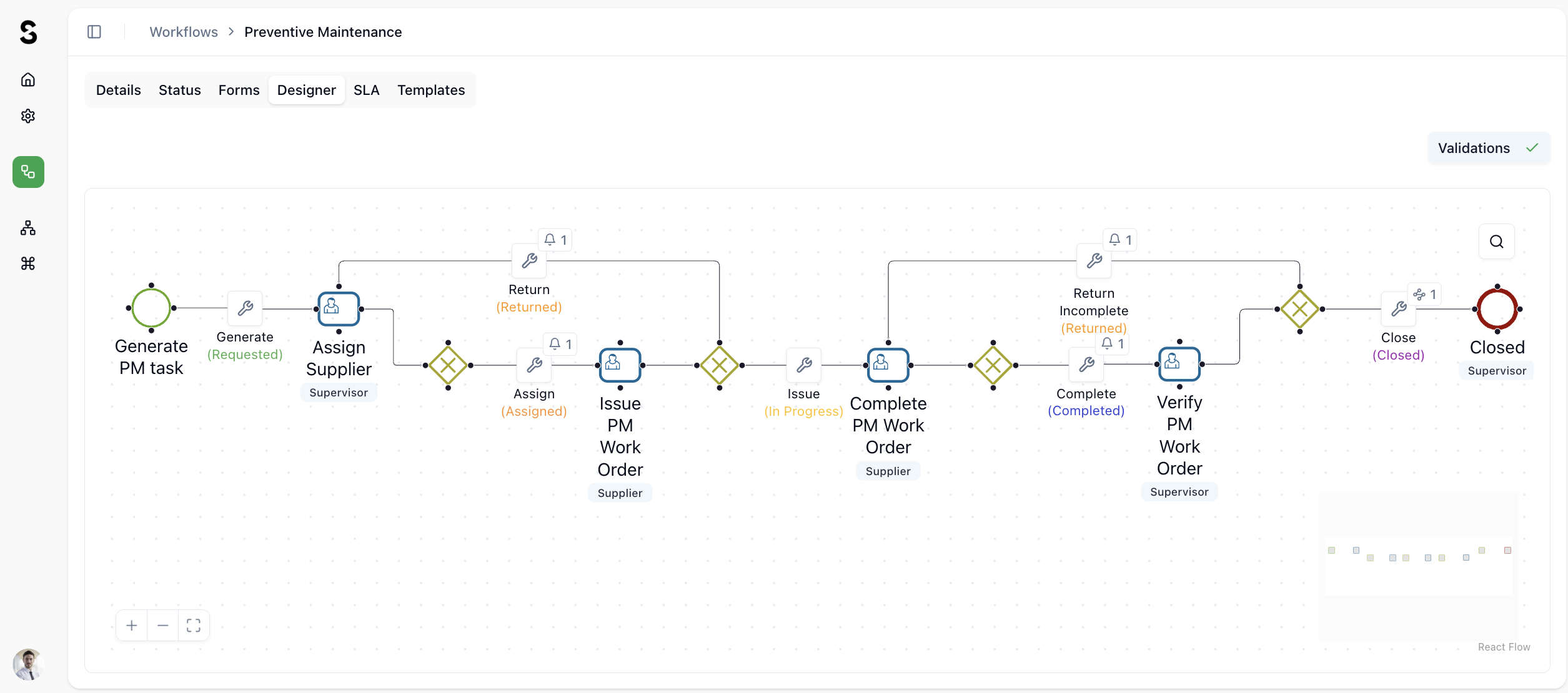
Based on the PM standard flow, below are the step descriptions, including the statuses and the role(s) expected to act:
1. Planning & Assignment
- Generate PM Task: The automated or manual trigger that starts the workflow.
- Generate (Requested): The initial state once the task is created.
- Assign Supplier: Acted upon by the Supervisor.
- The Supervisor assigns the scheduled task to a specific technician or vendor.
- Return (Returned): A logic loop in which a task can be returned to the assignment phase.
2. Execution Phase
- Issue PM Work Order: Acted upon by the Supplier.
- Assign (Assigned): The status when the Supplier has been designated.
- Issue (In Progress): The Supplier begins the maintenance work on the asset.
- Complete PM Work Order: Acted upon by the Supplier.
- Once the physical work is finished, the Supplier submits the task for review.
- Complete (Completed): The status indicating that the Supplier has finished their portion of the work.
3. Verification & Closure
- Verify PM Work Order: Acted upon by the Supervisor.
- The Supervisor reviews the completed work for quality assurance.
- Return Incomplete (Returned): If the work does not meet standards, the Supervisor sends it back to the Supplier to address the issues.
- Close (Closed): Acted upon by the Supervisor.
- This is the terminal state, indicating the preventive maintenance task has been successfully completed and documented.
Key Differences from the Corrective Flow
| Feature | Preventive Flow | Corrective Flow |
|---|---|---|
| Primary Actors | Supervisor & Supplier | Supervisor, Supplier, Facility Manager, & Client |
| Financial Gate | Actual costs can be recorded; typically pre-budgeted. | Detailed estimation & Facility Manager approval required. |
| Complexity | Linear with quality verification loops. | Complex, with multiple rejection and reassignment paths. |
Request Generation & Allocation
The system automatically generates PM tickets according to the maintenance plan (e.g., Weekly Cleaning, Monthly HVAC Inspection).
- Automatic Generation: The system creates every request and populates it with the specific Procedure (task list) and Equipment details.
Routing:
- Direct Assignment: If a provider is already linked to the location and procedure, the ticket goes directly to them.
- Supervisor Allocation: If no default provider exists, the ticket is sent to the Supervisor with the status "Requested". The Supervisor must review the request and click Allocate to assign a Service Provider.
Generation:
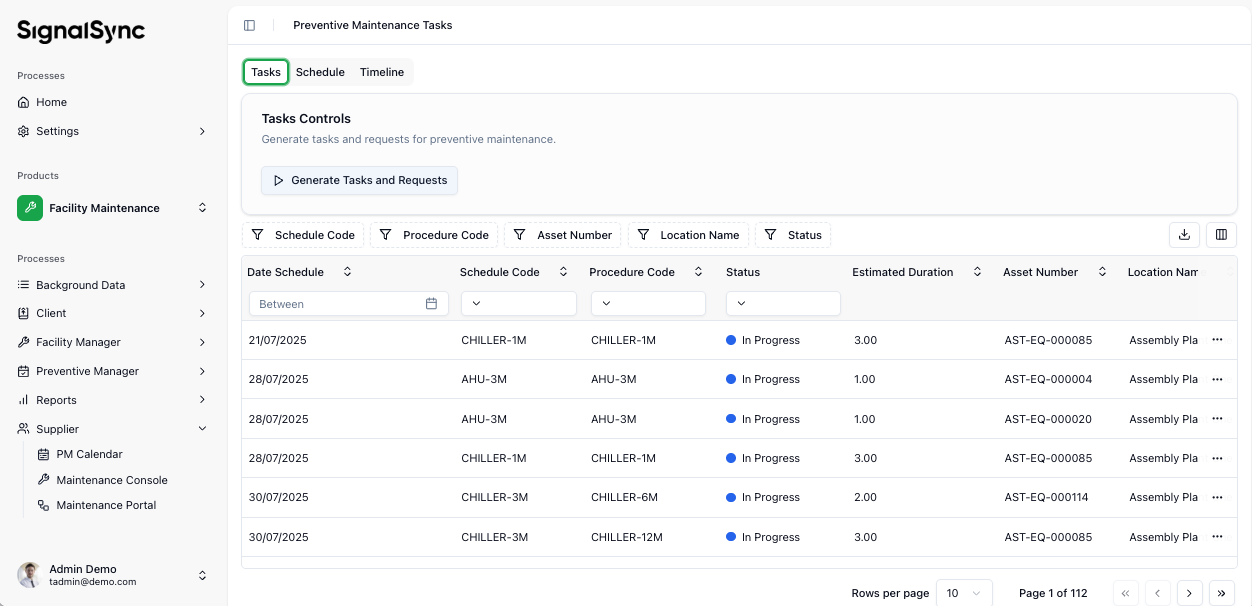
A. Tasks can be generated manually for a number of days in advance using the Generate Tasks and Requests button, available in the PM Calendar task in the Navigator.
Click to view PM Generation
The number of days ahead for which preventive maintenance requests are generated is controlled by the parameter PM Request Generation Days, set at the Project level by the Tenant Admin role. (Default: 30 days)
Click to view PM Generation Days Ahead setting
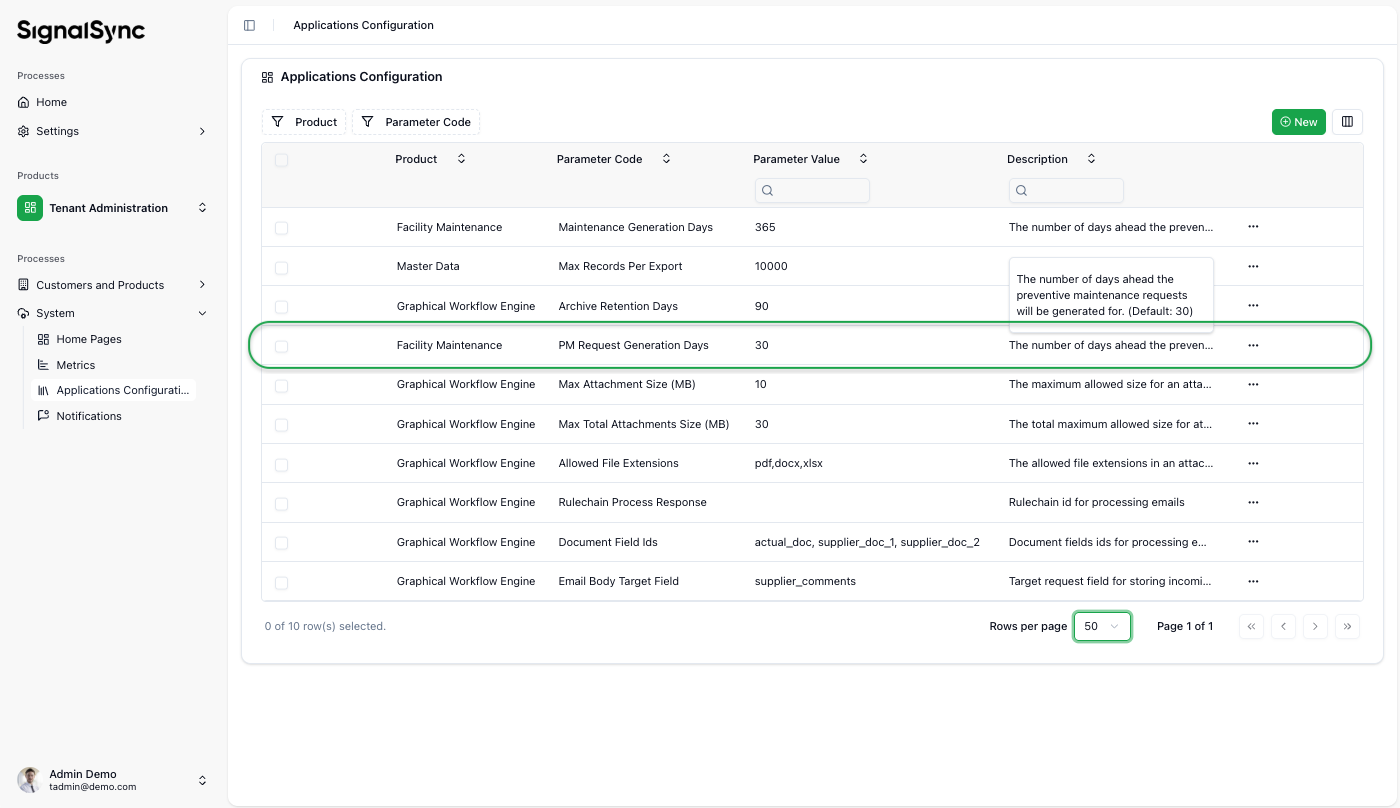
B. Tasks can also be generated automatically by the system for a number of days in advance, based on the PM Request Generation Days parameter.
Scheduling of Preventive Maintenance Procedures can be done for:
- Assets (e.g., equipment, systems, furniture, etc.)
- Locations (buildings, sites, land areas, etc.)
Procedure Scheduling
The most important step in Preventive Maintenance — once procedures are defined — is Procedure Scheduling.
The image below illustrates the PM Schedule Settings, shown as an example for an Air Handling Unit (AHU) on a 6-month Preventive Maintenance cycle. This interface allows a Facility Manager (or another responsible manager) to define exactly when and how often maintenance tasks are automatically generated.
Click to view PM Procedure Scheduling
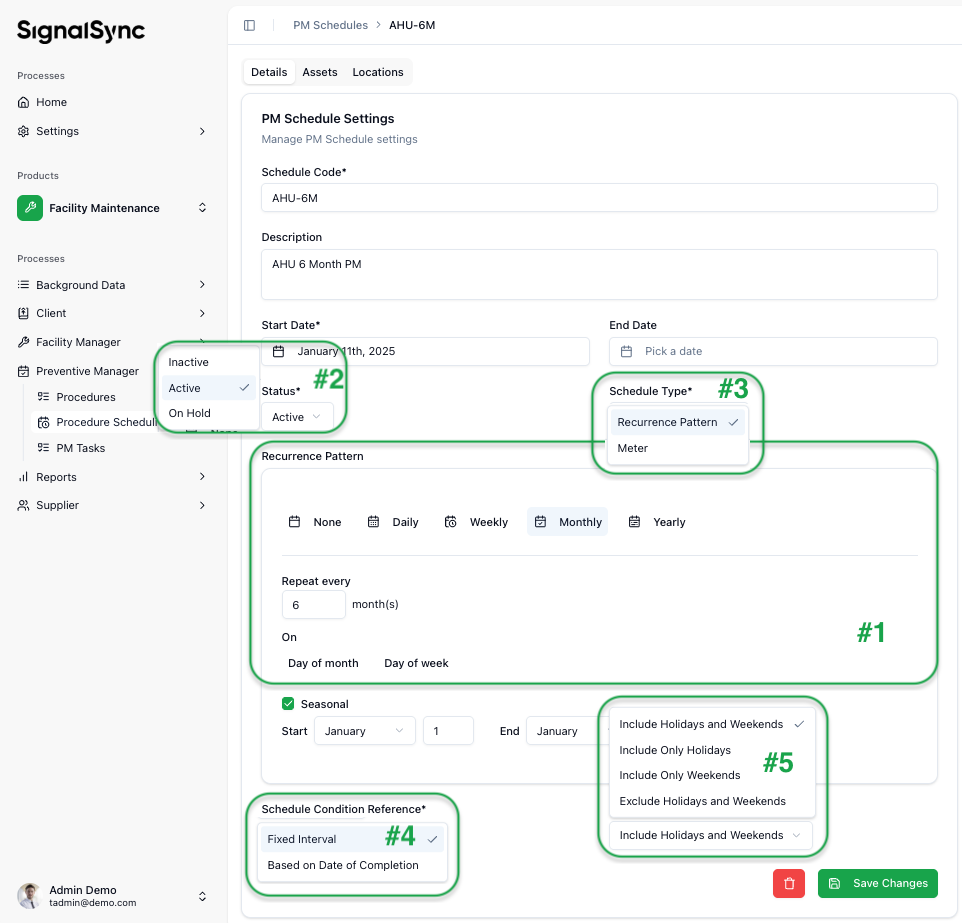
Header Fields:
- Schedule Code: A unique identifier for the procedure schedule (e.g., AHU-6M).
Naming conventions matter for quick comprehension. In this example, AHU stands for Air Handling Unit and 6M stands for 6 months. This way, the Technician immediately understands the nature and frequency of the generated task.
- Start Date: The date on which the first maintenance task will be generated (e.g., January 11th, 2025).
- End Date: An optional field to expire the schedule on a specific date. If left blank, generation continues indefinitely.
Key sections and their fields:
#1. Recurrence Pattern
This section defines the core frequency of the maintenance task.
- Frequency Selection: Choose between Daily, Weekly, Monthly, or Yearly intervals.
- Repeat Every: In this example, it is set to 6 months, matching the "AHU-6M" schedule code.
- On: Allows for more granular scheduling, such as a specific Day of the Month or Day of the Week.
- Seasonal: A toggle to restrict tasks to certain times of the year (e.g., only running maintenance during winter months).
#2. Schedule Status
This field determines whether the schedule is currently active.
- Active: The system will automatically generate tasks based on the defined pattern.
- Inactive: The schedule is saved but will not trigger any new tasks.
- On Hold: Temporarily pauses the generation of new tasks.
#3. Schedule Type
This defines the trigger mechanism for the maintenance.
- Recurrence Pattern: Time-based triggers (e.g., every 6 months).
- Meter: Usage-based triggers (e.g., every 5,000 hours of run-time).
#4. Schedule Condition Reference
This dictates how the next due date is calculated.
- Fixed Interval: The next task is scheduled strictly based on the calendar (e.g., if it is due on January 1st, the next one is always July 1st, regardless of when the January task was actually completed).
- Based on Date of Completion: The next 6-month cycle only starts once the current task is marked as Closed in the workflow.
#5. Holiday & Weekend Logic
This setting manages how the system handles tasks that fall on non-working days.
- Include/Exclude Options: You can choose to include or exclude holidays and weekends, or specifically target only those days if the maintenance requires the facility to be empty.
Provider Action: Taking Ownership
Upon receiving a notification, the Service Provider must review the scheduled task.
- Review the Procedure: The ticket displays the Procedure Name and a detailed Description containing the checklist of tasks to be performed (e.g., "1. Sweep floor, 2. Wipe surfaces...").
- Action:
- Start Work: Confirms the provider is ready to execute the plan. The status changes to "In Progress".
- Return: If the provider cannot fulfill the schedule (e.g., wrong skill set), they can return the ticket.
Execution & The Checklist
During the In Progress phase, the technician performs the tasks listed in the Procedure description.
- Step-by-Step Execution: The technician follows the standard operating procedure (SOP) displayed in the request.
- Parameter Checks: If required by the procedure, the technician verifies equipment parameters.
Documenting the Work
To finalize the task, the Provider must document the work performed in the system:
- Time Entry: Record the Start Date, End Date, and Hours Worked.
- Reception Report: Upload the mandatory signed maintenance sheet or Reception Report.
- Work Duration: Enter the Start Date, End Date, and Total Hours worked.
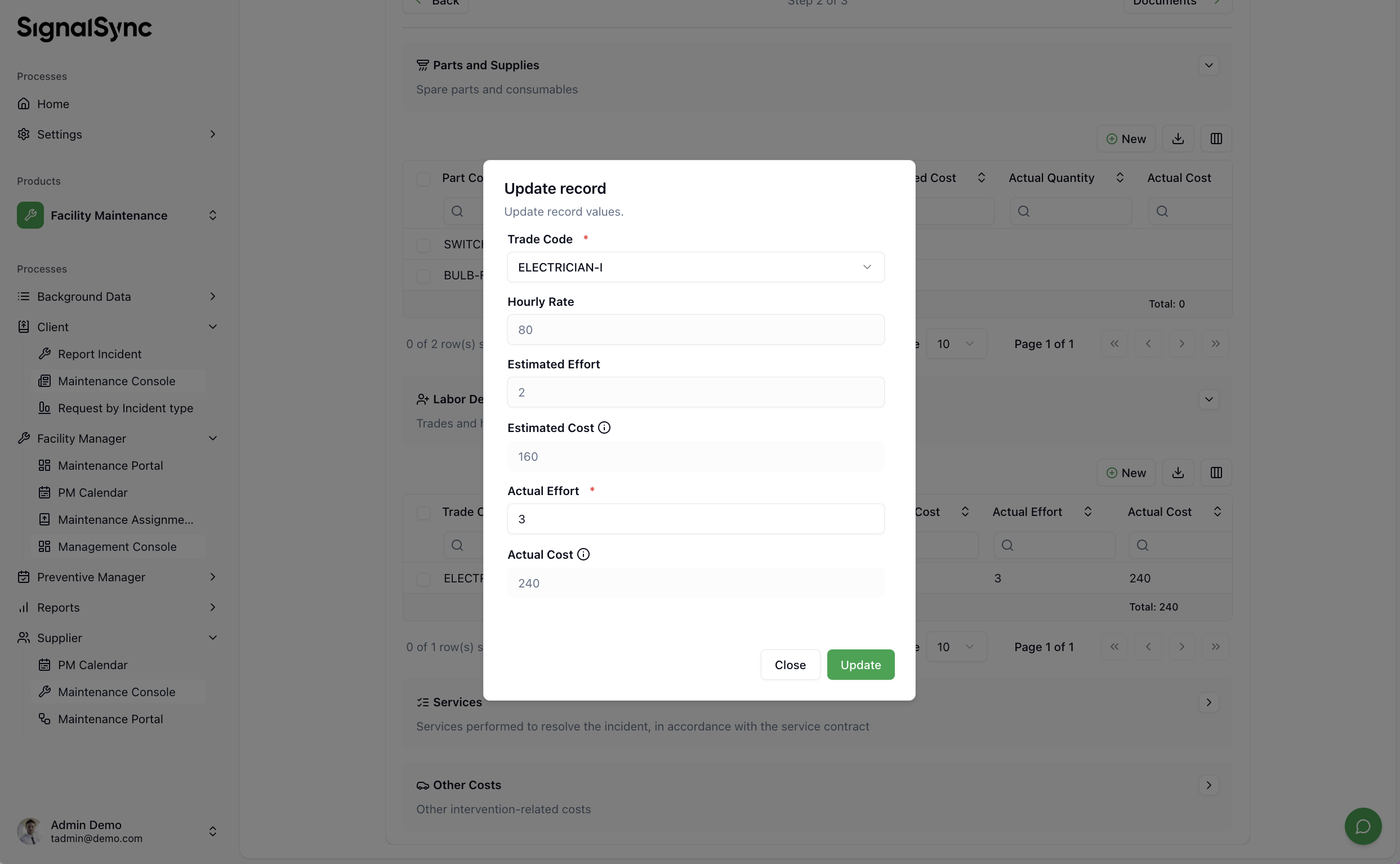
- Actual Costs: Update the estimated costs with the final actual costs (consumed materials, actual hours).
- Observations: Add comments regarding the general condition of the asset in the Provider Observations field.
If the user signs the report on-site using a mobile device with a touchscreen, a Signature field component can be inserted into the form so the Client or Approver can sign directly on the device. The signature is then embedded into the auto-generated document. This scenario is common with courier companies, where the recipient signs with a finger on a touchscreen mobile device at the time of delivery.
Click Completed when all information is filled in and tasks are complete.
Click to view Update Costs
Reporting Issues Found During PM
This is an optional feature that is not activated by default.
If the technician discovers a fault while performing preventive work (e.g., "While cleaning the AC filters, a broken fan blade is found"), they must initiate a Corrective workflow without stopping the Preventive one.
- Action: Click the Report Incident button within the PM ticket.
- Fill the Form:
- Select the Incident Type (e.g., Mechanical, Electrical).
- Describe the issue found (e.g., "Problem found during preventive maintenance").
- Set the Priority.
- Submit: Click Submit and Continue.
Result: The system creates a new, separate Corrective Maintenance ticket for the issue. The current Preventive Maintenance ticket remains open so the technician can finish the rest of the scheduled tasks.
Verification & Closure
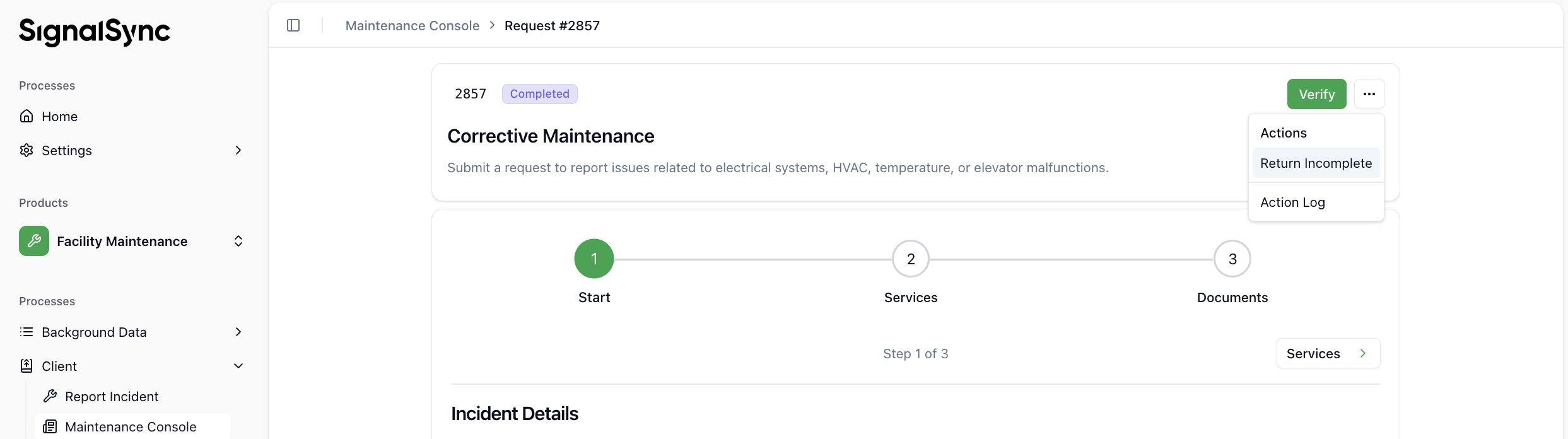
Once the provider marks the request as Completed, it moves to the Supervisor for validation.
- Verification: The Supervisor checks whether the procedure was followed and that the documentation (acceptance protocol) is correct.
- Return Incomplete: If the form is incomplete or the work is unsatisfactory, the ticket is sent back to the provider. Otherwise, pressing Verify allows the ticket to proceed to closure.
Click to view the Verification step
- Closing:
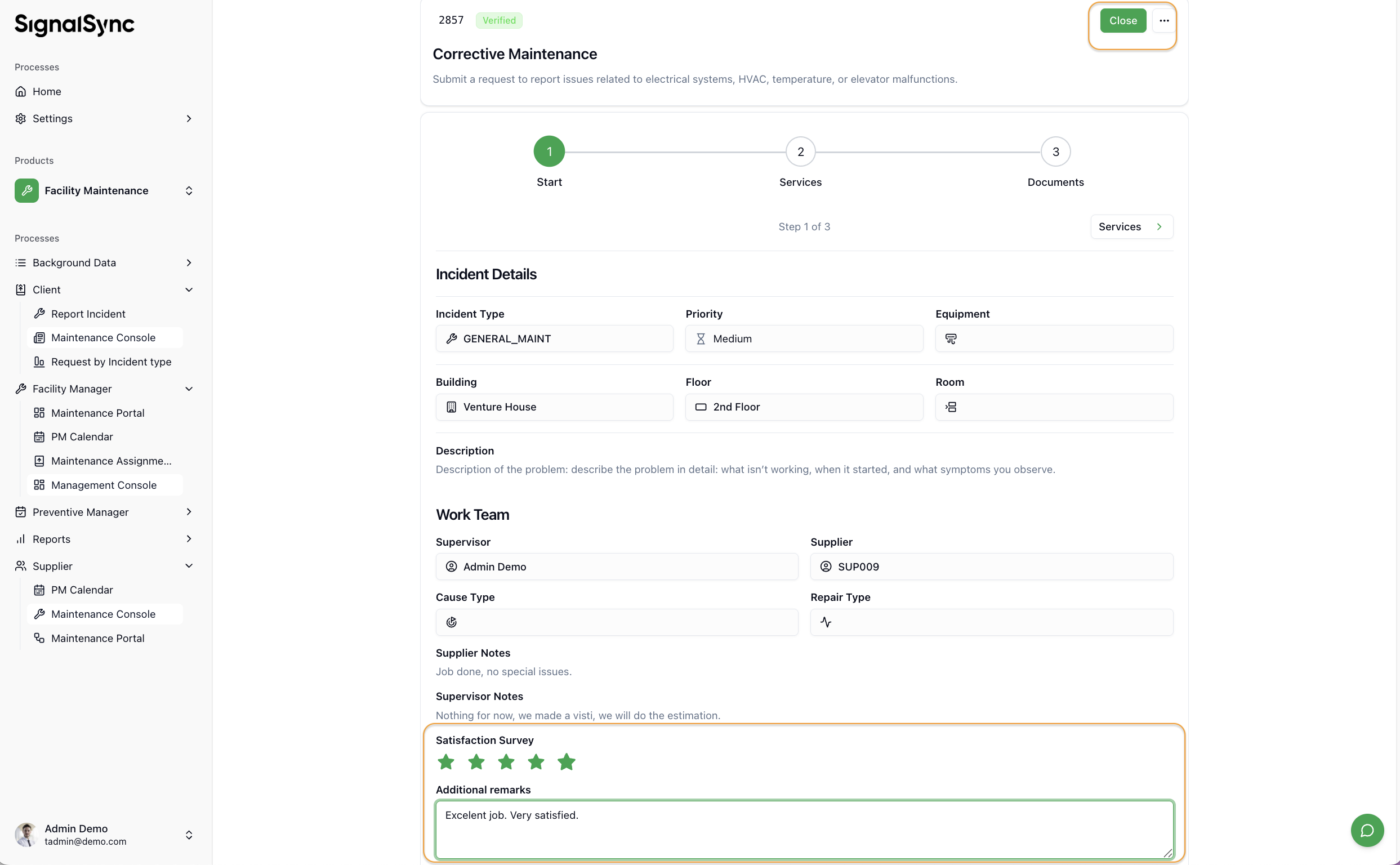
- Close: If everything is correct, the Supervisor gives a rating (stars), adds a comment, and closes the ticket by pressing the Close button.
Click to view the Satisfaction rating