Roles
Roles define who is responsible for performing each step in a workflow. Every User Task in the Designer is assigned a role — at runtime, the application resolves each role to a list of users who are expected to act on the request.
Roles are defined per workflow and per version. When a new workflow version is created, all roles from the previous version are automatically copied so you can adapt them independently without affecting the published version.
Path: Define → Roles
Roles List
The list shows all roles defined across all workflows and versions for the tenant.
Click to view Roles List interface
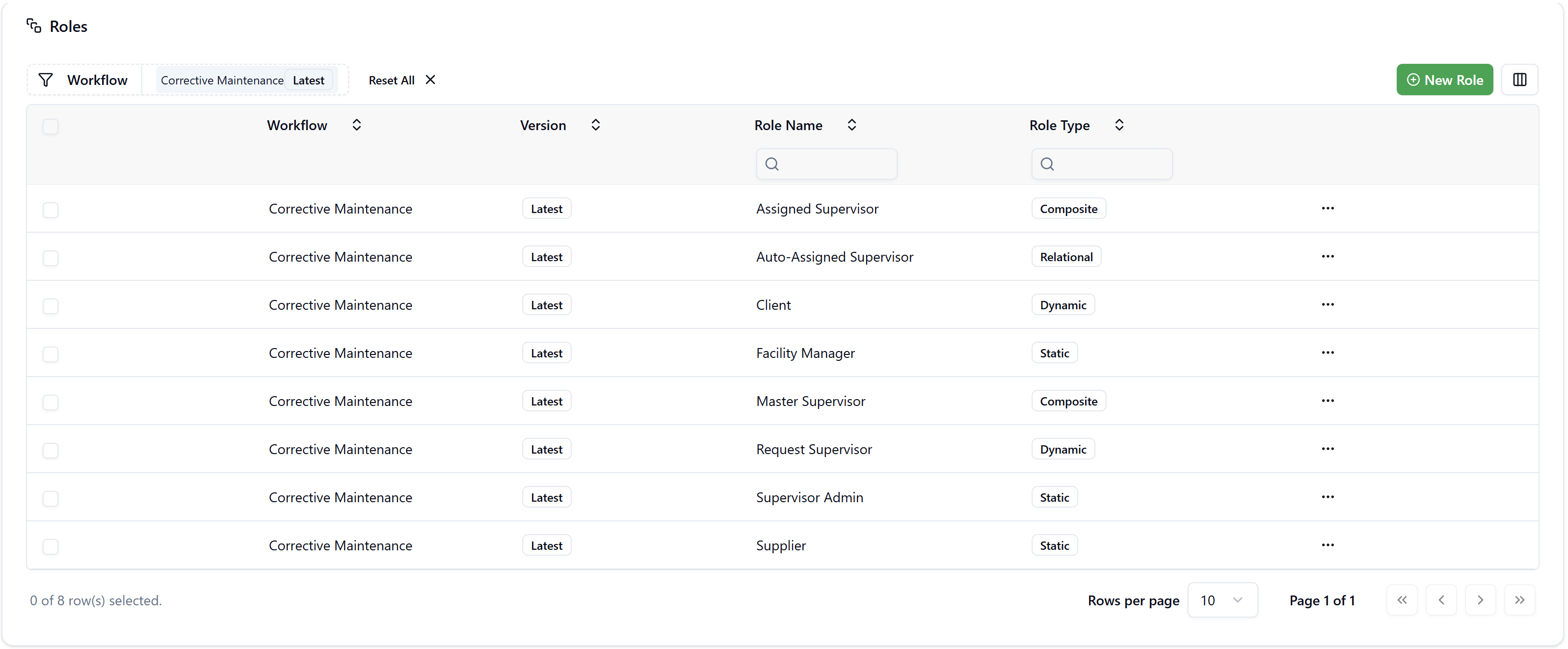
| Column | Description |
|---|---|
| Workflow | The workflow this role belongs to |
| Version | The workflow version (Latest or a specific version number) |
| Role Name | The unique name of the role within the workflow |
| Role Type | Static, Dynamic, Relational, or Composite |
Filtering by Workflow
Click the Workflow filter button to narrow the list by one or more workflows and versions. Multiple selections are supported — for example, you can view roles for both "Corrective Maintenance Latest" and "Corrective Maintenance v1" simultaneously.
Row Actions
Click the ··· menu on any role row to access:
- Edit — opens the role configuration panel.
- Assign users — navigates directly to the user assignment page for that role (available for Static roles).
- Delete — permanently removes the role.
Click New Role (top-right) to create a new role.
Common Role Properties
All role types share these base properties:
| Property | Description |
|---|---|
| Role Name | Unique identifier for the role within the workflow. This name appears in the Designer when selecting a role for a User Task, End Event, or notification event. |
| Role Type | Static, Dynamic, Relational, or Composite |
| Workflow | The workflow this role is associated with, including the version (Latest or a specific version number) |
Static Role
A Static role contains a manually defined list of users. The same users are always assigned to this role regardless of the request content.
Use cases: Facility Manager, Supervisor Admin, a fixed approval committee.
Configuration: After saving the role, click Assign users (available in the edit panel header and in the ··· row menu) to open the user assignment page.
User Assignment Page
The assignment page shows all users currently assigned to the role and allows you to add or remove them.
| Column | Description |
|---|---|
| User Name | The full name of the assigned user |
| The user's email address | |
| Parameters | Reserved for future use |
- Assign users — opens a user picker to add new users to the role.
- Unassign — select one or more rows and click Unassign to remove them from the role. The button shows the count of selected rows (e.g., "Unassign (2)").
When a new workflow version is created, the Static role and its user assignments are copied automatically. You can then update the user list for the new version independently.
Dynamic Role
A Dynamic role resolves its users at runtime based on field values present in the request. Instead of a fixed list of users, the role reads a specific field from the request data and returns the user linked to that value.
Use cases: Client (the requestor), Request Supervisor (the supervisor assigned to the request), Supplier (the supplier recorded on the request).
Configuration: Add one or more Parameters — each parameter is a field from the request that holds a user reference.
Adding Parameters
Click + in the Parameters section to open the field picker. Available fields are grouped into two sections:
Request Fields — system-level fields available on every request:
Status— the current status of the requestRequestor— the user who created the request
All unique fields — form fields defined for this workflow that reference entities which can be resolved to users:
Incident Type(_problem_type)Priority(_priority)Building(_building)Floor(_floor)Room(_room)- Any other entity fields defined in the workflow's forms
Select a field to add it as a parameter. Multiple parameters can be added — the role will return users from all matched fields combined.
Example: The Client role has a single parameter: Requestor. At runtime, the GWE reads the requestor field of the request and returns that user as the role's assignee — ensuring that notifications and tasks are directed to the person who submitted the request.
Example: The Request Supervisor role has a single parameter: Supervisor. At runtime, the GWE reads the supervisor field of the request (populated when the request was dispatched) and returns that user.
Dynamic roles rely on entity-to-user resolution. The system uses the identity link table to convert Employee or Supplier entity references into valid platform users. Ensure that employees and suppliers are correctly linked to their user accounts in the system.
Relational Role
A Relational role uses a parameter-matching assignment table to determine which user should be assigned, based on a combination of values present in the request. This allows you to configure different assignees per building, service type, procedure, or any other combination of request parameters.
Use cases: Auto-Assigned Supervisor (different supervisors per building and service type), auto-assigned supplier per location and procedure.
Configuration
| Property | Description |
|---|---|
| Role User Type | The type of user entity to return — Employees or Suppliers |
| Assignment rules | The assignment rules table to use (defined in Background Data — e.g., "Maintenance Assignment Rules") |
| Available parameters | The parameter columns available in the selected assignment rules table (e.g., Building Code, Procedure Code, Workflow) |
| Selected parameters | The parameters actively used for matching — add them from Available parameters using + |
Assigning Parameter Values (Binding)
Once parameters are selected, click Assign users to configure how each selected parameter maps to a request field. This opens the Assign parameters value dialog.
For each selected parameter, you configure:
| Setting | Description |
|---|---|
| Value (static) | Enter a fixed value directly — the rule will always match using this value |
| Binding (toggle on) | Map the parameter to a field from the request — the value is read dynamically at runtime |
Example configuration for "Auto-Assigned Supervisor":
| Assignment Rule Parameter | Binding | Source Field |
|---|---|---|
| Role | ❌ (static) | Supervisor (fixed value) |
| Service Type | ✅ (binding) | Incident Type |
At runtime, when a corrective maintenance request is submitted with Building = "Trinity Plaza" and Incident Type = "HVAC", the GWE queries the Assignment Rules table, matches the row where Building = Trinity Plaza and Service Type = HVAC, and returns "Supervisor Admin" as the assigned user.
Assignment Rules Table
The assignment rules table is maintained in Background Data → Assignment Rules (within the relevant application, e.g., Facility Maintenance). Each row defines a combination of parameters and the user to assign.
The list shows all roles defined across all workflows and versions for the tenant.
Click to view Assignment Rules List interface
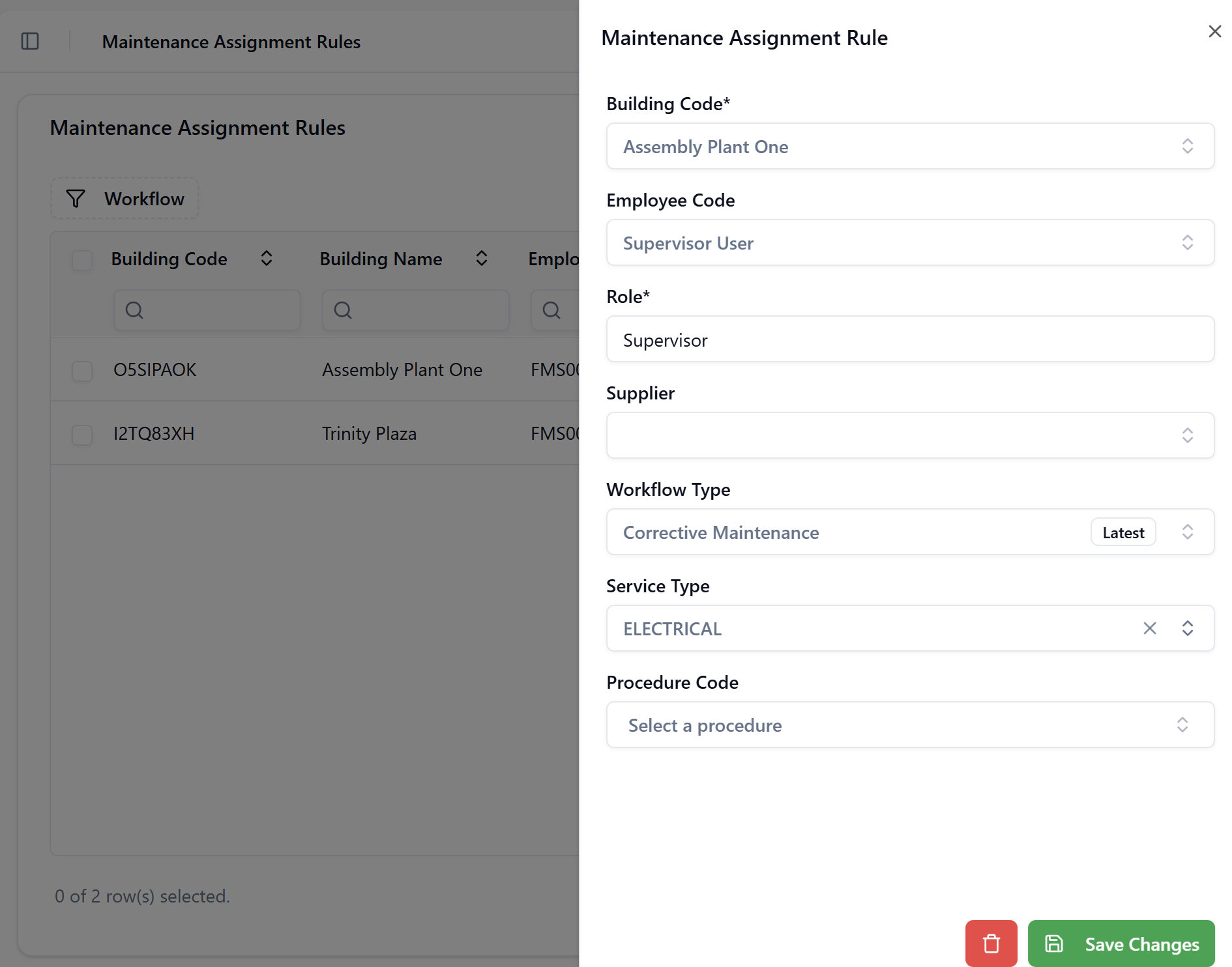
| Column | Description |
|---|---|
| Building Code / Building Name | The building for which this rule applies |
| Employee Code / Employee Name | The employee assigned when conditions match |
| Role | The role name this rule applies to (e.g., Supervisor) |
| Supplier Code / Supplier Name | Alternatively, a supplier can be assigned |
| Workflow Type | The workflow this rule is scoped to |
| Service Type | The service type condition |
Procedure Code is an available parameter on the assignment table. If specified on a rule row, the match requires the request's Procedure field to also match. Leave it empty for a rule that applies to all procedures of a given service type and building.
Composite Role
A Composite role combines the users returned by two or more other roles into a single unified set. At runtime, the GWE resolves each member role independently and merges the results.
Use cases: Ensuring a workflow step is never blocked because the primary assignee is unavailable — by including a backup Static role alongside the primary Dynamic or Relational role.
Configuration: Select two or more existing roles from the same workflow version in the Role list field. Only roles from the same workflow are available.
Example — "Assigned Supervisor" (Composite):
The Assigned Supervisor role combines:
- Auto-Assigned Supervisor (Relational) — the supervisor determined by building and service type
- Supervisor Admin (Static) — a fixed backup user who always has visibility
This means the task will appear in the queue for both the auto-matched supervisor and the designated Supervisor Admin, preventing the workflow from stalling if the primary user is unavailable.
Example — "Master Supervisor" (Composite):
Combines multiple Static or Dynamic roles to create a higher-level oversight role that aggregates all supervisors for escalation or administrative review steps.
A Composite role requires at least two member roles. The UI confirms the count with a green "N roles selected" indicator.
Role Versioning
Roles are scoped to a specific workflow version. The Version column in the list displays either Latest (the currently active development version) or a version number (e.g., 1, 2) for older published versions.
When a new workflow version is created from the Details tab:
- All roles from the previous version are automatically copied to the new version.
- The copies are independent — changes to roles in the new version do not affect the published version.
- User assignments on Static roles are also carried over.
This allows you to update role definitions, add new users, or change assignment rules for an upcoming version while the current published workflow continues operating unchanged.
Troubleshooting
Why is a role not appearing in the Designer's role selector?
The Designer only shows roles that belong to the same workflow and the same version currently being edited. If you created a role for a different version, it will not appear. Check the Version column in the Roles list and ensure the role is associated with the Latest version of the workflow you are designing.
Can I use the same role name in different workflows?
Yes. Role Names must be unique within a workflow version but can be reused across different workflows. For example, every workflow can have its own "Client" Dynamic role pointing to the requestor field.
What happens if the Relational role finds no matching assignment rule?
If no row in the assignment rules table matches the request's parameter values, the role returns no users for that request. This means the corresponding User Task will have no assignees and users may not receive notifications. Ensure your assignment rules table has coverage for all expected combinations of building, service type, and other parameters. Consider adding a catch-all row with a Static backup user.
Why use a Composite role instead of assigning multiple roles directly to a User Task?
A User Task accepts only one role. A Composite role is the mechanism for combining multiple resolved user lists into a single role that can be assigned to a task. This pattern is also useful for notifications — you can send an alert to a Composite role and reach all relevant users in a single event configuration.