Workflows
The Workflows page allows you to create, configure, and manage business process workflows in SignalSync. Each workflow represents a business process with defined stages, forms, roles, and automation rules.
Overview
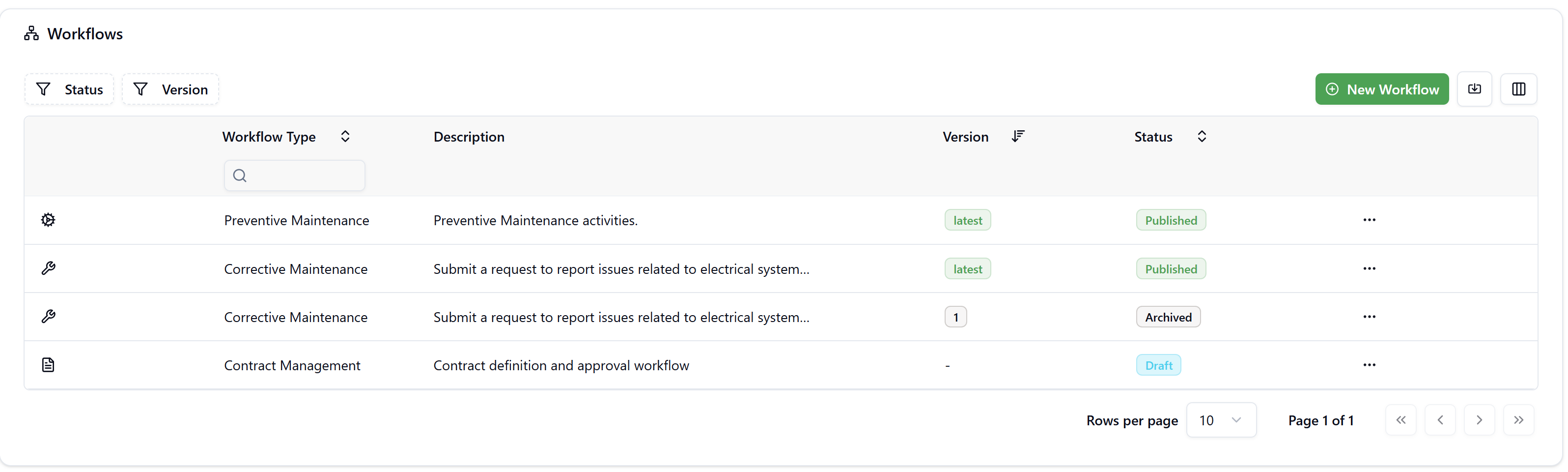
Access the Workflows page from Define → Workflows in the navigation menu. This page displays all workflows in your organization, including different versions and statuses of each workflow type.
Workflow Statuses
Each workflow exists in one of three statuses that control its availability and usage:
Draft
Draft is the initial status when a workflow is created or when a published workflow is unpublished.
- Workflow is not yet finalized and requires validation before publishing
- Users cannot create requests using draft workflows
- Workflow is not visible in the Workflows Portal or Management Console
- Full editing capabilities available (statuses, forms, designer, roles, notifications, SLA, templates)
- Version number is displayed as "-" (dash)
Published
Published workflows are finalized and available for users to create requests.
- Users can create new requests using this workflow
- Workflow appears in the Workflows Portal with a "Manage" button
- Requests created with this workflow are visible in management consoles
- Limited editing (only description, image, icon, and visible fields)
- The latest published version is marked with "latest" badge
- Only one published version per workflow type can exist at a time
Archived
Archived workflows are previous versions that were automatically archived when a new version was published.
- Used only for existing requests created when this version was published
- Not available for creating new requests
- Not visible in the Workflows Portal
- Displays version number (1, 2, 3, etc.)
- Very limited editing (description only)
- Cannot be published directly
Workflow Versioning
SignalSync supports multiple versions of the same workflow type to enable continuous process improvement without disrupting active requests.
Version Management
- Workflow Type: The unique identifier for a workflow (e.g., "Corrective Maintenance", "Preventive Maintenance")
- Version Number: Each workflow type can have multiple versions (1, 2, 3, etc.)
- Latest Version: The currently published version used for new requests, marked with "latest" badge
- Version Increment: Automatically incremented when a new version is published
Version Lifecycle
- Initial Creation: New workflow starts as Draft with version "-"
- First Publication: Draft becomes Published with version "latest"
- Creating New Version: Use "New Version" action on published workflow
- Publishing New Version:
- Current published version automatically becomes Archived
- Version number is incremented (e.g., version 1, 2, 3)
- New version becomes Published with "latest" badge
- Existing Requests: Continue using their original workflow version (now archived)
Use versioning to improve workflows in production without affecting existing requests. The system maintains backward compatibility automatically.
Creating a New Workflow
To create a new workflow:
- Click the New Workflow button in the top-right corner
- The "Create Workflow" dialog appears
Template Selection
Choose a template to start with:
- Default: Basic workflow template with standard status progression (New → In Progress → Completed)
- Corrective Maintenance: Pre-configured for corrective maintenance with specialized form fields and workflow stages
- Preventive Maintenance: Pre-configured for preventive maintenance activities with PM-specific fields like Procedure Code, Schedule Code, Parts, Trades, Services, and Other Costs
When selecting a template, the application generates mandatory form fields that cannot be deleted. Some template fields are read-only (e.g., Procedure Code, Schedule Code). You can add additional fields but cannot edit or remove template-generated fields.
Workflow Type
Enter a unique Workflow Type name. This is the identifier for your workflow and must be unique across all workflows in your organization.
- Click Create Workflow to create the draft workflow
- Configure the workflow using the available tabs (Details, Status, Forms, Designer, SLA, Templates)
Importing a Workflow
Import allows you to restore or transfer workflows between environments using previously exported workflow packages.
- Click the Import button in the top-right corner
- The "Import Workflow" dialog appears
- Upload the workflow package:
- Drag and drop a ZIP file, or
- Click to select a file (maximum 10 MB)
The ZIP file must contain the exported workflow structure including:
- Workflow configuration and metadata
- Status definitions
- Form definitions
- BPMN process design
- Role assignments
- Notification configurations
- Rule chain assignments
- Document templates
- SLA definitions
- After successful import:
- A new workflow is created in Draft status
- The workflow name includes a timestamp (e.g., "Mentenanta Corectiva - 20260121134255")
- You should rename the workflow to remove the timestamp
- All workflow components are imported and ready to configure
Workflow List View
The workflows list displays all workflows with the following columns:
- Icon: Visual indicator for the workflow type
- Workflow Type: Name of the workflow
- Description: Brief description of the workflow purpose
- Version: Version number or "latest" badge
- Status: Current status (Draft, Published, Archived)
- Actions: Context menu with available actions (•••)
Filtering
Use the filter buttons at the top to refine the workflow list:
Status Filter
Click the Status filter to show/hide workflows by status:
- Draft
- Published
- Archived
Version Filter
Click the Version filter to show workflows by version:
- Latest (currently published versions)
- Specific version numbers (1, 2, 3, etc.)
Reset Filters
Click Reset All (X) to clear all active filters and display all workflows.
Search
Use the search box under Workflow Type column to filter workflows by name. The search filters results in real-time as you type.
Pagination
Use pagination controls at the bottom of the list:
- Rows per page: Select 10, 25, 50, or 100 rows
- Page navigation: Navigate between pages using arrows (‹ › ‹‹ ››)
- Page indicator: Shows current page and total pages (e.g., "Page 1 of 2")
Actions by Workflow Status
The actions available for each workflow depend on its current status. Access actions by clicking the context menu (•••) for any workflow.
Draft Workflow Actions
Edit
Opens the Details tab to configure workflow settings:
- Template (read-only after creation)
- Workflow Type (read-only after creation)
- Description
- Image (for Workflows Portal display)
- Icon (for visual identification)
Navigate between tabs to configure all workflow aspects:
- Details: Basic configuration
- Status: Define workflow statuses
- Forms: Create and manage forms
- Designer: Design the BPMN process flow
- SLA: Configure service level agreements
- Templates: Set up document templates
Duplicate
Creates a complete copy of the workflow for reuse or modification.
What gets copied:
- Workflow configuration (except image)
- Status definitions
- All forms in their current status
- All workflow roles
- Notifications configuration
- Designer flowchart (without assigned forms and roles)
- Rule chain assignments
- Document templates
- SLA definitions
New workflow details:
- Name: "Copy of [Original Workflow Type]"
- Status: Draft
- All components ready for modification
Use case: Create similar workflows quickly by duplicating and modifying an existing one.
Only one draft workflow can exist with the name "Copy of [Workflow Type]". If you attempt to create another duplicate before renaming or publishing the first one, you'll receive an error message.
Export
Generates a downloadable ZIP package containing all workflow components.
The export package includes:
- Workflow configuration file
- Status definitions
- Form definitions
- BPMN process design
- Role configurations
- Notification settings
- Rule chains
- Document templates
- SLA configurations
Use cases:
- Backup workflows before major changes
- Transfer workflows between environments (Dev → UAT → Production)
- Share workflow templates with other teams
Refresh
Regenerates pending steps in the Action Log (wf_action_log table) by rechecking role assignments.
When to use:
- After organizational changes that affect role assignments
- When employees are no longer available to perform assigned tasks
- When role definitions have been updated
How it works:
- Reviews all pending steps in active requests
- Recalculates role assignments based on current role definitions
- Removes pending steps if the current role definition returns different users
- No notifications are sent during refresh
Impact:
- Pending steps may be reassigned to different users
- Users who no longer match role criteria will lose their assignments
- Helps maintain accurate task assignments after organizational changes
Use Refresh carefully as it will update all pending assignments for this workflow. Ensure role definitions are correct before refreshing.
Publish
Makes the workflow available to users for creating requests.
Validation process:
- Click Publish action
- System performs validation checks
- If errors exist:
- Dialog displays "Workflow Validation Required" message
- Click Open in Designer to view errors
- Designer shows red exclamation marks on problematic elements
- Hover over marks to see error details
- Click Validations button in top-right to see full error list
- Click any error to navigate to the problematic element
Common validation errors:
- User task is using a form that is not published
- Missing role assignment on user task
- Invalid gateway configuration
- Disconnected flow elements
- Fix all validation errors
- Click Save Changes
- Attempt to publish again
Publication dialog:
Configure publication settings:
- Title: Display name for management console
- Description: Detailed description of workflow purpose
- Visible Fields: Select which fields appear in the management view
- Click Select fields to choose visible columns
- Drag fields to reorder them
- Click Publish Workflow to complete
What happens on publish:
- Workflow status changes from Draft to Published
- Workflow becomes available in Workflows Portal
- Users can create new requests
- If another published workflow exists with the same Workflow Type:
- Existing published workflow becomes Archived
- Version number increments
- New workflow becomes "latest" version
Choose visible fields carefully. These fields will appear in the management console table and should provide the most relevant information for managing requests.
Published Workflow Actions
Edit
Opens the Details tab with limited editing capabilities.
Editable fields:
- Description
- Image
- Icon
Non-editable:
- Template
- Workflow Type
- Statuses
- Forms
- Designer (BPMN process)
- Roles
- Notifications
- SLA
- Templates
Reason for restrictions: Published workflows are in production use. Allowing structural changes could break existing active requests.
To make structural changes to a published workflow, use the New Version action instead.
Edit Publish
Quick access to modify management console settings without full editing.
Editable settings:
- Title (management console display name)
- Description
- Visible Fields (columns in management view)
- Field order
Click Save Changes to update the management view immediately.
Use case: Adjust which fields are visible to users managing requests without creating a new version.
Duplicate
Same functionality as Draft duplicate action.
Creates "Copy of [Workflow Type]" in Draft status with all configurations copied.
Export
Same functionality as Draft export action.
Generates ZIP package with complete workflow configuration.
New Version
Creates a new draft copy of the published workflow to develop the next version.
Process:
- Click New Version action
- System checks if a draft version already exists
- If draft exists:
- Error message: "A new version of this workflow is already in draft status."
- No new workflow created
- Edit or publish the existing draft first
- If no draft exists:
- Creates new workflow in Draft status
- Copies all configuration from published version
- Same Workflow Type
- Version shows "-" (draft indicator)
What gets copied:
- Complete workflow configuration
- All statuses
- All forms
- Designer flowchart
- Role assignments
- Notifications
- Rule chains
- Document templates
- SLA settings
- Make desired changes to the draft version
- Publish when ready:
- Current published version becomes Archived
- Version number increments (e.g., 2 becomes 3)
- New version becomes Published with "latest" badge
Use case: Standard method for updating production workflows without disrupting existing requests.
Always use New Version for production workflow changes. This ensures existing requests continue using their original workflow version while new requests use the improved version.
Refresh
Same functionality as Draft refresh action.
Regenerates pending steps based on current role definitions.
Unpublish
Converts a published workflow back to draft status for editing.
Confirmation dialog: "This action will unpublish the workflow and it will no longer be available to users. Are you sure you want to continue?"
Click Unpublish to proceed.
What happens:
- Workflow status changes from Published to Draft
- Workflow removed from Workflows Portal
- No new requests can be created
- Existing requests may be affected if changes are made
Unpublish should NEVER be used in production environments with active requests. This action can irreversibly damage existing requests if you make changes that are incompatible with the original workflow structure.
Risk scenarios:
- Adding/removing user task blocks breaks request execution
- Changing status definitions disrupts request state
- Modifying forms can corrupt request data
- Altering the process flow causes requests to become stuck
When to use Unpublish:
- Testing environments (UAT)
- Business analysis phase
- Maintenance windows (when system is not accessible to users)
- Only when you are certain no active requests exist
Production best practice: Always use New Version to update production workflows. This preserves existing requests while implementing improvements.
After unpublishing, the workflow is fully editable. You can:
- Modify statuses, forms, and process design
- Add/remove blocks and connections
- Update roles and notifications
- Change SLA and templates
Use this option with extreme caution and only in appropriate environments.
Archived Workflow Actions
Edit
Opens the Details tab with extremely limited editing.
Editable:
- Description only
Non-editable:
- Template
- Workflow Type
- Image (changes won't display as the latest version image is shown)
- Icon
- All other configurations
Reason: Archived workflows are historical versions. Their configuration must remain unchanged to maintain compatibility with existing requests created using this version.
Duplicate
Same functionality as Draft and Published duplicate actions.
Creates "Copy of [Workflow Type]" in Draft status.
Only one "Copy of [Workflow Type]" can exist in Draft status at a time. If you attempt to duplicate when a copy already exists, you'll receive an error:
Server error
ERROR: duplicate key value violates unique constraint "uc_fdaa3ae82cf7501287df294bac"
Detail: Key (wf_type, tenant_id)=(Copy of Preventive Maintenance, 6d8ec13c-bdcb-45fc-8bae-737920a98951) already exists.
Rename or publish the existing copy before creating another duplicate.
Export
Same functionality as Draft and Published export actions.
Generates ZIP package with complete workflow configuration.
Refresh
Same functionality as Draft and Published refresh actions.
Regenerates pending steps for existing requests using this archived version.
Use case: Archived workflows still have active requests. Refresh updates role assignments for these legacy requests based on current role definitions.
Publish
Action is available in the menu but will return an error.
Error message: "Only workflows in status [DRAFT] can be published"
Reason: You cannot publish an archived workflow directly. Archived workflows are historical versions and must remain unchanged. To use an archived workflow's configuration:
- Use Duplicate to create a draft copy
- Edit the draft as needed
- Publish the draft
Navigation Tabs
When viewing or editing a workflow, you'll see these tabs:
- Details: Basic workflow configuration (template, type, description, image, icon)
- Status: Define workflow statuses and transitions
- Forms: Create and manage forms for data collection
- Designer: Design the BPMN process flow with tasks, gateways, and connections
- SLA: Configure service level agreements and deadlines
- Templates: Set up document generation templates
Each tab will be documented in detail on separate pages. This page focuses on workflow list management and core actions.
Workflow Portal Integration
Published workflows automatically appear in the Workflows Portal where users can:
- View available workflows as cards with images
- Click Manage to access the management console
- View open requests
- View completed requests
- Create new requests (if they have permission)
The management console displays requests in a table with the visible fields configured during publication.
Best Practices
Development Workflow
- Create workflow from template or default
- Configure all tabs (Details, Status, Forms, Designer, SLA, Templates)
- Test in development environment
- Export and import to UAT environment
- Validate with business users
- Export and import to production
- Publish in production
Version Management
- Never unpublish production workflows with active requests
- Always use New Version for production updates
- Test new versions thoroughly in UAT before publishing
- Document changes between versions
- Communicate version updates to users
Workflow Organization
- Use clear Workflow Type names that describe the business process
- Add detailed descriptions explaining workflow purpose and usage
- Choose appropriate images for easy visual identification
- Configure visible fields to show the most relevant information
- Export backups before major changes
Template Usage
- Use templates when available to ensure best practices
- Understand template constraints before starting
- Don't fight template fields - work with the mandatory structure
- Extend templates with additional fields as needed
Common Error Messages
"A new version of this workflow is already in draft status"
Cause: Attempting to create a new version when a draft already exists for this workflow type.
Solution: Find the existing draft workflow, either publish it or delete it, then create a new version.
"Workflow Validation Required"
Cause: Attempting to publish a workflow with validation errors.
Solution: Open Designer, review validation errors, fix all issues, save changes, then publish again.
"Only workflows in status [DRAFT] can be published"
Cause: Attempting to publish an archived workflow.
Solution: Duplicate the archived workflow to create a draft, then publish the draft.
"Duplicate key value violates unique constraint"
Cause: Attempting to create a duplicate when "Copy of [Workflow Type]" already exists in draft status.
Solution: Rename or publish the existing copy, then create the duplicate again.
Summary
The Workflows page provides comprehensive workflow lifecycle management with:
- Three status levels (Draft, Published, Archived) controlling workflow availability
- Versioning system enabling continuous improvement without disrupting active requests
- Template support for rapid deployment of common workflow patterns
- Import/Export capabilities for workflow portability
- Flexible filtering and search for efficient workflow management
- Context-sensitive actions appropriate for each workflow status
Understanding workflow statuses, versioning, and appropriate use of actions is essential for maintaining stable, efficient business processes in SignalSync.